
Request signatures on a PDF
Add the people who need to sign, place each person's fields, send, and get the completed PDF plus a certificate of completion when everyone is done.
Drop a PDF hereLet go to start
or paste with Ctrl/⌘+V
Start without an account. A free account includes 3 signature requests a month. See plans
What it does
Request signatures, explained
To request signatures on a PDF, add each recipient's name and email, place the fields they must complete (signature, initials, date, text, checkboxes), choose the signing order, and send; each person gets a private link, signs in the browser without an account, and everyone receives the completed PDF when the last signature is in. This is what people mean by “send to sign” or “get a document signed”.
Read more
Recipients have roles. Signers complete their fields. Approvers review and approve without placing a signature. CC recipients receive the completed copy. Fields are color-coded per recipient, so you can see at a glance that the landlord's signature is on page 6 and the tenant's initials are on every page.
Signing order is either sequential — the second person is invited only after the first finishes, useful when a manager countersigns — or parallel, where everyone gets the link at once. You can set automatic reminders every few days and an expiry date. The request page shows each recipient as sent, viewed, signed or declined; a decline includes the reason, and you can remind, cancel or resend.
Every signer signs with their own cryptographic key. Their browser generates an ECDSA P-256 key that never leaves their device and signs a statement binding the document's SHA-256 fingerprint to exactly what they entered; PDFBetter's certificate authority certifies that key, and its fingerprint is printed on the certificate of completion. Signature requests are designed to the technical requirements of an advanced electronic signature (eIDAS art. 26): a unique key per signer, under their sole control, linked to the document so any change is detectable. Signers are identified by email (and an optional emailed code), not by ID documents or SMS.
Before signing, each signer reads the full ESIGN consumer disclosure (what the consent covers, how to get a paper copy, how to withdraw consent or change their email, and the hardware and software needed) and can choose to sign electronically, ask for paper or decline. You can require any signer to enter a 6-digit code emailed to them before they can open the document, on every plan including Free.
When you send, the document is locked: its exact bytes are fingerprinted so nobody can change the text under the signatures. On completion, every signed PDF and its certificate of completion are digitally sealed with a PAdES signature from “PDFBetter Document Seal” and, when the service is reachable, independently time-stamped under RFC 3161 by DigiCert. Change one byte and PDF readers show the file as modified. The certificate lists each event (sent, viewed, consented, signed) with time, email and IP address, chained by hashes, and the sealed PDF carries the signing evidence inside it: the signed statements, device signatures, key certificates, entered values and audit trail. Completed evidence is kept for 7 years, even if you delete the document or your account. You can prepare everything as a guest; sending needs a free account, which includes 3 signature requests a month (unlimited on Pro).
In the app
What it looks like
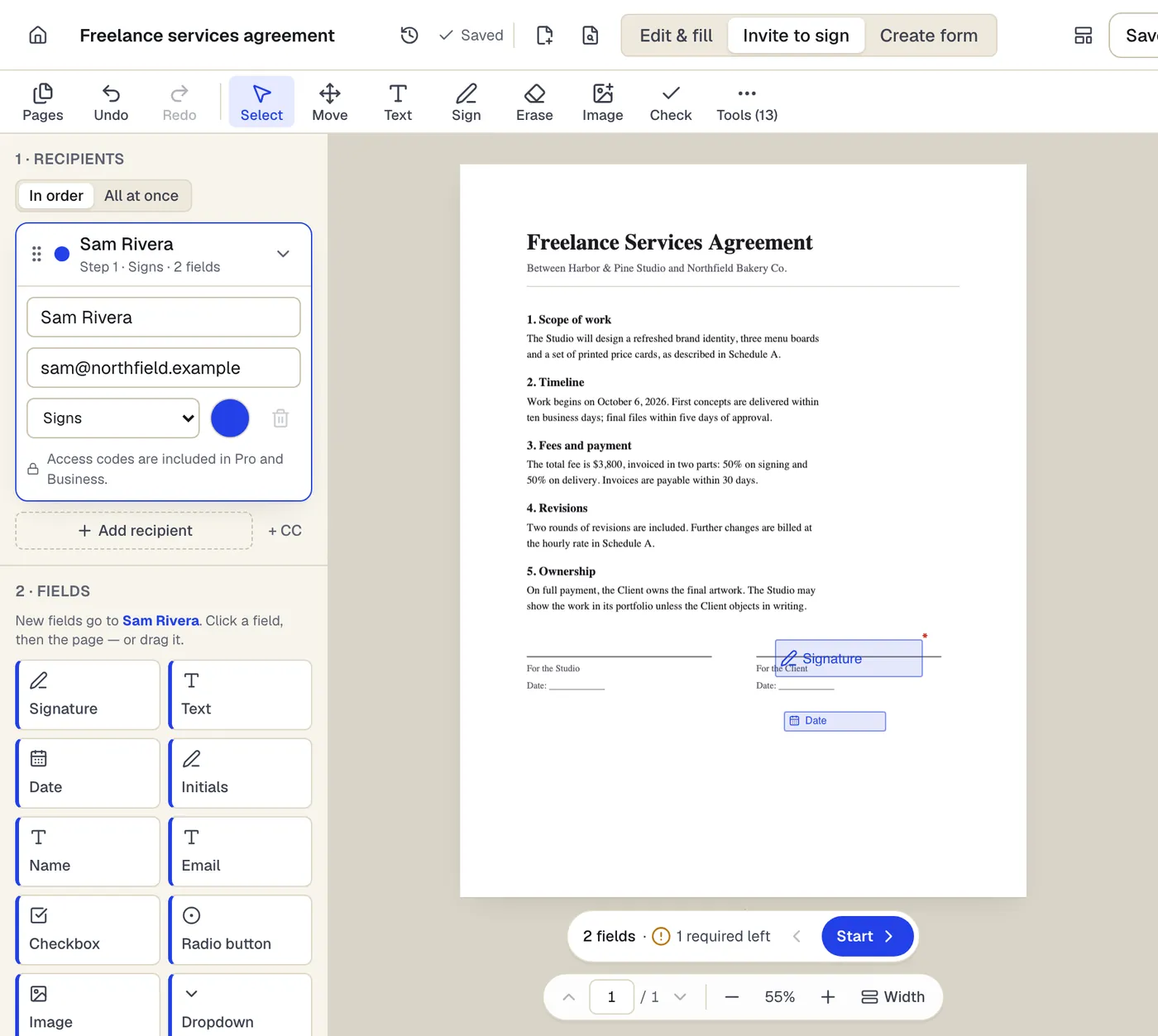
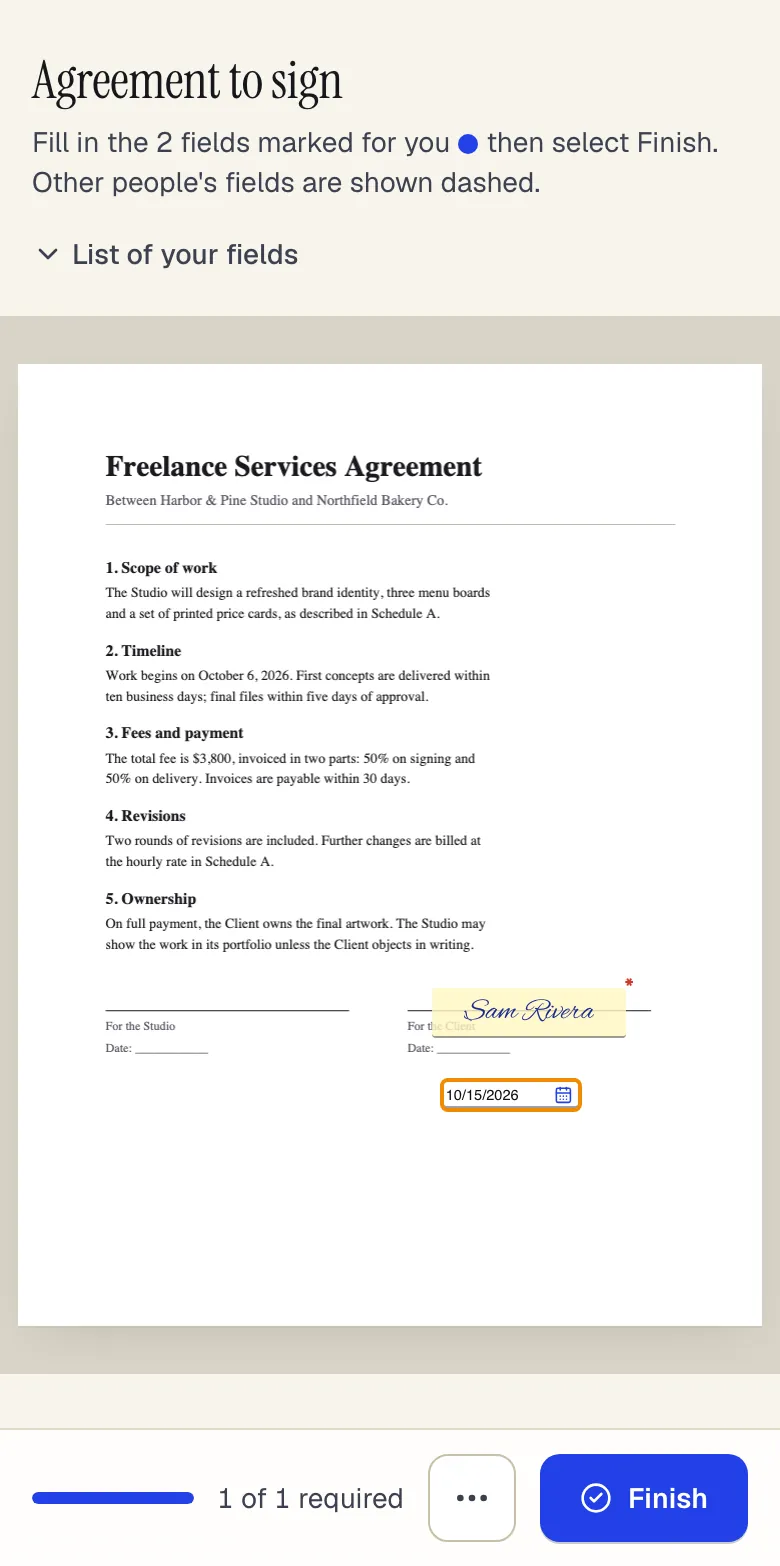
- Recipients sign in order, or all at once
- Fields take the color of the person who fills them
- Fields go to the selected recipient
Invite to sign in the editor, and what the signer sees on a phone. Sample content; names and companies are fictional.
How to do it
Request signatures on a PDF in 5 steps
1The document
2Add signers and fields
3Signed by everyone
- 1
Upload the PDF
The signing setup opens with a panel for recipients.
- 2
Add recipients
Name, email and role (signer, approver or CC) for each person; choose sequential or parallel order.
- 3
Place each person's fields
Pick a recipient, then drop signature, initials, date, text or checkbox fields where they should act. Mark fields required.
- 4
Write a message and send
Add a subject and note, optional reminders and expiry, then send. Create a free account at this step if you have not.
- 5
Track and download
Watch status per recipient; download the completed PDF and certificate when everyone has signed.
Example
Before and after
A 6-page residential lease that needs the tenant's initials on every page, the tenant's signature and date on page 6, and then the landlord's countersignature.
Sequential request: tenant first (6 initials fields, signature, date), landlord second (signature, date), property manager CC'd. Completed in two days; both parties and the CC received the flattened, sealed signed lease and a certificate of completion listing every event.
Settings & formats
What you can control
- Roles
- Signer, approver or CC for each recipient.
- Signing order
- Sequential (one after another) or parallel (all at once).
- Reminders and expiry
- Automatic reminder emails every few days, and a date after which the request expires.
- Recipient verification
- Email link by default; an emailed 6-digit one-time code on every plan; an access code you share by phone or text on Pro and Business.
- Field assignment
- Every field belongs to one recipient; they only see and complete their own fields.
Input
Output
Good to know before you start
- Invitations and one-time codes go by email only. There is no SMS delivery or SMS codes, phone authentication, in-person kiosk signing or notarization.
- Signer identity is checked by access to the email inbox, plus an optional emailed one-time code or access code. Knowledge-based questions and government ID checks are not offered.
- A sent document cannot be edited. To change wording or fields, cancel the request and send a new one.
- Signatures are not qualified electronic signatures (QES). Documents that legally need a QES, notarization, wet ink or witnesses still need those.
- The seal certificate comes from PDFBetter's own certificate authority, which is not yet on Adobe's trust list, so Acrobat shows the seal's identity as not verified; change detection still works.
- The Free plan includes 3 signature requests a month; bulk sending to many recipients is a Business feature.
If something goes wrong
If something goes wrong
- A recipient says they never got the email.
- Check the address on the request page, ask them to search spam for the sender name, then use Remind. If the address was wrong, cancel and resend to the correct one.
- The second signer has not been invited.
- In sequential order, each person is invited only after the previous one finishes. Check who is still pending and send them a reminder.
Request signatures: questions people ask
Do signers need a PDFBetter account?
No. Each recipient opens their private link, agrees to sign electronically, completes their fields and finishes, all in the browser.
Can I sign the document too?
Yes. Add yourself as a recipient and put yourself first or last in the order, depending on whether you sign before or after the others.
What happens if someone declines?
The request stops, you see their reason on the request page, and other recipients are not asked to continue. You can fix the issue and send a new request.
Is this an advanced electronic signature?
Signature requests are designed to the technical requirements of an advanced electronic signature (eIDAS art. 26): a unique key per signer, under their sole control, linked to the document so any change is detectable. Signers are identified by email (and an optional emailed code), not by ID documents or SMS. They are not qualified electronic signatures, and whether a signature meets a legal requirement depends on the applicable law.
What is the certificate of completion?
A PDF listing each recipient and each event — sent, viewed, consent, signed — with times, emails and IP addresses, fingerprints of the original and completed documents, and each signer's device-key certificate fingerprint. It is sealed like the signed PDF.
Why does Acrobat say the seal's validity is unknown?
The seal certificate is issued by PDFBetter's own certificate authority, which is not yet on Adobe's trust list, so Acrobat cannot confirm who applied it unless you trust PDFBetter's certificate. It still detects changes: if the file is edited after completion, the reader shows it as modified.
How do automatic reminders work?
You choose an interval in days when sending. Recipients who have not finished get a reminder email at that interval until they sign, decline or the request expires.
How many signature requests can I send for free?
A free account includes 3 signature requests a month. Pro and Business include unlimited requests.