
Merge PDF files
Drop in two or more PDFs, set the file and page order, and download one combined PDF.
Drop your PDFs hereLet go to start
or paste with Ctrl/⌘+V · select 2 or more
Free, no account needed — download as soon as it's done. See plans
What it does
Merge PDF, explained
To merge PDFs, add the files, drag them into order and click Merge: PDFBetter joins them end to end into a single PDF on your device. It suits a signed contract plus its exhibits, a month of receipts, or chapters exported separately from a word processor.
Read more
Before anything is generated you see the combined page order as thumbnails. Open the page view to move single pages between files, rotate a sideways scan, or drop a blank page, so the file you download matches what you previewed. Each page keeps its original size and orientation; a landscape spreadsheet page stays landscape next to portrait letters.
Merge is for one output from a handful of PDFs. If you are building a packet from PDFs and photos with a bookmark per item, use Assemble PDF. If you need several merged files at once, say one per client, Batch merge runs separate merge groups in one go. To pull a few pages out of a file instead, use Extract pages.
Because merging runs in your browser, your files are not uploaded and the download is free without an account. The trade-off is that very large jobs depend on your device's memory, which we explain below.
In the app
What it looks like
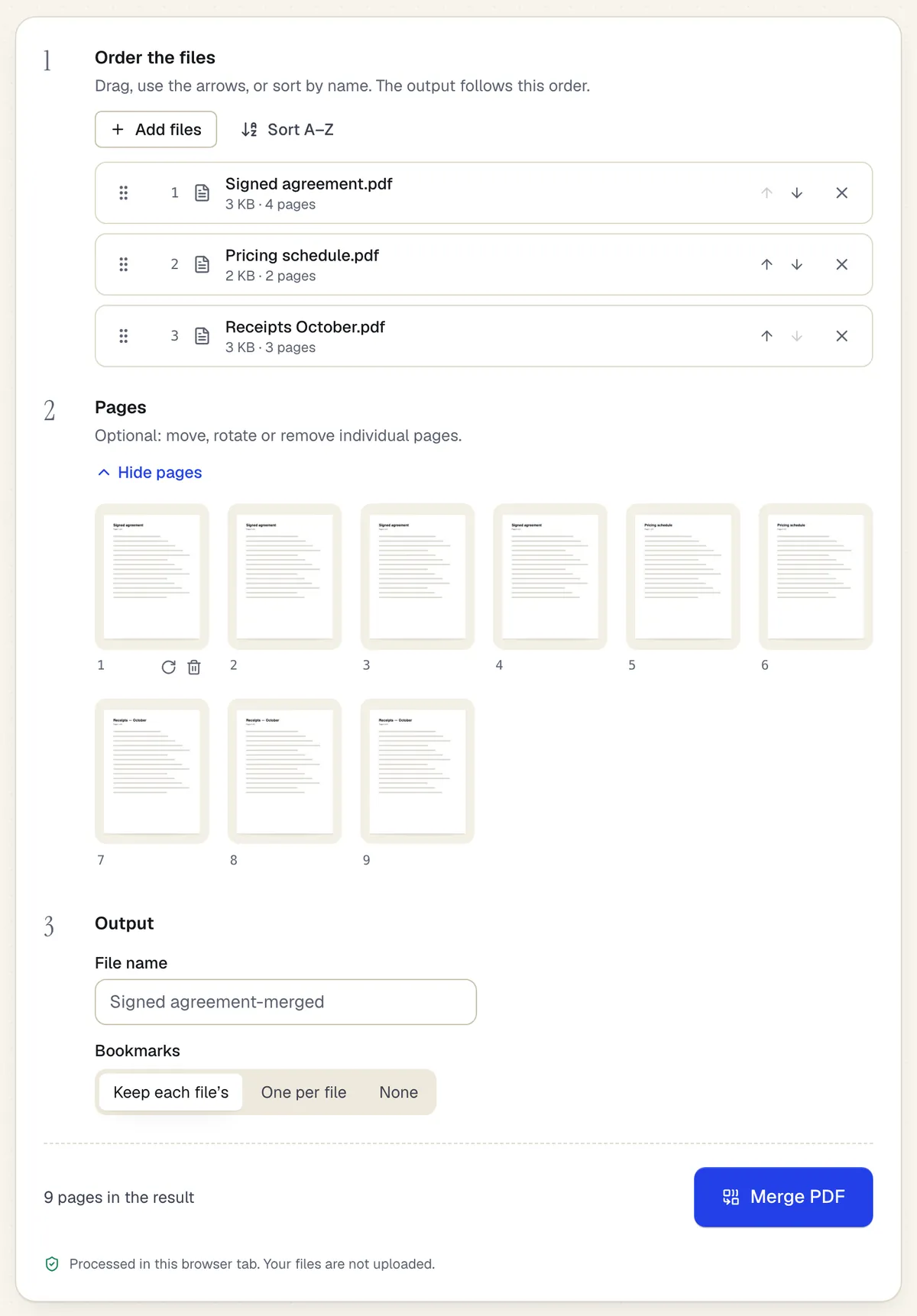
- Reorder whole files with drag or arrows
- Or move, rotate and remove single pages
- Processed in the browser tab — the files aren't uploaded
The Merge PDF workspace on this page, with three files added. Sample content; names and companies are fictional.
How to do it
Merge PDF files in 4 steps
1Several files
2Set the order
3One combined PDF
- 1
Add your PDFs
Drop two or more PDFs, up to 20 files per job without an account (30 on the Free plan, more on paid plans). Files that need a password to open must be unlocked first.
- 2
Set the order
Drag files into order, or sort by name. Open “Pages” to reorder, rotate or remove individual pages across all files.
- 3
Check the preview
The thumbnail strip shows the final page sequence and total page count of the combined file.
- 4
Merge and download
Click Merge. The file is built on your device and the download starts when it finishes.
Example
Before and after
Three files: a 4-page signed service agreement (portrait Letter), a 2-page pricing schedule (landscape), and a 1-page W-9 with filled form fields.
One 7-page PDF in that order. The pricing pages are still landscape and the W-9 fields remain fillable with their values.
Settings & formats
What you can control
- File order
- Drag to reorder, or sort A–Z by file name, which helps with numbered scans like scan_001.pdf.
- Page-level order
- Move, rotate or remove individual pages before merging; the output follows the page view exactly.
- Output file name
- Defaults to the first file's name with “-merged”; you can rename it before downloading.
Input
Output
Good to know before you start
- Fillable fields that share a name across files are renamed (for example “Name_2”) so each stays independent and fillable.
- Bookmarks, document-level JavaScript and file attachments from the source PDFs are not carried into the merged file.
- Digital signatures in a source file are no longer valid after merging, because the signed bytes change. Merge first, then sign, or keep signed files separate.
- Large jobs are limited by your device's memory; hundreds of image-heavy pages can be slow on a phone.
If something goes wrong
If something goes wrong
- One of my files says it is password-protected
- Unlock it with Unlock PDF (you need the password), then add it again. Files with only editing restrictions can still be refused if they are encrypted.
- The merge stalls or the tab reloads on my phone
- The device ran out of memory. Merge in smaller batches, then merge the results, or use a computer for very large files.
- A page shows up blank in the result
- Check the original in another viewer. If the source page renders blank there too, the file is damaged; re-export it from the app that created it.
Merge PDF: questions people ask
Can I merge PDFs with different page sizes?
Yes. Every page keeps its own size and orientation, so A4 and Letter pages can sit in the same file. If you need one uniform size, run the result through Resize PDF.
Are my files uploaded?
No. Merging runs in your browser with our PDF engine, so the files stay on your device and nothing is stored on our servers.
Do I need an account to download the merged file?
No. Browser tools like Merge download free without an account. An account only raises the files-per-job limit and lets you save the result to your documents.
What happens to form fields when I merge?
They stay fillable. If two files use the same field name, the later one is renamed so filling one does not overwrite the other.
Can I merge only some pages of a file?
Yes. Open the page view and remove the pages you do not want before merging; the original files are not changed.
Will the merged file be larger than the originals combined?
It is usually close to the sum of the inputs. Fonts and images shared between files are not de-duplicated, so use Compress PDF if the result is too big to email.