
Batch merge PDFs into several files
Group many PDFs, then produce one merged PDF per group in a single run.
Drop your PDFs hereLet go to start
or paste with Ctrl/⌘+V · select 2 or more
Free, no account needed — download as soon as it's done. See plans
What it does
Batch merge PDF, explained
Batch merge produces several merged PDFs in one run. Drop in all your files, sort them into groups, and you get one combined PDF per group: one packet per client, per employee or per month, without repeating the merge steps for each.
Read more
Grouping can be done by hand, by dragging files into groups, or automatically by a shared file-name prefix. For example, files named ACME_invoice.pdf, ACME_po.pdf and ACME_receipt.pdf form an “ACME” group, while BETA_invoice.pdf and BETA_po.pdf form a “BETA” group.
Use Merge PDF when you want a single output file. Use Batch merge when the same merge has to happen many times over different sets of files. Each group can be reordered on its own before the run, and the preview lists every output with its page count.
The merging happens in your browser, so client documents are not uploaded, and the outputs download free as separate files or one ZIP.
In the app
What it looks like
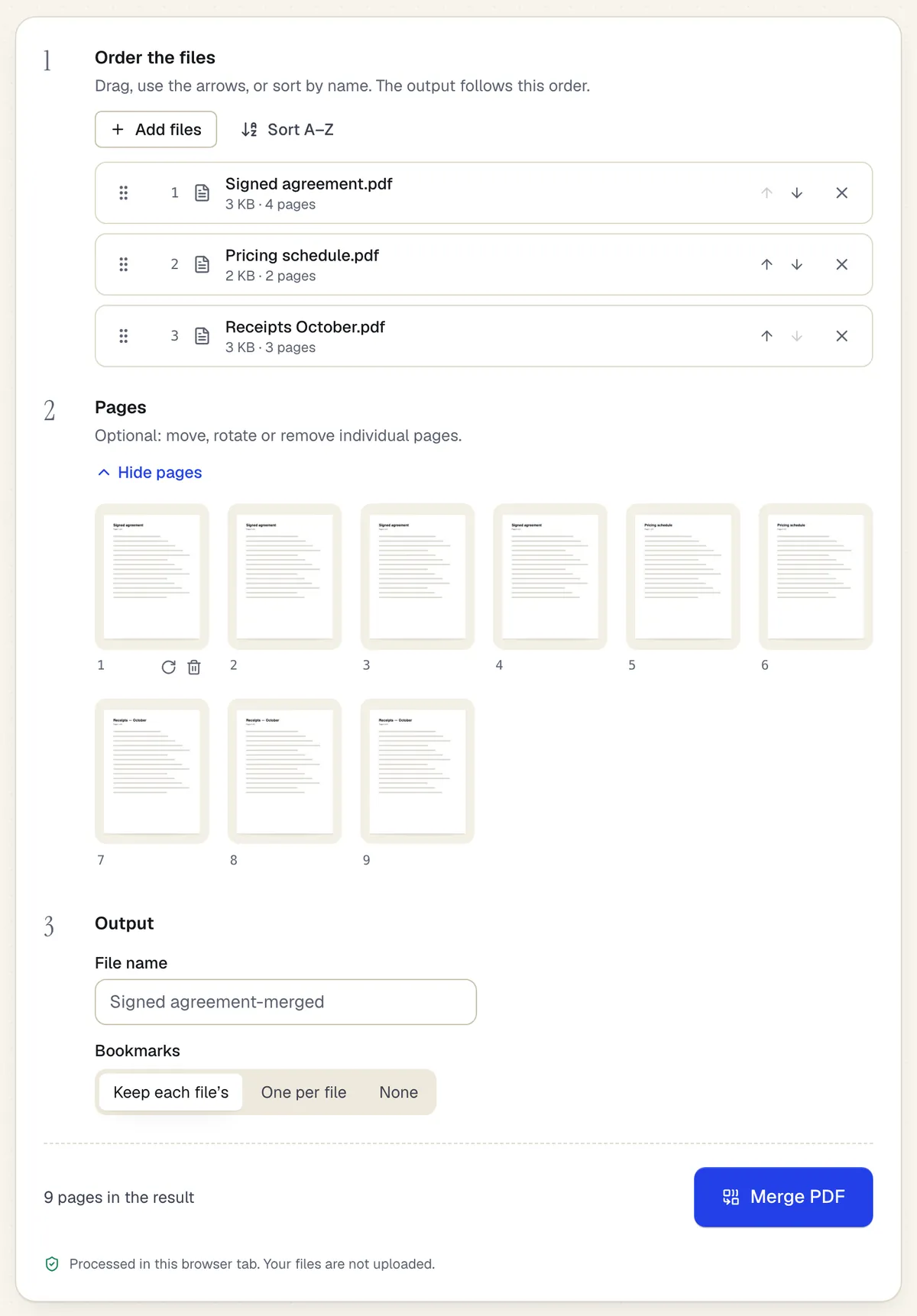
- Reorder whole files with drag or arrows
- Or move, rotate and remove single pages
- Processed in the browser tab — the files aren't uploaded
One group in the merge workspace. Sample content; names and companies are fictional.
How to do it
Batch merge PDFs into several files in 4 steps
1Several files
2Set the order
3One combined PDF
- 1
Add all the PDFs
Drop every file for every group at once, up to 20 files per job without an account (30 on Free, more on paid plans).
- 2
Create the groups
Group by file-name prefix automatically, or drag files into groups yourself. Rename each group; the name becomes the output file name.
- 3
Order files in each group
Set the order inside each group. The preview shows each output's page count.
- 4
Run and download
Merge all groups in one run and download the outputs separately or as a ZIP.
Example
Before and after
Nine files for three contractors: an invoice, a timesheet and a W-9 for each, named smith_invoice.pdf, smith_timesheet.pdf, smith_w9.pdf and so on.
Three PDFs (smith.pdf, jones.pdf, patel.pdf), each with that contractor's invoice, timesheet and W-9 in the same order, delivered as one ZIP.
Settings & formats
What you can control
- Group by prefix
- Uses the text before the first underscore, hyphen or space in the file name; you can change the separator.
- Manual groups
- Drag files between groups; a file can only belong to one group.
- Output names
- Each output is named after its group, for example ACME.pdf.
Input
Output
Good to know before you start
- The files-per-job limit counts every file across all groups.
- Automatic grouping only reads file names, not document content; files with inconsistent names need to be grouped by hand.
- Like a single merge, bookmarks and attachments from the source files are not carried over, and digital signatures in the inputs are invalidated.
If something goes wrong
If something goes wrong
- Files landed in the wrong group
- Check the separator setting; a name like “acme-corp_invoice” groups on “acme” if the separator is a hyphen. Change it to underscore or move the files by hand.
- The run stops partway on a large batch
- Your device ran low on memory. Split the job into two runs with fewer groups each.
Batch merge PDF: questions people ask
How is batch merge different from regular merge?
Regular merge makes one PDF from your files. Batch merge makes several PDFs at once, one per group, which saves repeating the same merge for every client or month.
Can the same file go into every group, like a cover letter?
Not automatically. Add a copy of the file for each group (for example cover_smith.pdf, cover_jones.pdf) so prefix grouping picks it up.
Can I put the timesheet first in every group?
Order is set per group. Sorting each group by name works if your file names share a consistent suffix order, otherwise drag the files.
Is there a limit on the number of groups?
Groups are limited only by the files-per-job limit, since each group needs at least one file.
Are the files uploaded?
No. All merging happens in your browser and nothing is stored on our servers.