
Edit PDF
Click the words you need to change, type the correction, and download a PDF that looks like the original with your fix in place.
Drop a PDF hereLet go to start
or paste with Ctrl/⌘+V
Start without an account. A free account includes 3 edited-document downloads a month. See plans
What it does
Edit PDF, explained
To edit a PDF, open it in an editor that can change the text already printed on the page, not just type on top of it. In PDFBetter you upload the file, click any line of original text and retype it; the editor covers the old words and sets the new ones in the closest matching font, size and color.
Read more
This is the right tool for local corrections when you no longer have the Word or InDesign source: a misspelled name in a lease, a wrong unit price on an invoice, last year's date on a flyer, an outdated phone number in a brochure. If the same mistake appears many times, Find and replace fixes every copy in one pass. If you need to add new words where there were none, Add text places a fresh text box instead.
A PDF stores positioned characters, not paragraphs, so every edit is local. Your replacement is drawn inside the original line's box and the text around it does not move or reflow. The original characters are hidden under an opaque cover rather than deleted from the file, which is fine for corrections but not for removing confidential information. For that, use Redact PDF, which rebuilds the page without the marked content.
The link opens with original-text editing already selected, so there is no hunting through menus. You can make every change without an account; guest drafts are deleted 1 hour after you create them. Downloading the edited file needs a free account, which includes 3 edited-document downloads a month without a watermark.
In the app
What it looks like
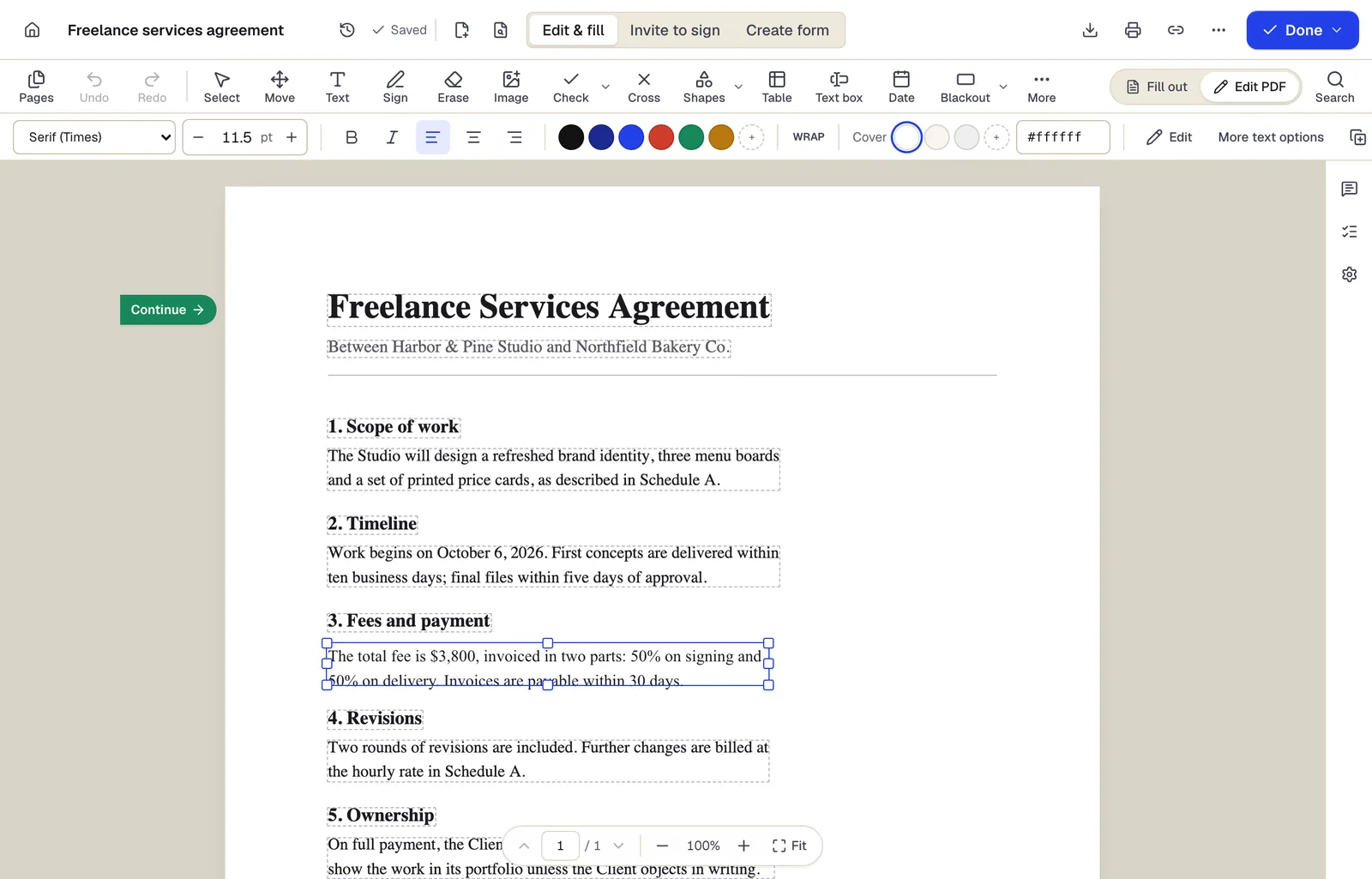
- Existing text becomes editable paragraphs, not just lines
- The detected font and size are kept — here Times at 11.5 pt
- Switch between filling fields and editing the page itself
The editor in Edit PDF mode, with a paragraph selected. Sample content; names and companies are fictional.
How to do it
Edit PDF in 4 steps
1Your PDF
2Click and change
3The edited PDF
- 1
Upload the PDF
Drop a PDF up to 25 MB and 200 pages without an account (50 MB and 500 pages on a free account). Unlock password-protected files first.
- 2
Click the text to change
Original text becomes editable line by line. Select the words and type the correction; use the style bar if the matched font, size or color needs a nudge.
- 3
Check the rest of the document
Scroll through the page thumbnails or search for other copies of the same error. Undo and redo cover every change.
- 4
Download
Create a free account to download. Choose whether to keep form fields fillable or flatten everything into the page.
Example
Before and after
A two-page residential lease where the tenant's surname is misspelled “Jonhson” in the opening paragraph and the monthly rent on page 1 reads $1,850 instead of $1,580.
Both lines corrected in place in an 11 pt serif matching the body text. The old words are covered and retyped; the rest of page 1 and all of page 2 are unchanged.
Settings & formats
What you can control
- Font family
- Sans-serif (Helvetica), serif (Times) or monospace (Courier), with bold and italic. The editor preselects the family closest to the original.
- Size and color
- Point size and text color, prefilled from the line you clicked.
- Cover color
- The color painted over the old text. Change it when the line sits on a tinted panel instead of white paper.
- Alignment
- Left, center or right inside the original line's box — useful for centered headings and right-aligned totals.
Input
Output
Good to know before you start
- Fonts embedded in the PDF cannot be reused for new characters. Replacements use the closest of three standard families (sans, serif, monospace), so brand or display typefaces will look different on edited lines.
- Edits do not reflow paragraphs. A longer replacement wraps inside the original box and can collide with the next line; shorten the wording or resize the box.
- The original text stays in the file underneath the cover, so copy-paste, search and screen readers may still find it. Use Redact PDF to remove sensitive text.
- Scanned pages are images with no text layer. Run OCR first (see Edit scanned PDF) before original text becomes clickable.
- The cover is a solid color, so text printed over photos, gradients or patterns leaves a visible patch.
If something goes wrong
If something goes wrong
- Clicking the text selects nothing.
- The page is probably a scan or the text was converted to outlines when the PDF was made. Run Edit scanned PDF to add a text layer, or cover the area with Erase and type new text with Add text.
- Edited text shows a white box on a colored background.
- Open the style bar and set the cover color to the background color (paste the hex value or use the picker) so the patch disappears.
- Some characters come out as boxes or the wrong letters.
- The PDF uses a custom character encoding the editor cannot map back to Unicode. Select the whole line and retype it rather than editing single letters.
Edit PDF: questions people ask
Will the replacement font match the original exactly?
Only if the original is Helvetica/Arial, Times or Courier style. Otherwise the editor picks the closest family and matches size and color; on body text the difference is usually hard to spot, on logos and headlines it is not.
Does editing delete the old text from the file?
No. The old characters are covered and new ones drawn on top. That keeps the layout intact but means the original can still be extracted, so use Redact PDF when the old text must be gone.
Can I edit a PDF that someone has digitally signed?
You can, but any change to a certificate-signed PDF makes readers report the signature as invalid or altered. Make corrections before signing, or ask the signer to sign the corrected version.
Will form fields still work after I edit the page text?
Yes. Existing fillable fields stay interactive unless you choose to flatten when you download.
Can I rewrite whole paragraphs?
You can, but long rewrites are easier in Word because PDFs do not reflow. Convert with PDF to Word, edit, then convert back with Word to PDF.
Do I need an account to try it?
No. You can upload and make every edit as a guest. A free account is needed only when you download, and it keeps the draft you already made.