
Assemble a PDF packet
Combine PDFs and photos into one packet with a bookmark per item, in the order you set.
Drop your files hereLet go to start
or paste with Ctrl/⌘+V · select 2 or more
Free, no account needed — download as soon as it's done. See plans
What it does
Assemble PDF, explained
Assemble PDF builds one document packet from mixed sources: PDFs, phone photos and screenshots go in, one PDF comes out with a bookmark for each item so the reader can jump straight to “Proof of address” or “Pay stub, March”.
Read more
Use it for applications and submissions that ask for several supporting documents in one upload: a rental application with ID, pay stubs and a reference letter, a reimbursement claim with receipt photos, or a court or HR filing with numbered exhibits.
The difference from Merge PDF is the packet structure. Merge joins PDFs and nothing else. Assemble accepts images, places each photo on a page of the size you choose, names every item, and turns those names into the bookmark outline. You can also insert a blank separator page or a simple cover sheet before any item.
The packet is built in your browser, so your documents are not uploaded and the download is free without an account.
In the app
What it looks like
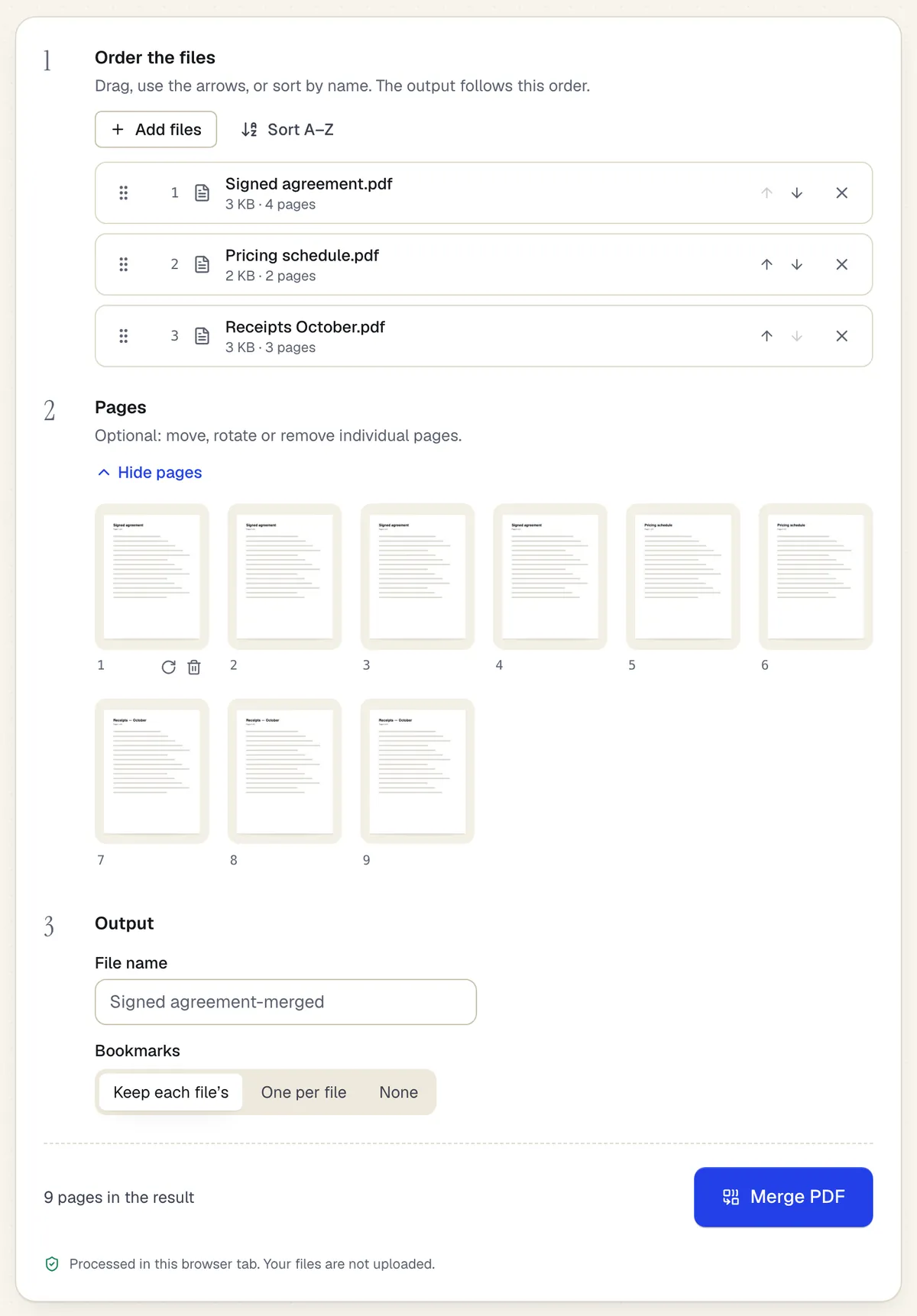
- Reorder whole files with drag or arrows
- Or move, rotate and remove single pages
- Processed in the browser tab — the files aren't uploaded
Assemble uses the same workspace as Merge PDF. Sample content; names and companies are fictional.
How to do it
Assemble a PDF packet in 4 steps
1Several files
2Set the order
3One combined PDF
- 1
Add PDFs and images
Drop PDFs, JPGs and PNGs together, up to 20 files without an account. Photos from an iPhone in HEIC format should be converted with JPG to PDF first or exported as JPG.
- 2
Name and order the items
Drag items into order and give each a label, such as “Exhibit A: Lease”. Labels become bookmarks.
- 3
Set image pages
Choose the page size and margin for photos (for example Letter with a small margin) so they match the PDF pages around them.
- 4
Preview and build
Check the full page sequence and bookmark list, then build and download the packet.
Example
Before and after
A rental application PDF, two phone photos of pay stubs (JPG), a screenshot of a bank balance (PNG), and a 1-page reference letter PDF.
One Letter-size PDF with five bookmarks: Application, Pay stub 1, Pay stub 2, Bank balance, Reference letter. Photos are centered on their own pages.
Settings & formats
What you can control
- Item labels
- Each item's label becomes a top-level bookmark pointing to its first page. Defaults to the file name.
- Image page size
- Letter, A4, Legal, A5 or “fit to image”. Photos are scaled to fit inside the margins without cropping.
- Separator pages
- Insert a blank page before any item, for example to keep exhibits starting on a right-hand page when printed double-sided.
Input
Output
Good to know before you start
- Bookmarks inside the source PDFs are replaced by one bookmark per item; deeper outlines from the originals are not kept.
- Photos are placed as taken. Assemble does not deskew, crop or enhance phone photos; use Restore scanned PDF for that.
- HEIC and WebP images are not accepted here directly; convert them with JPG to PDF, then add the resulting PDF.
- Large photo packets can get big. Run Compress PDF afterward if a portal has an upload limit.
If something goes wrong
If something goes wrong
- A photo appears sideways
- Some cameras store rotation only in the photo's metadata. Open the page view and rotate that page before building the packet.
- The bookmark panel does not show in my viewer
- Bookmarks are in the file, but some viewers hide the panel. In most desktop readers open the sidebar and choose Bookmarks or Outline.
Assemble PDF: questions people ask
How is Assemble different from Merge?
Merge joins PDFs into one file. Assemble also accepts images and creates a named bookmark for every item, which is what reviewers expect in an application or exhibit packet.
Can I add a page number or exhibit stamp to every page?
Assemble builds the packet; then open the result in Add page numbers to number it, or the editor to add exhibit labels on the pages themselves.
Will my phone photos be compressed?
No. Images are embedded at their original resolution, which keeps them readable but can make the file large.
Can I reuse the same packet order next month?
Not as a saved recipe yet. Keep the assembled PDF, and next time open it in Organize PDF to swap out the pages that changed.
Are my documents uploaded?
No. Assembly runs in your browser, so IDs and financial documents stay on your device.