
Add text fields to a PDF
Draw text fields over the blanks in your PDF and download a form that anyone can type into, in any PDF reader.
Drop a PDF hereLet go to start
or paste with Ctrl/⌘+V
Start without an account. A free account includes 3 edited-document downloads a month. See plans
What it does
Add text fields to PDF, explained
To add a text field to a PDF, open the fields panel, choose Text, and drag a box over the blank line; the box becomes an interactive form field that anyone can click and type into in Acrobat Reader, Apple Preview, browser PDF viewers and most mobile apps.
Read more
A text field is not the same as added text. Added text (Add text to PDF) is content you type now and it is fixed on the page. A text field is an empty box for someone else to fill later, with a name, rules and an optional default value. Use fields when you are preparing a form; use added text when you are completing one.
Each field has a unique name — its “database name” — which is what shows up when responses are exported or when a spreadsheet fills the form. Set it to something meaningful like applicant_last_name rather than Text1. Other settings: single or multi-line, maximum length, required, read-only, placeholder and help text, font size and a tab order so the cursor moves through the form in a sensible sequence.
Specialized text kinds save effort: email, number, date, US phone, ZIP, SSN and EIN fields validate their format when filled in PDFBetter. For a complete form with checkboxes, dropdowns and logic, see Form builder.
In the app
What it looks like
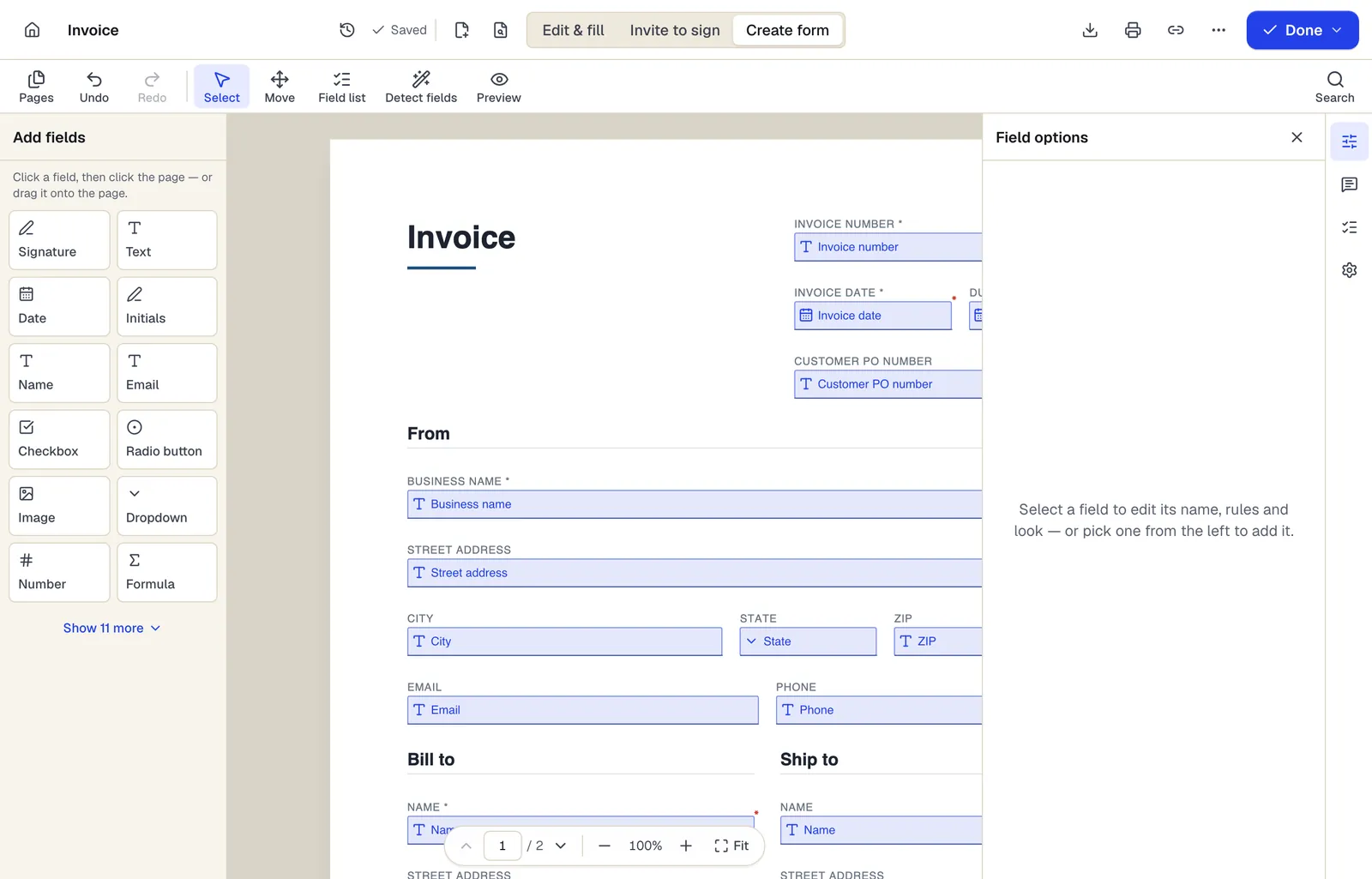
- Pick a field type, then click the page — or drag it
- Detect fields finds the boxes and lines on a flat PDF
- Every field keeps a label, a name and its own rules
The editor in Create form mode. Sample content; names and companies are fictional.
How to do it
Add text fields to a PDF in 5 steps
1A flat PDF
2Place fields
3A fillable PDF
- 1
Upload the PDF
The fields panel opens on the right.
- 2
Draw text fields
Choose Text (or Name, Email, Number…) and drag a box over each blank.
- 3
Configure each field
Give it a clear name, set single or multi-line, max length, required and help text.
- 4
Set the tab order and preview
Check that Tab moves through fields in reading order, then try filling it in preview.
- 5
Download
Download with a free account; keep fields interactive (do not flatten).
Example
Before and after
A flat one-page job application exported from Word: printed labels with underlines for name, address, phone, email, position and a large “Tell us about yourself” box.
Fourteen named text fields over the lines, a multi-line field with a 1,000-character limit for the essay box, and email and phone fields with format checks. Downloaded as a fillable PDF the hiring manager emails to applicants.
Settings & formats
What you can control
- Name
- Unique field name used in exports and spreadsheet filling.
- Single or multi-line
- Multi-line wraps text for addresses, comments and descriptions.
- Max length
- Limit characters, e.g. 2 for a state code or 5 for a ZIP.
- Required / read-only
- Required fields are flagged when empty; read-only fields show a preset value.
- Help text and placeholder
- Hints shown to the person filling the form.
Input
Output
Good to know before you start
- Format checks (email, phone, patterns) run when the form is filled in PDFBetter. Other PDF readers accept the field but may not enforce those checks.
- Text longer than a fixed-size field scrolls or is cut off in some readers; size boxes generously and use multi-line for long answers.
- Field names must be unique in the document. Two fields with the same name would share one value, so the editor prevents duplicates.
Add text fields to PDF: questions people ask
What is the difference between a text field and a text box?
A text box is fixed text you add to the page. A text field is an empty, interactive box that someone else types into later.
Will my fields work in Adobe Acrobat Reader?
Yes. Fields are saved as standard PDF form fields, which Acrobat Reader, Preview, browser viewers and most mobile PDF apps can fill.
Can I make a field required?
Yes. Required fields are flagged when empty in PDFBetter, and they are marked as required in the PDF for readers that enforce it.
Why should I rename fields?
Names identify each answer when you export responses or fill the form from a spreadsheet. “client_email” is easier to map than “Text7”.
Can I add fields to a scanned form?
Yes. Fields sit on top of the page, so they work on scans; zoom in to align them with the printed lines.
Can I change a text field into a different type later?
Yes. Select the field and change its type, for example to Number or Date; its name and position are kept.