
Find and replace text in a PDF
Type what to find and what to put instead, review the list of matches, then replace the ones you choose across the whole document.
Drop a PDF hereLet go to start
or paste with Ctrl/⌘+V
Start without an account. A free account includes 3 edited-document downloads a month. See plans
What it does
Find and replace PDF text, explained
To find and replace text in a PDF, search the document's text layer for a word or phrase, review each match in context, and swap in the new wording either one match at a time or for all matches at once. PDFBetter shows every hit with its page number and surrounding words before anything changes.
Read more
Use it when the same correction repeats: a company renamed after a merger, a product name changed in a 40-page manual, a client's name in a reused proposal, an old email address in every footer. For a single fix, clicking the text with Edit PDF is quicker. To simply locate words without changing them, Search PDF is the read-only version.
Replace one versus replace all matters. Stepping through matches lets you skip places where the word means something else — replacing “Lee” in a contract should not touch “Leeds” or “lessee”, which is what Whole words and Match case are for. Replace all is right when you have checked the match list and every hit should change.
Each replacement is an original-text edit: the old words are covered and the new ones drawn in the closest standard font, so surrounding text does not move. Matches inside images, logos or scanned pages are not text and will not be found; run OCR first if the PDF is a scan.
In the app
What it looks like
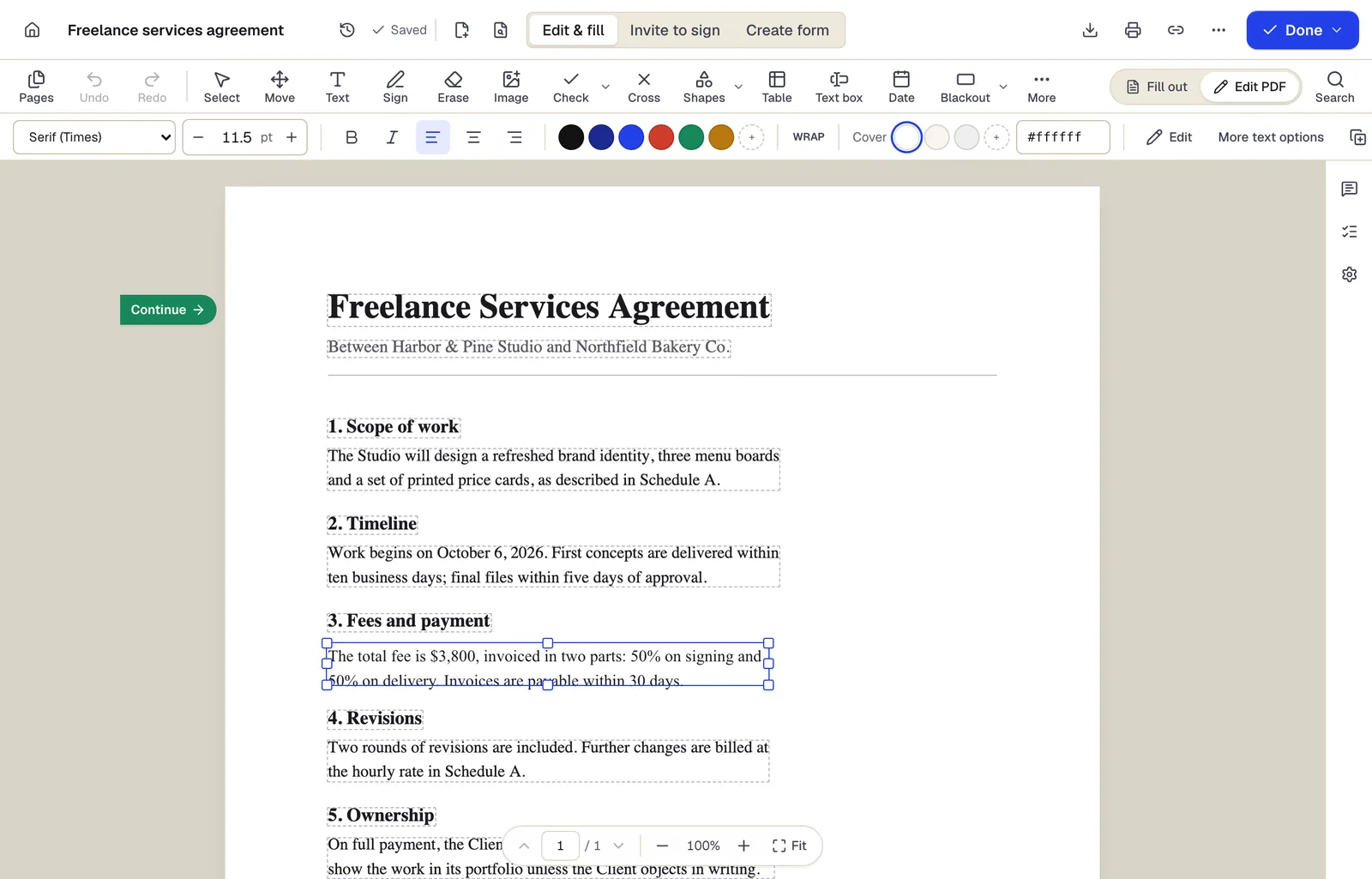
- Existing text becomes editable paragraphs, not just lines
- The detected font and size are kept — here Times at 11.5 pt
- Switch between filling fields and editing the page itself
Edit PDF mode, where replaced text is retyped in the detected font. Sample content; names and companies are fictional.
How to do it
Find and replace text in a PDF in 5 steps
1Your PDF
2Click and change
3The edited PDF
- 1
Upload the PDF
The editor opens with the find-and-replace panel already showing.
- 2
Enter the search and the replacement
Turn on Match case or Whole words if the term is short or appears inside other words.
- 3
Review the matches
Each hit is listed with its page and context. Click one to jump to it on the page.
- 4
Replace one or all
Replace the current match and move to the next, or replace every listed match at once. Undo reverses a replace-all in one step.
- 5
Download
Sign in to a free account to download the corrected PDF.
Example
Before and after
A 14-page employee handbook that still says “Brightline Logistics LLC” throughout after the company became “Brightline Freight Inc.”
Every text occurrence replaced after reviewing the match list. The name inside the cover-page logo stayed unchanged because it is part of an image, so the logo was swapped separately with Add image.
Settings & formats
What you can control
- Match case
- Only matches with identical capitalization, so “Apple” does not catch “apple”.
- Whole words
- Ignores matches inside longer words, so “art” does not catch “start” or “party”.
- Replace / Replace all
- Change the selected match only, or every match in the list after you have reviewed it.
Input
Output
Good to know before you start
- Only the text layer is searched. Words inside images, logos, charts and scanned pages are not found until the file is OCR'd.
- Phrases broken across a line end, hyphenated, or stored with unusual letter spacing may be extracted as separate pieces and not match a multi-word search. Search for a shorter part of the phrase.
- Replacements do not reflow text. A much longer replacement may overflow its line; check each page after a replace-all.
- Replaced words are covered, not deleted, so the old wording can still be extracted from the file. Use Redact PDF if the original must be removed.
If something goes wrong
If something goes wrong
- The search finds zero matches but I can see the word.
- The page is probably a scan or the text was flattened into an image. Run OCR PDF first, then search again.
- Replace all changed words I did not mean to change.
- Use Undo to reverse the whole operation, turn on Whole words and Match case, and step through matches one at a time instead.
Find and replace PDF text: questions people ask
Is there a limit to how many matches I can replace?
The match list shows up to 2,000 matches per search, across every page within your plan's page limit (200 pages as a guest, 500 on a free account). For more, narrow the search and run it again.
Can I preview what will change before replacing?
Yes. Every match is listed with its page number and surrounding words, and clicking a match scrolls to it on the page.
Does replace all work across every page?
Yes. It applies to every match in the list, on every page, and Undo reverses all of them together.
Will the replaced text use the same font?
It uses the closest standard family (sans, serif or monospace) at the original size and color. Unusual typefaces will not match exactly.
Can I find and replace in a scanned PDF?
Not directly. Run OCR to add a text layer, then search; replacements on OCR'd scans are drawn over the image, so check them visually.
Does it search form field values and comments?
It searches the page text. Values typed into form fields and comment threads are edited in the Fill and Comments panels.