
Create a PDF template
Set up a document once with its fields and fixed content, save it as a template, and start a clean copy every time you need it.
Drop a PDF hereLet go to start
or paste with Ctrl/⌘+V
Start without an account. Create a free account to download or share. See plans
What it does
Create PDF template, explained
To create a PDF template, prepare a document the way every copy should start — logo, fixed wording, fillable fields, signature fields — and save it as a template. Each time you use it, PDFBetter creates a new document from the template, so you fill or send the copy and the master stays untouched.
Read more
Templates suit anything you send repeatedly: a monthly invoice, a standard NDA, a client onboarding packet, a lease addendum, an inspection report. Without a template, people reuse last month's filled copy and risk sending the previous client's details; with one, every copy starts clean.
Fields carry over with their names, rules and positions, so a template pairs well with Fill PDF from Excel (one copy per spreadsheet row) and with signing requests, where the same fields are assigned to the signer each time. Editing the template later changes future copies only; documents already created from it keep their content.
These are your own templates. PDFBetter also has a library of original templates — invoices, service agreements, NDAs, leases, applications and intake forms — that you can open, adapt and then save as your own template. A free account can keep 3 reusable templates; Pro and Business keep unlimited templates.
In the app
What it looks like
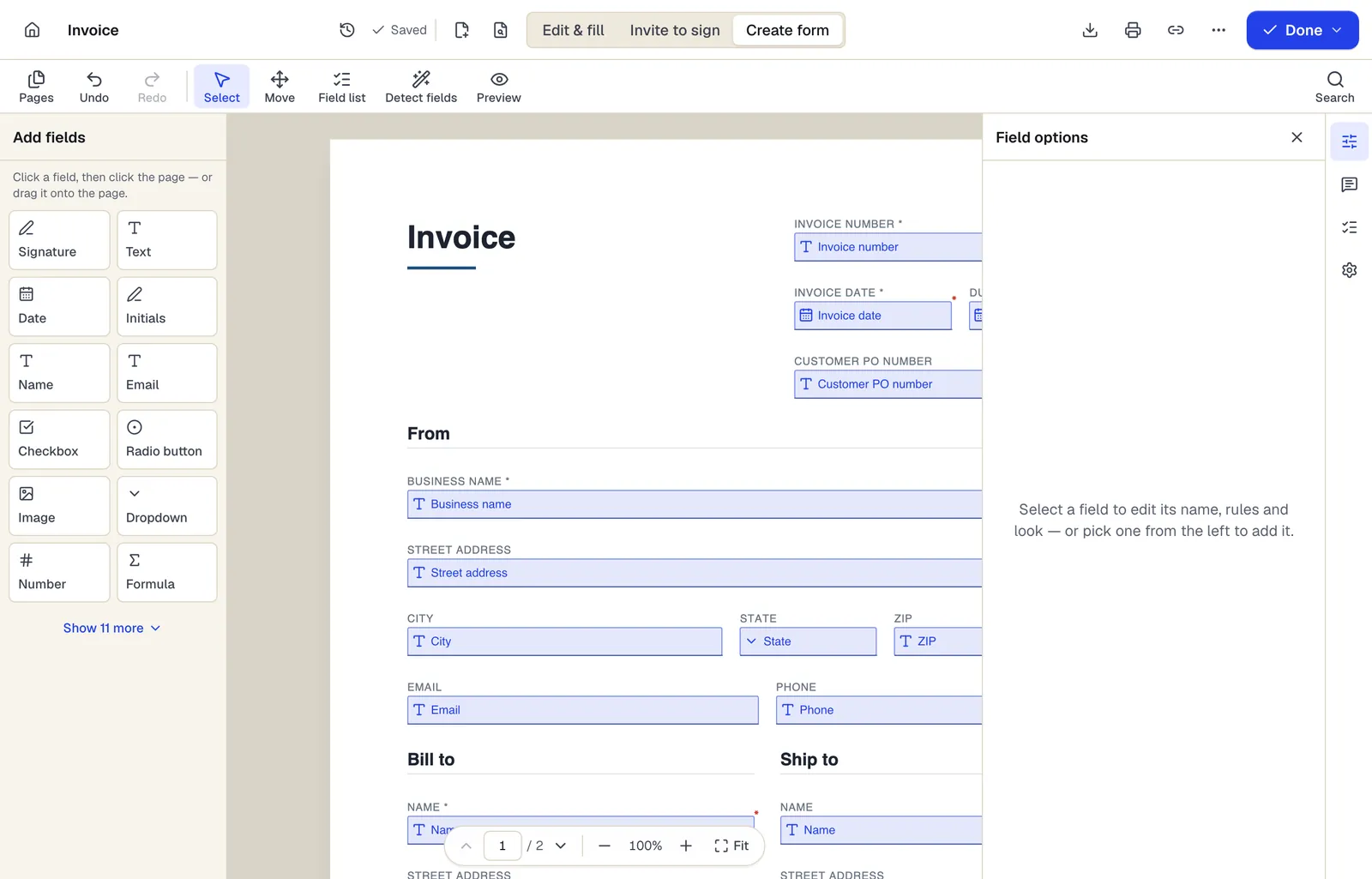
- Pick a field type, then click the page — or drag it
- Detect fields finds the boxes and lines on a flat PDF
- Every field keeps a label, a name and its own rules
The editor in Create form mode. Sample content; names and companies are fictional.
How to do it
Create a PDF template in 4 steps
1A flat PDF
2Place fields
3A fillable PDF
- 1
Upload or open the master document
Start from your PDF or a library template.
- 2
Add fixed content and fields
Add your logo and standard text, then fillable fields and any signature fields.
- 3
Save as template
Name it; it moves to your templates list. Saving needs a free account.
- 4
Use it
Click Use template to create a new document from it; fill, sign or send that copy.
Example
Before and after
A bookkeeper who retypes the same monthly retainer invoice for 12 clients, copying last month's PDF and editing the client name, period and amount by hand.
One invoice template with the firm's logo and payment terms fixed, and named fields for client, period, hours and amount. Each month: Use template → fill → download, with no risk of last month's details leaking through.
Settings & formats
What you can control
- Fields
- All 23 field types, with names, rules and default values kept in every copy.
- Use template
- Creates a new, separate document; the template is never modified by filling a copy.
Input
Output
Good to know before you start
- Changing a template does not update documents already created from it.
- Guests cannot save templates. A free account keeps 3; Pro and Business keep unlimited templates.
- Templates are personal; sharing templates with a team needs the Business plan's shared workspace.
Create PDF template: questions people ask
Will filling a copy change my template?
No. Use template always creates a separate document. The template changes only when you open and edit the template itself.
Can I use a template with Fill PDF from Excel?
Yes. Map spreadsheet columns to the template's field names to generate one filled copy per row.
Can a template include signature fields for other people?
Yes. Place signature and date fields, then assign them to recipients when you send a copy for signature.
What is the difference between my templates and the template library?
The library contains PDFBetter's original documents that anyone can open. Your templates are private masters you created and only you (or your team) can use.
How many templates can I save?
3 on the Free plan, unlimited on Pro and Business.
Can I turn a template back into a normal document?
Use the template to create a copy; the copy is a normal document you can edit freely.