
Share a PDF
Create a link to your document, choose what people can do with it, and turn it off whenever you want.
Drop a PDF hereLet go to start
or paste with Ctrl/⌘+V
Start without an account. Create a free account to download or share. See plans
What it does
Share PDF, explained
Share PDF creates a private link to the live document in your PDFBetter account. You decide whether people can only view it, add comments, fill its fields, or edit it, and you can revoke the link at any moment.
Read more
Because the link points to the live document, recipients see your latest saved version. That suits review rounds, a form a colleague needs to complete, or a working copy several people annotate. If you want a fixed copy that won't change after you send it, use PDF to URL, which hosts a frozen export.
Each link can have a password, an expiry date, a download on/off switch and a list of allowed email addresses. The share panel shows how many times the link was opened and when. Sharing is not a signing workflow: to collect signatures with an audit trail, use Request signatures.
In the app
What it looks like
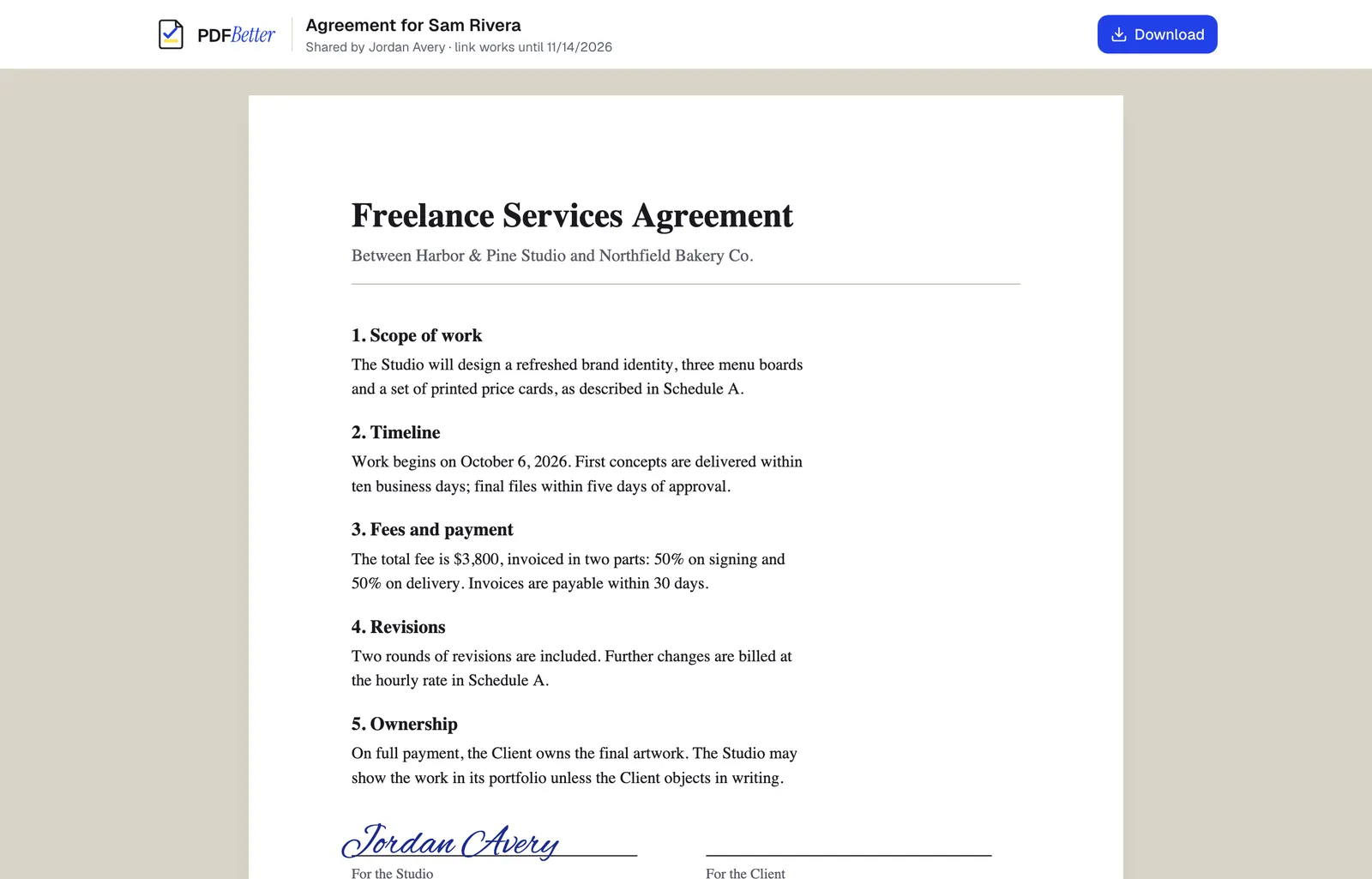
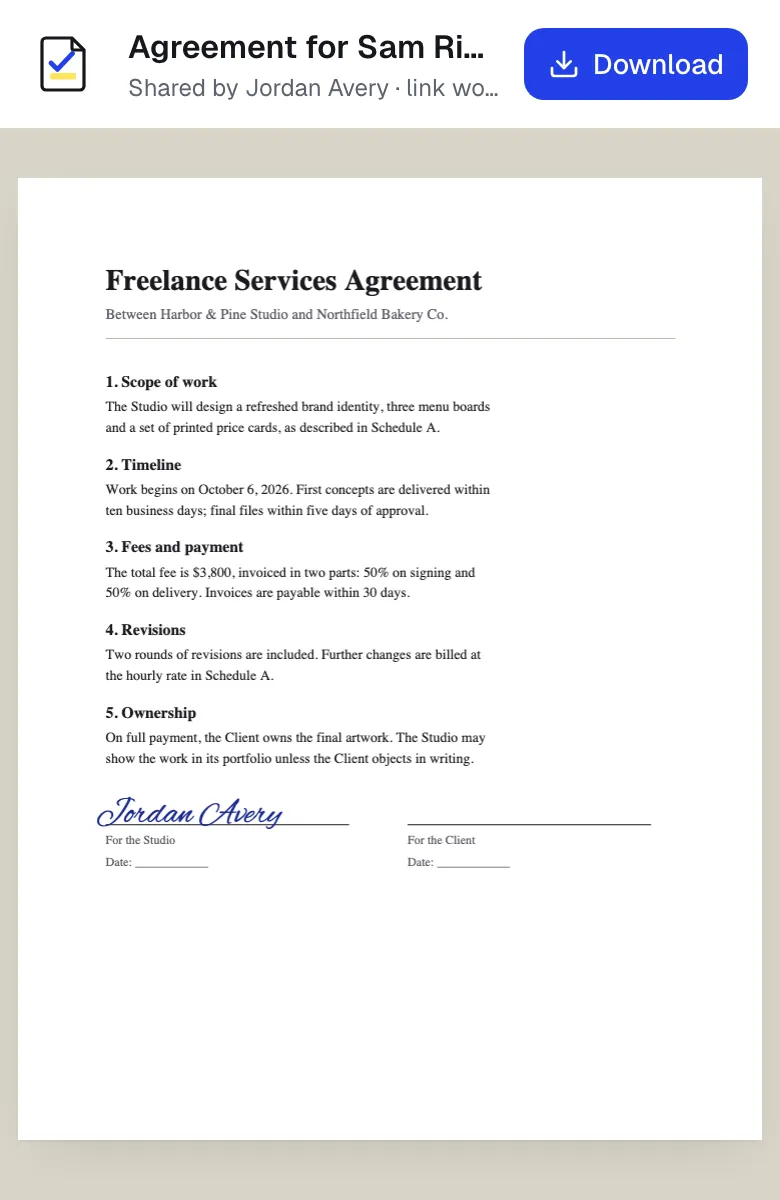
A shared link opened on a laptop and on a phone. Sample content; names and companies are fictional.
How to do it
Share a PDF in 4 steps
1A finished PDF
2Link, email, print or fax
3Delivered
- 1
Open your document
Upload a PDF or open one from your account. Edit it first if needed.
- 2
Create a link
Choose view, comment, fill or edit access.
- 3
Set limits
Optionally add a password, an expiry date, allowed email addresses, and whether downloading is allowed.
- 4
Send and manage
Copy the link. Return to the share panel to see views or revoke it.
Example
Before and after
A draft service agreement that a client should comment on but not change.
A comment-only link with a 14-day expiry and downloads turned off. The client's comments appear in your editor, and the link is revoked once the terms are agreed.
Settings & formats
What you can control
- Permission
- View, comment, fill or edit.
- Password
- Recipients enter it before the document opens.
- Expiry
- The link stops working after the date you set.
- Allowed emails
- Limit the link to named people instead of anyone with the URL.
- Allow download
- Turn off to keep recipients in the browser viewer.
Input
Output
Good to know before you start
- Sharing needs an account. The Free plan allows 3 active share links; Pro and Business have no limit.
- Turning off downloads keeps the file in the viewer but can't stop screenshots or photos of the screen.
- Recipients of a live link see later edits too; send a PDF to URL link if they should only ever see one version.
If something goes wrong
If something goes wrong
- The recipient says the link doesn't work
- Check whether it expired, was revoked, or is limited to email addresses that don't include theirs.
- I can't create another link
- The Free plan allows 3 active links. Revoke one you no longer need or upgrade to Pro.
Share PDF: questions people ask
What is the difference between Share PDF and PDF to URL?
Share PDF links to the live document, so recipients see your latest version and can comment, fill or edit if allowed. PDF to URL hosts a frozen copy of one export, view-only, that doesn't change when you keep editing.
Can I stop sharing after sending the link?
Yes. Revoke it in the share panel and it stops working immediately.
Do people with an edit link change my original?
They edit the document in your account. Every change is saved as a new revision, so you can restore an earlier version from history.
Can I share without creating an account?
No. A link needs an owner who can manage and revoke it, so you'll be asked to create a free account. Your work is kept when you sign up.
Are shared links indexed by search engines?
No. Shared document pages are marked noindex, and links use long random tokens.