
Create a fillable PDF
Convert a static PDF into a form with real fields — detected automatically, checked by you — and download a fillable PDF.
Drop a PDF hereLet go to start
or paste with Ctrl/⌘+V
Start without an account. A free account includes 3 edited-document downloads a month. See plans
What it does
Create fillable PDF, explained
To create a fillable PDF, add interactive form fields — text boxes, checkboxes, radio buttons, dropdowns, dates and signature boxes — on top of a flat PDF and save it with those fields intact. PDFBetter can detect likely fields for you: it reads the page, proposes a field over each blank line and box, and lets you accept, adjust or delete each one before anything is saved.
Read more
Detection is a starting point, not an autopilot. On a clean digital form it gets most fields right, and you fix names, types and sizes; on dense or scanned forms you may add a few by hand. Detection uses AI credits (3 per run) and sends page content to our AI provider; skip it and place fields manually if you prefer.
The result is a standard fillable PDF (AcroForm). Recipients can fill it in Adobe Acrobat Reader, Apple Preview, Chrome, Edge and Firefox's built-in viewers, and most mobile PDF apps, then save or print it. Text, checkbox, radio and dropdown fields behave natively everywhere; signature fields export as clickable boxes rather than certificate-based digital ID fields.
Choose this when you want to email or post a form file. If you want responses collected online as data, publish it with Form builder. If you simply need to fill a form yourself, use Fill PDF — no fields required.
In the app
What it looks like
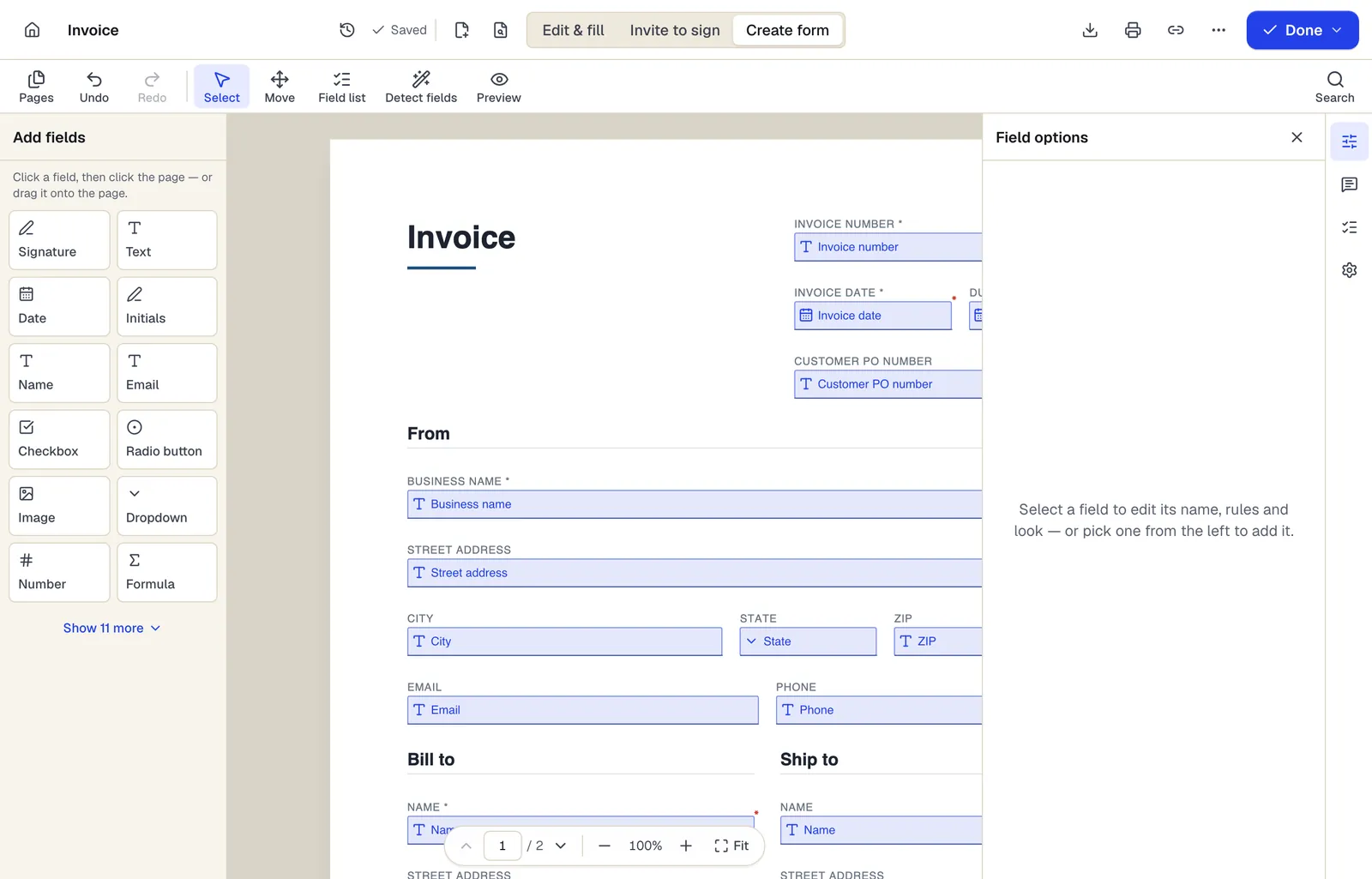
- Pick a field type, then click the page — or drag it
- Detect fields finds the boxes and lines on a flat PDF
- Every field keeps a label, a name and its own rules
The editor in Create form mode. Sample content; names and companies are fictional.
How to do it
Create a fillable PDF in 5 steps
1A flat PDF
2Place fields
3A fillable PDF
- 1
Upload the flat PDF
The fields panel opens with auto-detect ready.
- 2
Detect fields (optional)
Run detection on all pages or a range, or skip it and draw fields yourself.
- 3
Review every proposal
Accept, resize, retype (text → date, checkbox → radio) or delete each field; rename fields meaningfully.
- 4
Preview
Tab through the form as a filler would and fix the order.
- 5
Download the fillable PDF
With a free account, download without flattening so the fields stay interactive.
Example
Before and after
A flat 2-page rental application from a property management company, printed boxes and underlines, no fields.
Detection proposed 41 fields; 36 were accepted as-is, 3 resized, 2 changed from text to checkbox, and 4 missed signature/date boxes added by hand. Downloaded as a fillable PDF that applicants complete in Acrobat Reader.
Settings & formats
What you can control
- Auto-detect
- Proposes fields from blank lines, boxes and labels; you review before anything is added.
- Manual fields
- Text, checkbox, radio, dropdown, date, signature and the rest of the 23 field types.
- Field properties
- Name, required, read-only, max length, default value, help text and tab order.
Input
Output
Good to know before you start
- Detection can miss fields, merge adjacent boxes or pick the wrong type, especially on scanned or crowded forms. Review every page.
- Conditional logic and formulas you add are evaluated in PDFBetter only; other readers show the fields without running those rules.
- Signature fields are exported as standard fields with an appearance, not as digital ID signature fields that apply a certificate.
- Detection uses AI credits and sends page content to our AI provider; manual placement uses neither.
If something goes wrong
If something goes wrong
- Detection put fields in the wrong places on a scan.
- Delete the misplaced fields and draw them manually, or run Restore scanned PDF or OCR first so lines and labels are clearer.
- Fields do not appear when the recipient opens the file.
- The file was flattened on download. Download again with flatten turned off.
Create fillable PDF: questions people ask
Will the fillable PDF work in Adobe Acrobat Reader?
Yes. Fields are standard AcroForm fields, which Acrobat Reader, Apple Preview, browser viewers and most mobile apps can fill and save.
Does auto-detection always get it right?
No. It handles clear printed forms well but can miss or mis-type fields. Nothing is added until you review it.
Can I make a scanned paper form fillable?
Yes. Fields sit on top of the page image. Detection works better on clean, straight scans.
How is this different from Form builder?
Both create fields. Create fillable PDF ends with a PDF file to share; Form builder publishes an online form and collects responses.
Can I add a dropdown list?
Yes. Add a dropdown field and type the options; it works in standard PDF readers.
Do I need an account?
You can build and review fields as a guest. Downloading the fillable PDF needs a free account.