
To automate PDF processing in PDFBetter, save a workflow: a repeatable sequence of steps such as recognize text (OCR), extract invoice fields, stop for a person to check them, then export a CSV. Set it to start whenever a document is moved into a chosen folder, or run it by hand or from an AI agent. It runs one step at a time with its progress saved, retries steps that fail for temporary reasons, and waits at review steps until someone approves. It is not an autonomous agent: it only does the steps you chose, in the order you chose.
Invoices: OCR → extract → review → export CSV
1Succeeded
Recognize text (OCR)
2Succeeded
Extract data
3Awaiting approval
Review
Waits for a person — or an agent, only if you allowed it on this step.
4Pending
Export
- Other recipes
- Summarize → Add to workspace
- Suggest redactions → Review
What a workflow does
You pick steps from a fixed list: recognize text (OCR), extract data with one of your extraction schemas, review, export the extracted data as JSON, CSV or Excel, summarize with page citations, suggest redactions, add the document to a workspace, or send a webhook.
Each run saves the state of every step (status, attempts, the ids of what it produced), so a run survives time limits and restarts, and the run history shows exactly where it is and why it stopped.
Steps that read text — extraction, summaries and redaction suggestions — work on the document's text layer. Put OCR first for scans.
Start from a recipe
Pick a preset — “Invoices: OCR → extract → review → export CSV”, “Contracts: summarize → add to workspace” or “Sensitive docs: suggest redactions → review” — or start empty, then add, remove and reorder steps.
Choose what starts it
Run it by hand on a document, from a connected agent, or automatically on each document you move into a chosen folder.
Approve at review steps
The run pauses at a review step. Open it to see the extracted values with the page they came from, correct them, and approve or reject.
Collect the result
Download the export from the run, or have it delivered to your webhook endpoint (Business).
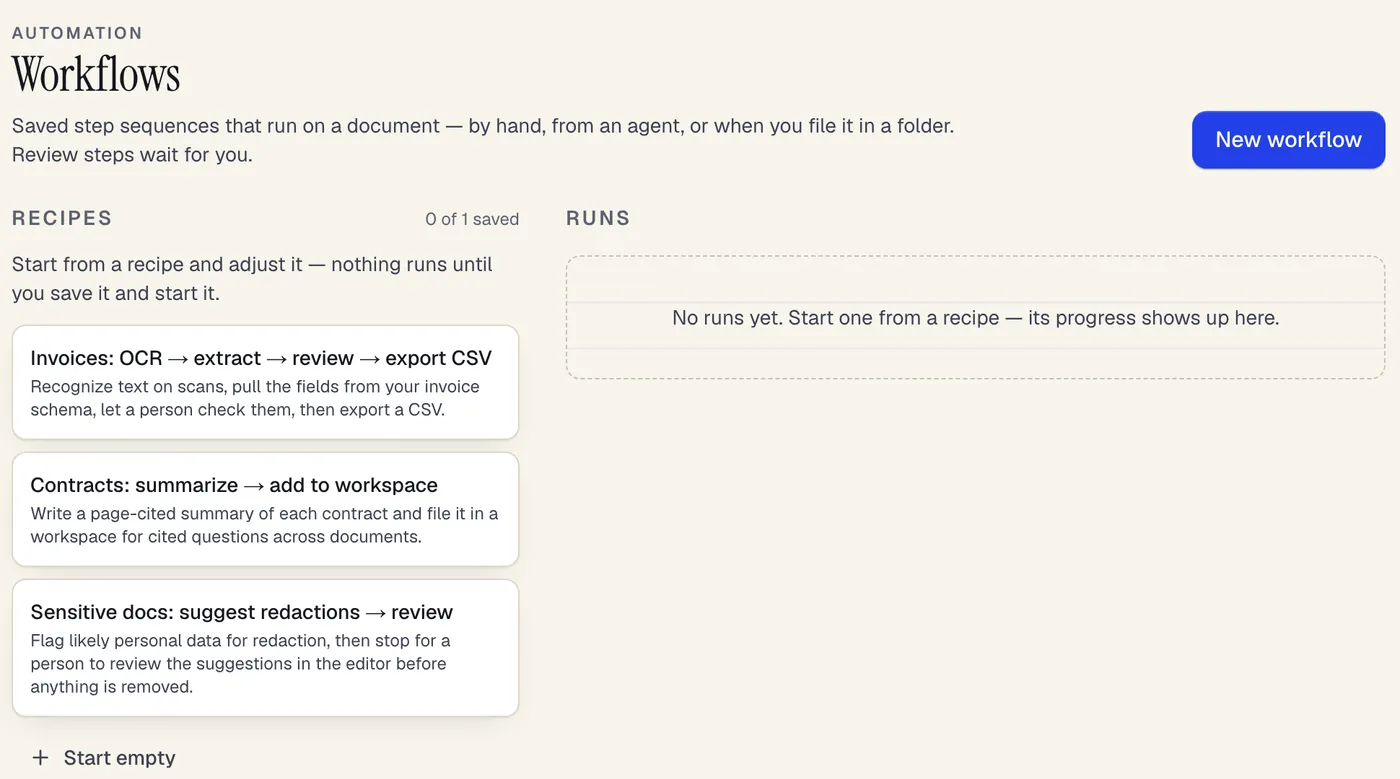
- Start from a recipe, then add, remove and reorder steps
- Each run's progress shows here, step by step
The Workflows page with its three recipes. Sample content; names are fictional.
Review gates and agents
Review gates and agents
Review steps wait until a person decides. By default only a person can approve, in the dashboard. You can allow agent approval on a specific review step; then an agent connection key with workflow write access may approve that step and no other.
Rejecting at a review step stops the run; nothing after it runs. Extracted values are saved with your corrections, so exports use what the reviewer approved.
| Field | Value · quote | Page |
|---|---|---|
| supplier | Harbor & Pine Studio“Harbor & Pine Studio” | p. 1 |
| invoice_number | 2026-014“Invoice no. 2026-014” | p. 1 |
| invoice_date | 2026-10-03“Invoice date 10/03/2026” | p. 1 |
| due_date | 2026-11-02“Due 11/02/2026” | p. 1 |
| total | 4028.00“Balance due $4,028.00” | p. 2 |
ExportJSONCSVXLSX
Retries and failures
Retries and failures
Temporary failures — a busy AI provider, a timeout, a processing hiccup — are retried up to three times with growing pauses (about 30 seconds, then 2 minutes). Problems a retry can't fix, such as an exhausted monthly allowance, a missing document or invalid settings, stop the run right away with the reason.
A failed run can be retried from the step that failed; a canceled or rejected run can't.
What it costs
What it costs
A workflow itself has no per-run fee. Each step uses the same allowance as doing it by hand: OCR uses OCR pages, extraction, summaries and redaction suggestions use AI credits, and agent tool calls count as agent calls.
Saved workflows per account: 1 on Free, 20 on Pro, unlimited on Business.
Plans
What each plan includes
| Free | Pro | Business | |
|---|---|---|---|
| OCR pages per month | 20 | 1,000 | 5,000 |
| AI credits per month | 20 | 500 | 2,000 |
| Agent (MCP) tool calls per month | 200 | 5,000 | Unlimited |
AI actions cost a set number of credits each; the full list is on the pricing page. Compare all plans
What it doesn't do
- Steps run one after another; there is no branching, looping or running steps in parallel.
- A workflow is not an autonomous agent: it can't decide to do anything beyond its saved steps, and it never applies redactions on its own — redaction suggestions still need review and applying in the editor.
- Review steps wait until someone approves, rejects or cancels — there is no automatic timeout.
- Folder triggers start when a document is moved into the folder. Documents uploaded elsewhere don't start a run until they're filed there.
- Scanned pages have no text until OCR runs; extraction and summaries on scans without an OCR step find little or nothing.
- Editing a workflow doesn't change runs already in progress; they finish with the steps they started with.
Workflow recipes: questions people ask
Does a workflow run on its own on every upload?
Only if you set its trigger to a folder: each document you move into that folder starts one run. Otherwise you start runs by hand on a document, or an agent starts them through the MCP connection.
Can I automate invoice processing with it?
Yes. The Invoices preset runs OCR, extracts the fields of an extraction schema you choose (such as invoice number, dates, total and line items), stops for a person to check the values against their page quotes, and exports a CSV. Moving each invoice into the workflow's folder starts it.
Can an AI agent approve the review step for me?
Only when you turn on agent approval for that specific review step. Otherwise an agent gets an error telling it a person must approve in the dashboard.
What happens if I run out of AI credits or OCR pages in the middle of a run?
The step stops with the allowance message and the run is marked failed; it isn't retried automatically. After topping up or upgrading, use Retry on the run to continue from that step.
Are my extracted values or document text stored in the run history?
No. Run history keeps ids and counts — which extraction, which revision, how many fields were found — and at most a short excerpt of a summary. The values themselves stay in the extraction record you can open and export.
Can I change a workflow while it's running?
Yes. Runs keep a copy of the steps they started with, so the change applies to the next run.
How do I get the exported file into another system?
Download it from the run, or choose webhook delivery on the export step: a signed webhook event carries a link to the file that works for 24 hours. Webhooks are part of the Business plan.