
Add checkmarks to a PDF
Click any box on the page to drop a checkmark, X or dot exactly where it belongs, then download the marked PDF.
Drop a PDF hereLet go to start
or paste with Ctrl/⌘+V
Start without an account. A free account includes 3 edited-document downloads a month. See plans
What it does
Add checkmark to PDF, explained
To add a checkmark to a PDF, choose the checkmark tool and click the box or line you want to tick; the mark is placed at that spot and can be resized or recolored. PDFBetter also has a cross (X) and a dot for forms that ask you to “mark with an X” or fill in a bubble.
Read more
This is the tool for answering forms that were printed and scanned, or PDFs whose boxes are just drawn squares: medical history questionnaires, inspection checklists, consent forms, survey printouts. Click once per box and move on; the mark snaps to the size you last used, so a column of answers looks consistent.
A checkmark is a permanent visual mark, not a checkbox. It shows that you ticked something but cannot be unticked by the next person, and its value is not exported as data. If you are building a form for others to complete, use Add checkbox instead: that creates an interactive field people can toggle in any PDF reader, and its yes/no value can be collected.
If the PDF already has real checkboxes, you do not need this tool — click them in Fill PDF and they toggle on and off.
In the app
What it looks like
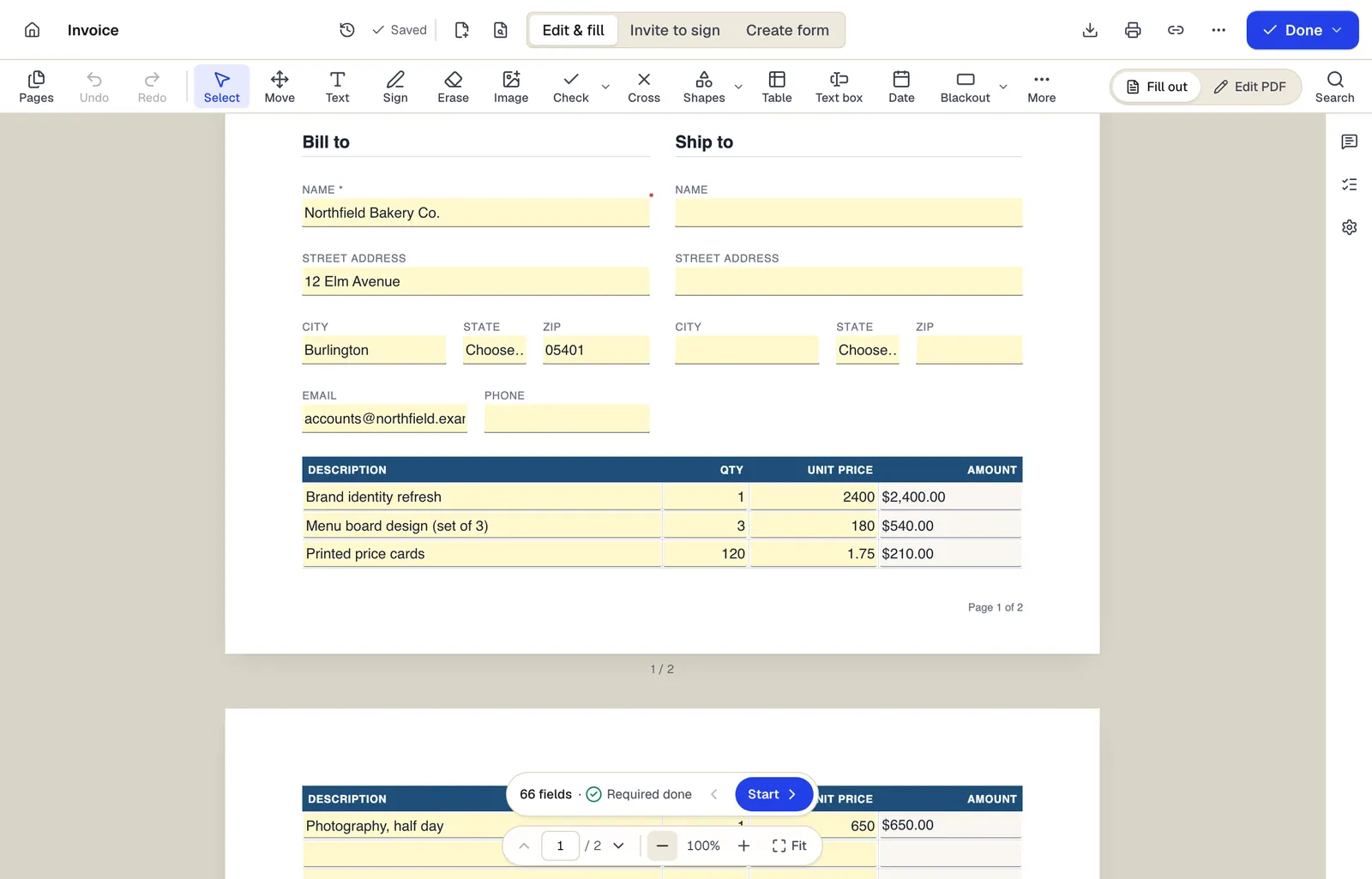
- Edit & fill, Invite to sign and Create form are three modes of the same editor
- Amounts are formula fields: they calculate as you type
- The field navigator counts what's left and jumps to the next field
The editor in Edit & fill mode. Sample content; names and companies are fictional.
How to do it
Add checkmarks to a PDF in 4 steps
1A form
2Type into the fields
3A filled copy
- 1
Upload the form
The checkmark tool is selected when the editor opens.
- 2
Pick check, X or dot
Switch between the three marks in the toolbar.
- 3
Click each box
Each click places a mark. Drag to adjust, use the corner handle to resize, and change the color if needed.
- 4
Download
Sign in to a free account to download the completed form.
Example
Before and after
A scanned two-page patient history questionnaire with 30 empty yes/no squares and no fillable fields.
Twelve boxes ticked with a black checkmark sized to the 10 pt squares, and the “None of the above” box marked with an X, all aligned inside their squares.
Settings & formats
What you can control
- Mark type
- Checkmark (✓), cross (✗) or filled dot (●).
- Size and color
- Resize to match the box; black and dark blue read best on printed forms.
Input
Output
Good to know before you start
- Marks are static. Recipients cannot untick them, and the checked state is not stored as form data.
- On scanned forms, boxes are not detected automatically; you click each one. Zoom in for small boxes.
If something goes wrong
If something goes wrong
- The mark sits slightly off the box.
- Zoom in to 150–200% before clicking; you can also drag the mark or nudge it with the arrow keys.
Add checkmark to PDF: questions people ask
What is the difference between a checkmark and a checkbox?
A checkmark is a drawn tick that stays in the document as you placed it. A checkbox is an interactive field that anyone can toggle in a PDF reader and that stores a checked/unchecked value.
Can I use an X instead of a tick?
Yes. Switch to the cross mark; there is also a filled dot for bubble-style answers.
Can I change the color of the checkmark?
Yes. Pick any color; dark colors are easiest to read once the form is printed or faxed.
My PDF already has checkboxes. Should I use this?
No. Open it in Fill PDF and click the existing checkboxes; they keep working as fields in the downloaded file.
Will the checkmark still be there if someone opens the PDF in another app?
Yes. The mark is part of the downloaded page and appears in every PDF reader.