
Add text to a PDF
Click anywhere on a page, type, and position a text box that stays exactly where you put it in the downloaded PDF.
Drop a PDF hereLet go to start
or paste with Ctrl/⌘+V
Start without an account. A free account includes 3 edited-document downloads a month. See plans
What it does
Add text to PDF, explained
To add text to a PDF, choose the text tool, click the spot on the page, and type; the text box can then be moved, resized and styled. PDFBetter opens with this tool selected, so you can start typing on the page as soon as the file loads.
Read more
This is how you fill a form that has no fillable fields — a printed application that was scanned, a flat government PDF, a handout with blank lines — and how you add notes, labels, addresses or a short paragraph to any document. It also covers what people search as “type on PDF” or “write on PDF”: the result is typed text, not handwriting.
Adding text is different from editing text. Add text puts new words on top of the page and leaves everything underneath alone; Edit PDF changes words that are already there. It is also different from a fillable text field: an added text box is fixed content you type now, while a text field (Add text fields) is an empty box someone else fills in later.
Boxes either grow with your typing or wrap at a fixed width, so a paragraph stays inside a column. What you see in the editor is what the download contains, at the same position, font and size.
In the app
What it looks like
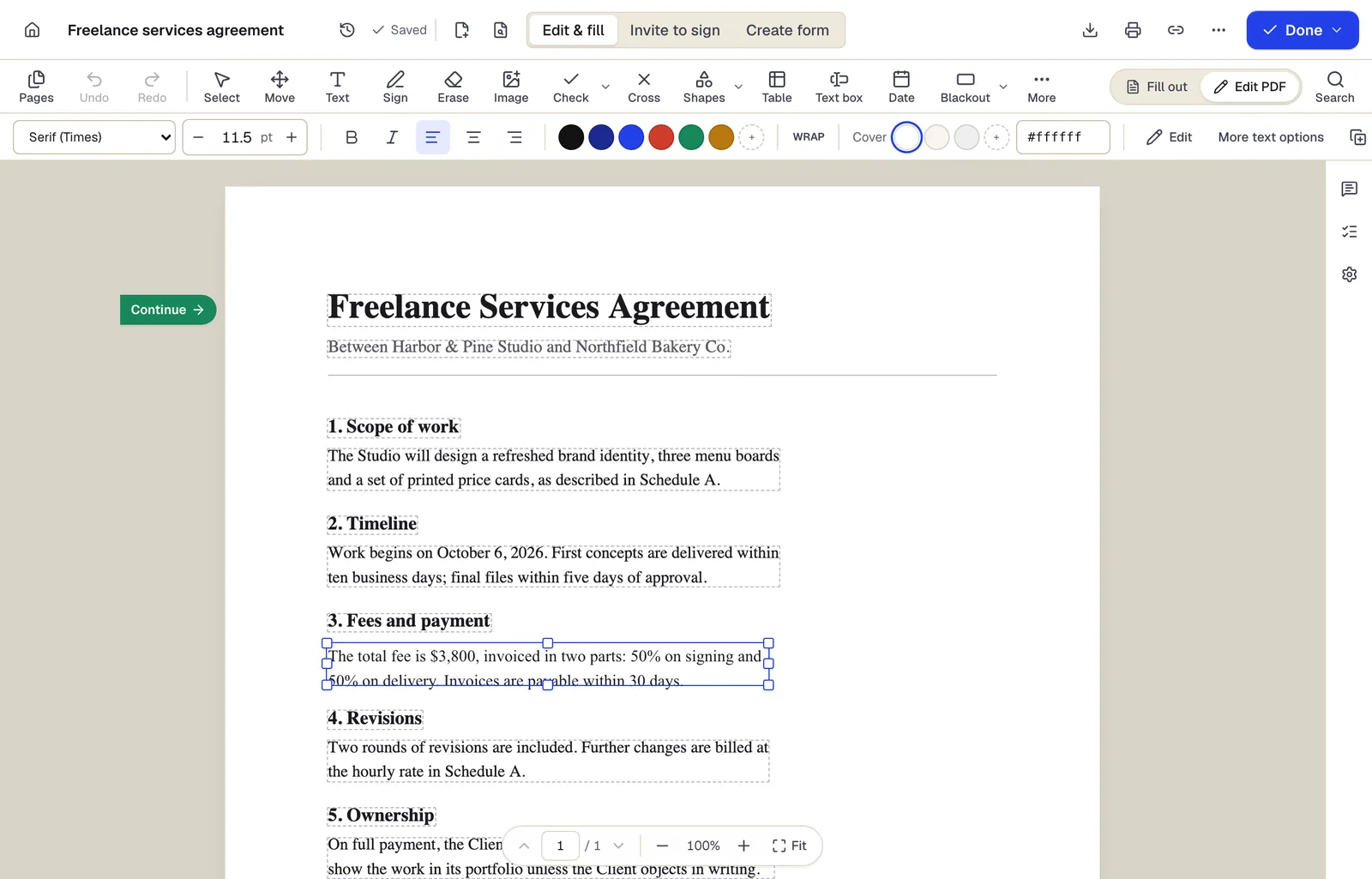
- Existing text becomes editable paragraphs, not just lines
- The detected font and size are kept — here Times at 11.5 pt
- Switch between filling fields and editing the page itself
The editor in Edit PDF mode. Sample content; names and companies are fictional.
How to do it
Add text to a PDF in 4 steps
1Your PDF
2Click and change
3The edited PDF
- 1
Upload the PDF
Flat forms, scans and normal PDFs all work; the text tool is selected when the editor opens.
- 2
Click and type
Click where the text should start. Press Enter for a new line inside the same box.
- 3
Style and position
Change font, size, color, bold, italic and alignment. Drag to move; drag the side handle to set a wrap width.
- 4
Download
Create a free account to download. Choose flatten if the text must not be editable in other PDF apps.
Example
Before and after
A scanned, non-fillable rental application with blank underlined spaces for name, current address and employer.
Typed answers sitting on each line in 10 pt Helvetica, with the address box set to a fixed width so the two-line address wraps under the label.
Settings & formats
What you can control
- Font
- Helvetica-style sans-serif, Times-style serif or Courier-style monospace, each with bold and italic.
- Size, color and line height
- Any point size; hex colors; line spacing for multi-line boxes.
- Auto-size or fixed width
- Auto-size grows the box as you type. Fixed width wraps lines inside the box, useful for paragraphs and columns.
- Alignment
- Left, center or right inside the box.
Input
Output
Good to know before you start
- Three font families are available; you cannot match a document's custom typeface with added text.
- Text boxes do not push existing page content aside. If a blank is too short, the text overlaps whatever is next to it — shrink the font or widen the box.
- Text added to a scan sits on top of the image; it is selectable, but the scanned words around it are not unless you run OCR.
If something goes wrong
If something goes wrong
- My text lands slightly above or below the printed line.
- Zoom in and drag the box, or nudge it with the arrow keys. Smaller fonts (9–10 pt) sit more naturally on form lines.
- The text is cut off in the download.
- A fixed-width box can be shorter than its contents. Switch the box to auto-size or drag its bottom edge so all lines are visible before downloading.
Add text to PDF: questions people ask
Is “type on PDF” the same as adding text?
Yes. Typing on a PDF, writing on a PDF and adding a text box all describe placing new typed text on a page, which is what this tool does.
Can I add text to a PDF that is not fillable?
Yes. The text tool works on any page, which is the usual way to complete flat or scanned forms.
Can someone else edit my added text later?
In PDFBetter, yes, until you download. In the downloaded file, text added without flattening is page content most readers cannot edit; flattening makes that certain.
How do I make the text fit on a narrow line?
Lower the font size or use a fixed-width box; the editor previews the wrap before you download.
Can I add handwriting instead of typed text?
Use the drawing tool for freehand marks, or Sign PDF for a signature. This tool is for typed text.
Will added text be searchable?
Yes. It is stored as real text, so it can be searched and copied in other PDF readers.