
Fill out a PDF form
Open the form, move through every field with Tab, fill it in, and download a completed PDF that keeps or locks your answers.
Drop a PDF hereLet go to start
or paste with Ctrl/⌘+V
Start without an account. A free account includes 3 edited-document downloads a month. See plans
What it does
Fill PDF, explained
To fill out a PDF form online, upload it and click into each field — or press Tab to move from one to the next — to type text, tick checkboxes, choose radio options and pick from dropdowns. PDFBetter finds the form's existing fillable fields automatically and lists them in a panel so you can see what is left.
Read more
Not every PDF form has fields. Many are flat printouts or scans. For those, the same editor lets you click anywhere and type, drop checkmarks into boxes, add today's date and sign — so one tool completes both kinds of form. If you want others to fill your form, see Create fillable PDF or Form builder instead.
Required fields are flagged until they have a value, and fields with a format (such as a date) show an error if what you typed does not fit. Your entries are saved as you go, so you can close the tab and come back; guest drafts are deleted 1 hour after they're created, and an account keeps them in your document list.
When you download, choose fillable (the next person can still change the values, for example an employer completing their part) or flattened (your answers become part of the page). A free account is needed to download and includes 3 edited-document downloads a month.
In the app
What it looks like
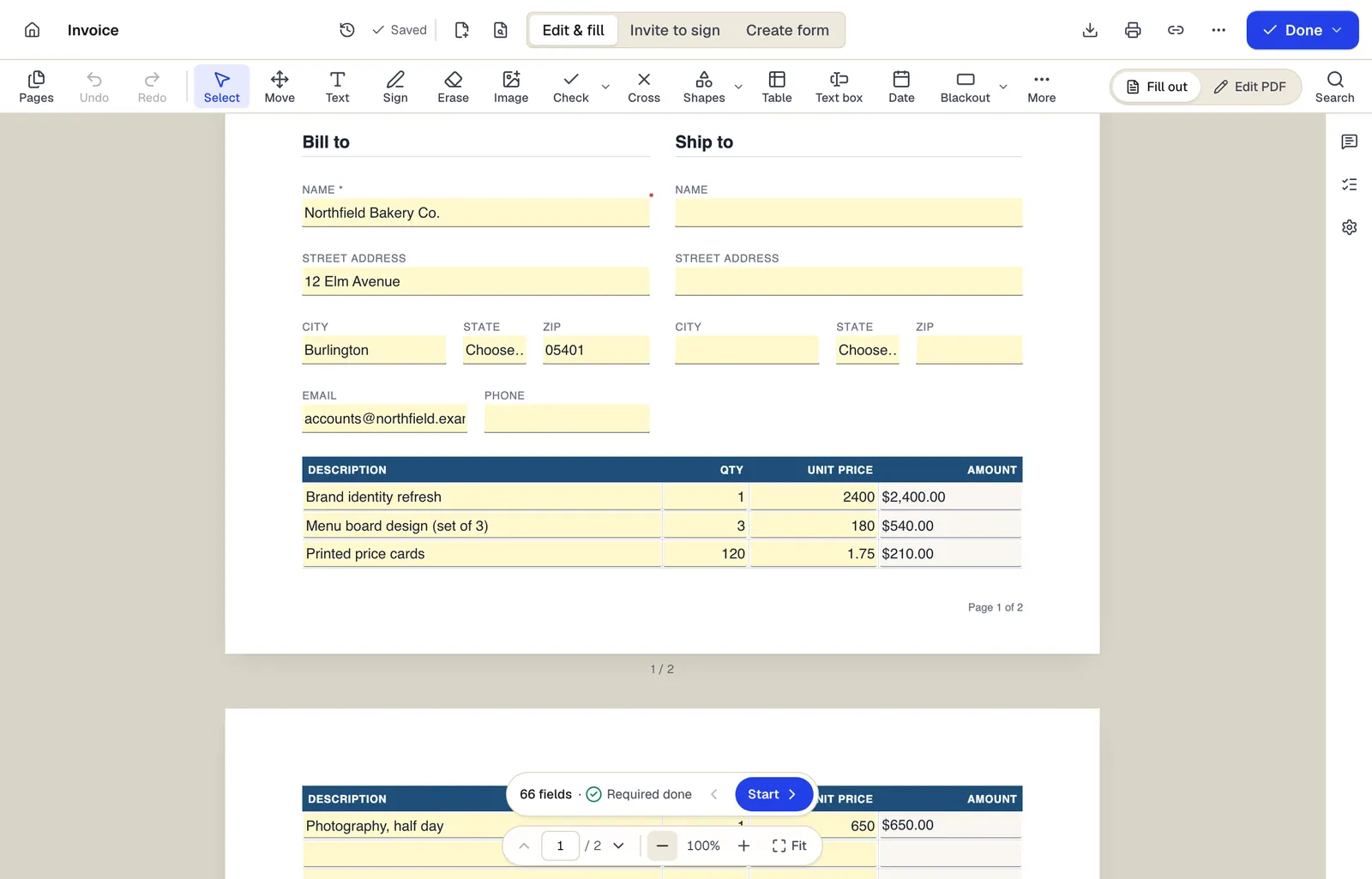
- Edit & fill, Invite to sign and Create form are three modes of the same editor
- Amounts are formula fields: they calculate as you type
- The field navigator counts what's left and jumps to the next field
The editor in Edit & fill mode on an invoice template. Sample content; names and companies are fictional.
How to do it
Fill out a PDF form in 5 steps
1A form
2Type into the fields
3A filled copy
- 1
Upload the form
Existing fields are detected and highlighted; the field list shows how many are required.
- 2
Fill each field
Click a field or press Tab to move through them in order. Tick boxes and choose options.
- 3
Complete flat areas
Where there are no fields, type with the text tool, add checkmarks, the date and your signature.
- 4
Check required fields
The panel shows any required field still empty or with an invalid value.
- 5
Download
Create a free account and download fillable or flattened.
Example
Before and after
A 4-page fillable job application from a hospital HR site, with 58 fields including 12 required and a set of yes/no radio questions.
All 12 required fields completed, radio answers chosen, a drawn signature and date added on the last page, and the form downloaded flattened so the answers display identically in any viewer.
Settings & formats
What you can control
- Field navigation
- Tab and Shift+Tab through fields; the panel lists every field and its status.
- Fillable or flattened download
- Keep values editable in the form, or make them part of the page.
Input
Output
Good to know before you start
- Dynamic XFA forms (often from older government and insurance systems) do not open as fillable forms. Ask the issuer for a standard PDF, or print the form to PDF and type on it.
- Calculations built into a PDF with JavaScript, such as automatic totals on some tax forms, are not run. Check totals yourself.
- Fonts in existing fields follow the form's settings; some forms use tiny or auto-sized text that can look different from other readers.
- If the form is password protected against editing, unlock it first.
If something goes wrong
If something goes wrong
- The form says “Please wait…” or shows a message about Adobe Reader.
- It is an XFA form. Open it in Adobe Reader and print to PDF, then fill the printed PDF here with the text tool.
- My answers disappear in another app.
- Some apps hide field values they cannot render. Download flattened so the answers are part of the page.
Fill PDF: questions people ask
How do I know if my PDF is fillable?
Upload it. Existing fields are highlighted and listed; if none are found, the editor switches to typing anywhere on the page.
Can I fill a scanned form?
Yes. Click anywhere to type, use checkmarks for boxes, and add your signature and date.
Should I download fillable or flattened?
Fillable if someone else still needs to complete or change fields. Flattened when the form is final, so answers look the same everywhere and are harder to change.
Is my progress saved?
Yes. Entries save automatically. As a guest, drafts are kept for 1 hour after you create them; with an account they are kept in your documents.
Can I sign the form after filling it?
Yes. Switch to the signature tool in the same editor and place your signature on the line.
Do I need an account?
No account is needed to fill. Downloading the completed form needs a free account.