
Guide · Forms
How to fill out a PDF form
Reviewed

Short answer
To fill out a PDF form, open it in a PDF editor, click into each field and type, tick the checkboxes, add a signature and date, then download or save a copy. If the form has no fillable fields, place text boxes on the blank lines instead. Before sending, reopen the saved file to make sure your entries are still there.
On this page (7)
Check whether the form is fillable
Open the PDF and click on a blank line. If a cursor appears inside a highlighted box, the form has fillable fields. If nothing happens, it is a flat form, which is common for scanned forms and older documents. Both can be completed; the method differs.
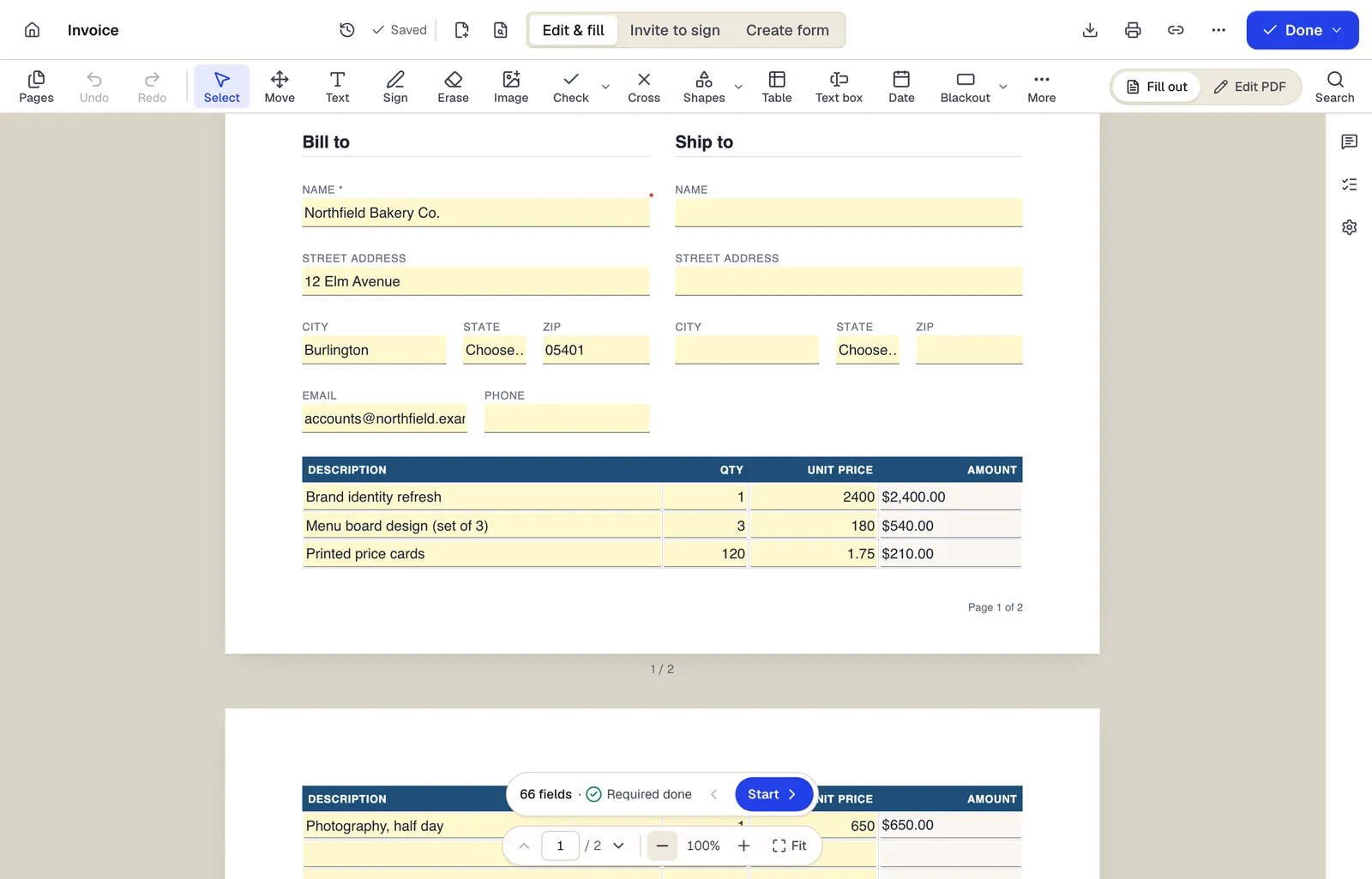
- Edit & fill, Invite to sign and Create form are three modes of the same editor
- Amounts are formula fields: they calculate as you type
- The field navigator counts what's left and jumps to the next field
The editor in Edit & fill mode on an invoice template. Sample content; names and companies are fictional.
Fill a form in PDFBetter
- 1
Upload the form
Open it with Fill PDF. Existing fields are detected and highlighted.
- 2
Complete the fields
Click a field and type; press Tab to move to the next one. Required fields are marked, and fields with a format (dates, emails, numbers) tell you when an entry doesn't match.
- 3
Use the text tool on flat forms
Where there are no fields, click on the line and type. The checkmark tool places a tick in a box, and the date tool inserts today's date in the format you pick.
- 4
Sign if asked
Use the signature tool on the signature line. Sign after everything else is filled.
- 5
Download
Download with a free account. Keep fields fillable if someone else still needs to complete part of the form, or flatten them so entries can't be changed.
Why entries sometimes disappear
Some browser PDF viewers let you type into a form but don't save the entries, or save them in a way other readers don't show. The classic symptom is a recipient opening a blank form you know you filled. Always use a real Save or Download step, then reopen the saved file before sending.
Flattening solves the problem for good: your entries become part of the page, visible in every viewer and printable everywhere. Only flatten when nobody needs to edit the fields again.
Filling official forms
Government and tax forms change. Download the current revision from the issuer's website rather than reusing an old copy, and read the official instructions alongside the form. Agencies often reject outdated revisions.
Some official forms must be printed and signed by hand, or submitted through the agency's own online system. The form's instructions say which.
Filling the same form many times
If you fill the same form for many people, such as certificates, letters or onboarding packets, put the data in a spreadsheet and use Fill PDF from Excel to create one filled copy per row instead of typing each one.
Tools used in this guide
- Fill PDFOpen the form, move through every field with Tab, fill it in, and download a completed PDF that keeps or locks your answers.
- Add text to PDFClick anywhere on a page, type, and position a text box that stays exactly where you put it in the downloaded PDF.
- Sign PDFCreate your signature once, click the signature line to place it, add initials or a date, and download the signed PDF.
- Flatten PDFTurn every field, value and annotation into ordinary page content and download a PDF that cannot be changed by clicking.
- Fill PDF from ExcelMatch spreadsheet columns to form fields, check a preview, and generate one filled PDF for every row.
Questions people ask
Can I fill out a PDF form on my phone?
Yes. PDFBetter works in mobile browsers; tap a field to type and use your finger to sign. On iPhone, the Files app can also fill and mark up PDFs.
Why can't I type in my PDF form?
The form probably has no fillable fields, or it is password-restricted for form filling. Use the text tool to type on the lines, or unlock the file if you know its password.
Do I need to print the form to sign it?
Usually not, unless the form or the recipient explicitly requires a handwritten (“wet”) signature. Check the form's instructions.
Will flattening remove my answers?
No. Flattening keeps the answers exactly as shown but turns them into fixed page content, so they can no longer be edited as fields.
Can I save a half-filled form and finish later?
Yes. With an account your document autosaves as you work; without one, drafts are kept for 1 hour after you create them.
Why does a government form say “Please wait” or won't fill?
It is probably a dynamic XFA form, an older format many browsers and editors can't fill. Ask the issuer for a standard PDF version, or print it to PDF and type on it. Totals calculated by a form's JavaScript also aren't run, so check them yourself.