
Guide · Forms
How to make a PDF fillable
Reviewed

Short answer
To make a PDF fillable, open it in a form builder, add form fields (text boxes, checkboxes, radio buttons, dropdowns, date and signature fields) over the blank lines, give each field a clear name, and download the PDF with fields kept fillable. Automatic field detection can place most fields for you, but review every one before you share the form.
On this page (7)
Fillable vs flat: what's the difference?
A flat PDF only shows lines and boxes; anyone filling it has to place text boxes by hand. A fillable PDF contains interactive form fields (AcroForm fields) that every mainstream PDF reader recognizes, so the person filling it can tab from field to field, tick checkboxes and pick from lists.
Fillable fields also carry names. That is what lets you export answers to a spreadsheet, fill many copies from one, or calculate totals.
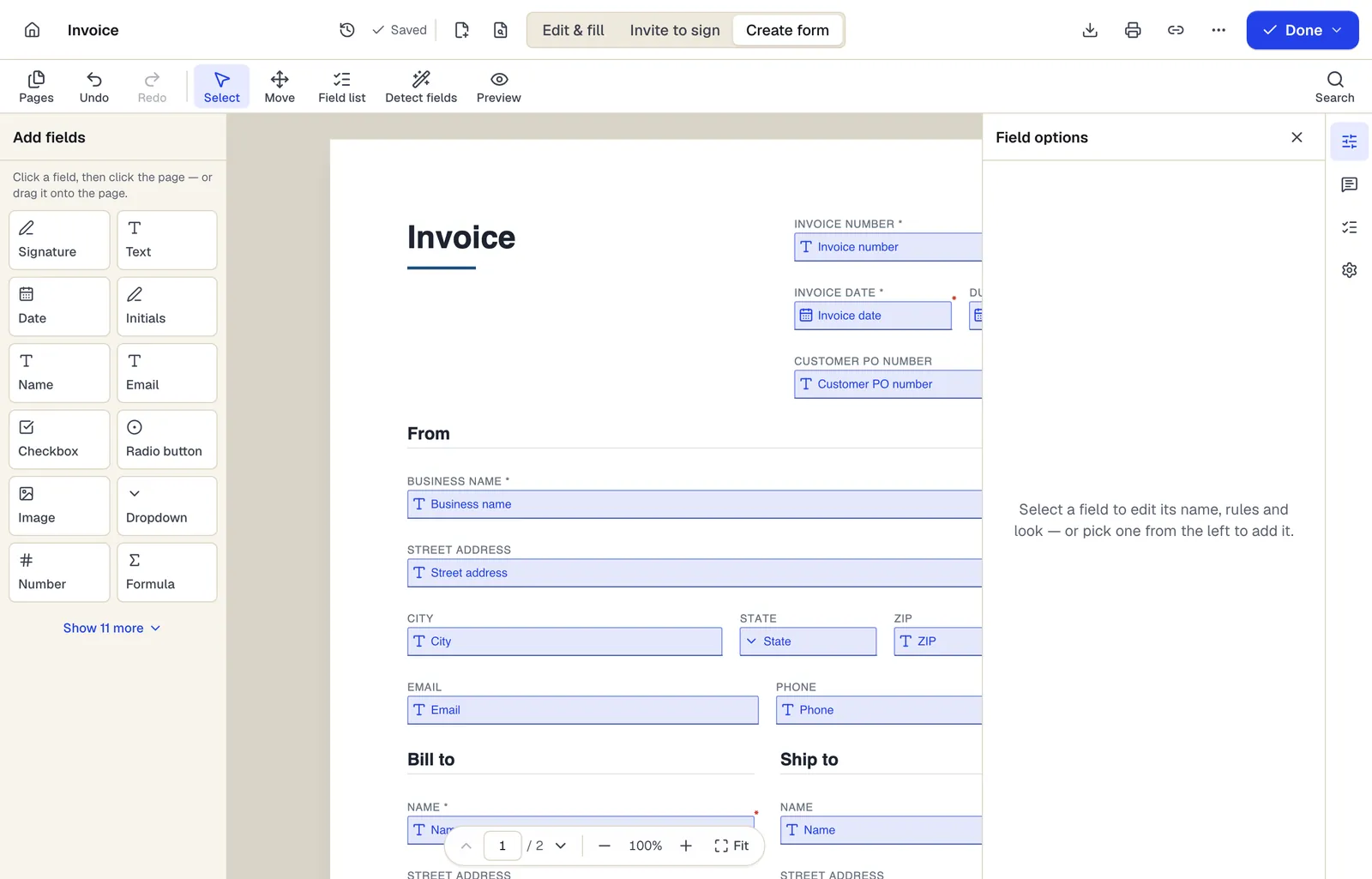
- Pick a field type, then click the page — or drag it
- Detect fields finds the boxes and lines on a flat PDF
- Every field keeps a label, a name and its own rules
The editor in Create form mode. Sample content; names and companies are fictional.
Make a PDF fillable in PDFBetter
- 1
Upload the PDF
Open it with Create fillable PDF. Scanned forms work too, but run OCR first so field labels can be read.
- 2
Detect fields automatically
AI field detection proposes fields from the layout, such as text boxes on underlines and checkboxes on squares. Nothing is added until you review and accept them.
- 3
Add or adjust fields by hand
Draw text, number, date, email, phone, checkbox, radio, dropdown, image, signature and initials fields where detection missed something, and resize fields to fit their lines.
- 4
Name and configure each field
Give fields short, unique names (for example “applicant_phone”), mark required ones, set dropdown options and group radio buttons that belong to one question.
- 5
Test and download
Switch to fill mode and complete the form yourself, then download with fields kept fillable.
Choose the right field for each question
Use radio buttons for one choice from a few options and checkboxes when several can apply. Use a dropdown when the list is long, such as states or departments. Use a date field rather than free text so dates come back in one format, and a multi-line text field for comments.
Formula fields can calculate totals from other fields (for example quantity times price) and conditional rules can show a field only when an earlier answer makes it relevant. Both work while filling in PDFBetter; other PDF readers may show the fields but not run the calculations.
Test the form in a different reader
Open the downloaded file in at least one other common PDF reader and fill every field. Check that tab order follows the page, text doesn't overflow small boxes and checkboxes print. Fixing these before you send the form saves a round of corrections from the people filling it.
Share it as a file or as a web form
You can send the fillable PDF by email and have people return it, or publish it as a web form so people fill it in a browser and you receive each response as a filled PDF plus a row in a spreadsheet export. The second option avoids the most common problem with fillable PDFs: people filling them in a viewer that doesn't save their entries.
Tools used in this guide
- Create fillable PDFConvert a static PDF into a form with real fields — detected automatically, checked by you — and download a fillable PDF.
- Online form builderTurn a document into a live form people fill out from a link, QR code or your website, and collect every response in one place.
- Add checkbox to PDFPlace interactive checkboxes on your PDF so people can tick any number of options, and download a form that remembers their choices.
- Add text fields to PDFDraw text fields over the blanks in your PDF and download a form that anyone can type into, in any PDF reader.
- Flatten PDFTurn every field, value and annotation into ordinary page content and download a PDF that cannot be changed by clicking.
Questions people ask
Can I make a scanned PDF fillable?
Yes. Fields sit on top of the page, so they work on scans. Run OCR first if you want automatic detection to read the labels.
Will the fillable PDF work in other PDF readers?
Standard text, checkbox, radio, dropdown and signature fields are written as normal AcroForm fields that mainstream readers support. Calculations and show/hide rules are PDFBetter features and may not run in other readers.
How do I stop people from editing the form itself?
Fields only let people enter values; the page content isn't editable in a normal reader. Adding a permissions password discourages changes further, but permissions depend on the reader respecting them.
How do I remove the fields again?
Use Remove PDF fields to delete fields, or Flatten PDF to turn the entered values into fixed page content that can no longer be changed in a form.
Is AI field detection always right?
No. It handles common layouts well but can miss fields, merge neighboring boxes or guess the wrong type. You review every proposed field before it is added.