
Guide · Forms
How to create an invoice PDF
Reviewed
Short answer
To create an invoice PDF, start from an invoice template or a blank document, add your business details, the client's details, a unique invoice number, the issue and due dates, line items with quantities and prices, tax and the total due, then save as PDF. A fillable template with calculated totals avoids arithmetic mistakes and lets you reuse the same layout for every invoice.
On this page (7)
What every invoice should include
Your business name, address and contact details; the client's name and billing address; a unique invoice number; the invoice date and the payment due date; a line for each product or service with quantity, unit price and amount; subtotal, any tax and discounts, and the total due; and how to pay you, such as bank details or a payment link, plus your payment terms.
Tax rules may add requirements. Businesses registered for VAT or GST, for example, generally must show their registration number and the tax breakdown on invoices. Check your tax authority's guidance for what your invoices must contain.
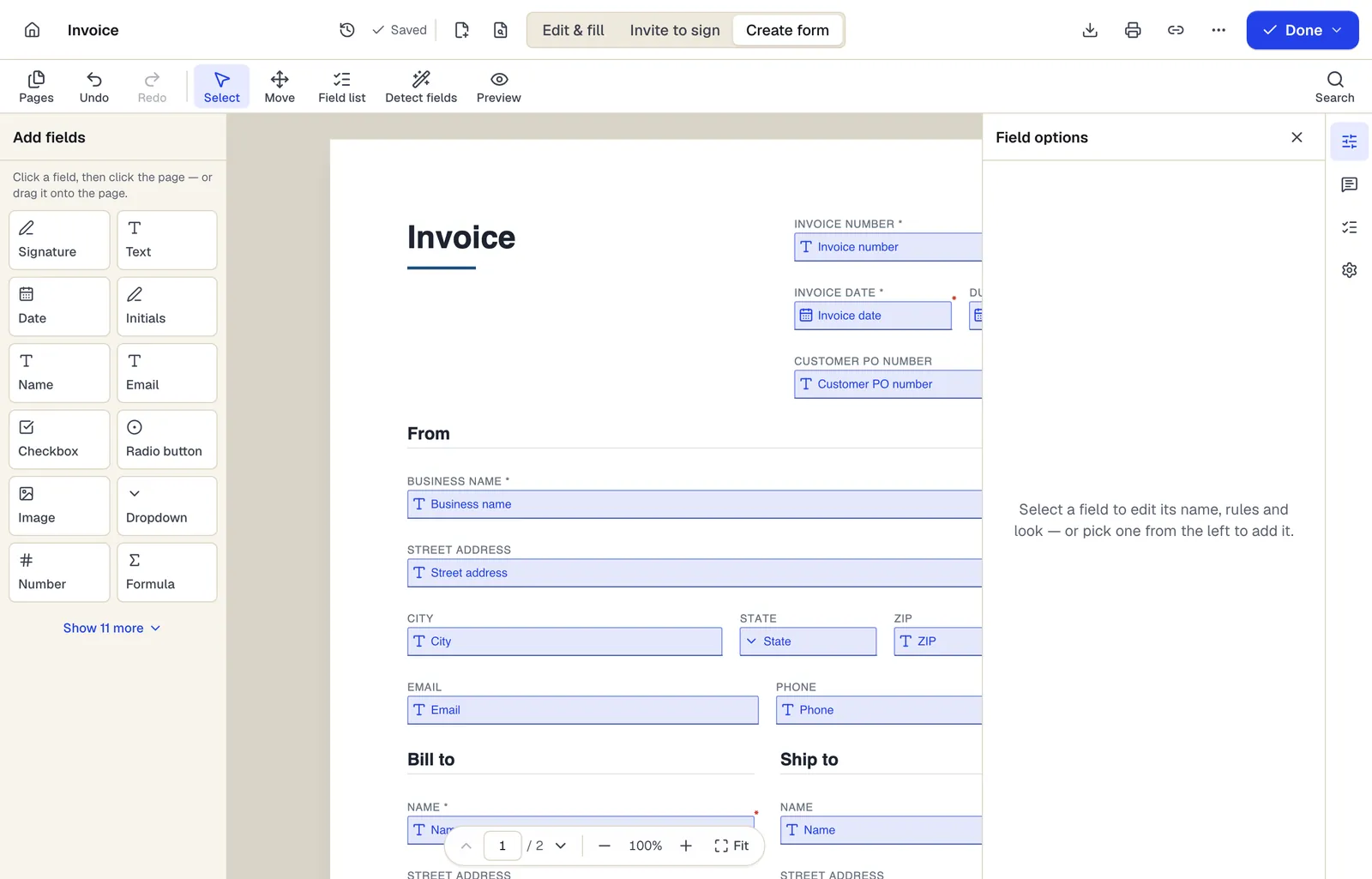
- Pick a field type, then click the page — or drag it
- Detect fields finds the boxes and lines on a flat PDF
- Every field keeps a label, a name and its own rules
The editor in Create form mode. Sample content; names and companies are fictional.
Create an invoice in PDFBetter
- 1
Pick a template
Open an invoice template from the template library, or describe the invoice to the AI document creator and review the draft it produces.
- 2
Add your details once
Fill in your business details and logo, then save it as your own reusable template.
- 3
Fill in the invoice
Enter the client, number, dates and line items. Formula fields calculate line amounts and totals as you type.
- 4
Download or send
Download the PDF, flatten it so totals can't be altered, or email it directly from the editor.
Number invoices so they're easy to track
Use one sequence that never repeats, such as 2026-0001, 2026-0002. Don't reuse a number after cancelling an invoice; issue a credit note instead. Consistent numbering makes payment tracking and tax records easier, and some tax systems expect it.
Make totals add up automatically
Typing totals by hand is where most invoice errors come from. In a fillable invoice, make each line amount a formula of quantity times unit price, the subtotal a sum of the line amounts, and the total the subtotal plus tax. Check the result once with a calculator before you rely on it.
Sending many invoices at once
If your invoice data already lives in a spreadsheet, map its columns to the template's fields and use Fill PDF from Excel to produce one invoice per row. Name output files with the invoice number and client so they are easy to find later.
Tools used in this guide
- Create PDF templateSet up a document once with its fields and fixed content, save it as a template, and start a clean copy every time you need it.
- Fill PDF from ExcelMatch spreadsheet columns to form fields, check a preview, and generate one filled PDF for every row.
- AI document creatorDescribe a document in a sentence or two and get a draft you can edit, fill and send from the editor.
- Flatten PDFTurn every field, value and annotation into ordinary page content and download a PDF that cannot be changed by clicking.
- Add image to PDFUpload a PDF, drop in a PNG or JPG, and resize and position it exactly where it belongs on the page.
Questions people ask
Is a PDF invoice legally valid?
In most places an invoice doesn't have to be on paper; a PDF sent by email is common. Some countries require structured e-invoices (machine-readable formats) for certain transactions, so check the rules where you and your client do business.
Should I flatten my invoice before sending it?
Usually yes. Flattening turns the entries into fixed page content, so the client sees exactly what you sent and can't accidentally change an amount.
Can I add my logo?
Yes. Use the image tool to place a PNG or JPG logo, then save the invoice as a template so the logo is there every time.
What's the difference between an invoice and a receipt?
An invoice asks for payment and states when it is due. A receipt confirms that payment was received. Many businesses send both.
Can PDFBetter track whether an invoice was paid?
No. PDFBetter creates and sends the document; track payment status in your accounting software or a spreadsheet.