
Guide · Forms
How to collect form responses from a PDF
Reviewed

Short answer
To collect responses from a PDF form, publish it as a web form instead of emailing the file around. Respondents open a link or scan a QR code, fill the form in their browser and submit; each response is saved as a filled PDF and as a row you can export to CSV or Excel. This avoids lost entries, version confusion and retyping data from returned PDFs.
On this page (7)
Why emailing fillable PDFs is hard to manage
When you email a fillable PDF, every respondent has to open it in a reader that saves form data, remember to save, and attach the right file in a reply. You then collect attachments from your inbox and copy answers into a spreadsheet by hand. Missing entries and mismatched versions are common.
A published form keeps the PDF layout people expect, but collects answers centrally and checks required fields and formats at submission.
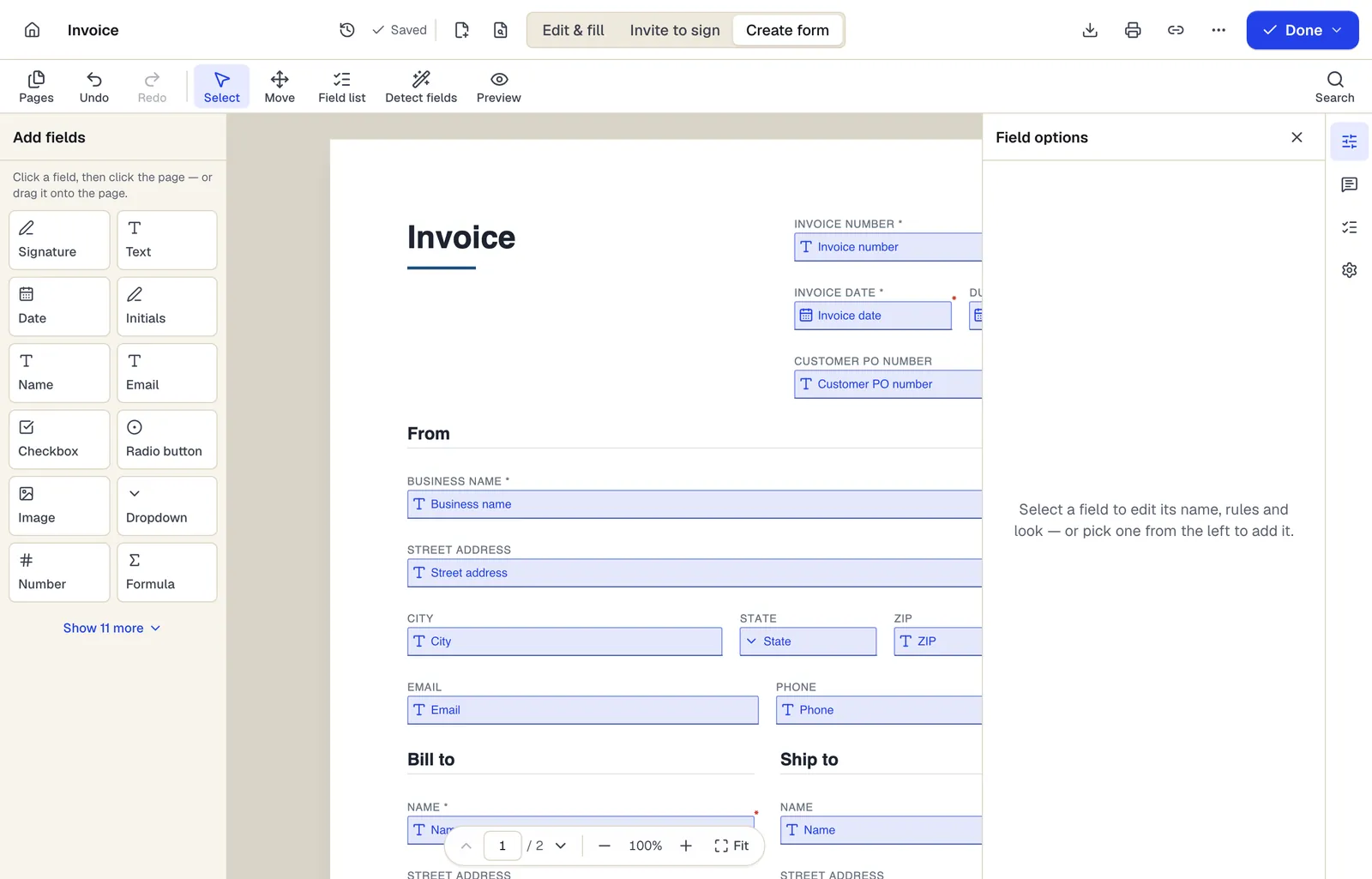
- Pick a field type, then click the page — or drag it
- Detect fields finds the boxes and lines on a flat PDF
- Every field keeps a label, a name and its own rules
The editor in Create form mode. Sample content; names and companies are fictional.
Publish a PDF form in PDFBetter
- 1
Prepare the fillable PDF
Upload the form and add or detect fields. Give every field a clear name; names become the column headers in your export.
- 2
Mark required fields and formats
Set required fields and use email, phone, date and number fields so answers arrive in a consistent format.
- 3
Publish
Choose a title, an optional confirmation message, and settings such as requiring the respondent's email, a response limit or a closing date.
- 4
Share
Copy the link, download the QR code for print, or use the embed code to place the form on your website.
- 5
Review and export
Open responses as filled PDFs one by one, or export all of them to CSV or Excel (XLSX).
Settings worth deciding up front
Require email when you need to follow up with respondents or send them a copy. Turn on owner notifications if you need to act on each response quickly. Set a closing date or response limit for registrations with a deadline or a fixed number of places. Allow respondents to download their filled PDF when they will need a record, such as an application or a consent form.
Plan limits
The Free plan includes 1 live form and 50 responses a month. Pro includes 10 live forms and 1,000 responses a month; Business includes unlimited live forms and 10,000 responses a month.
Handle personal data carefully
Only ask for what you need. If the form collects sensitive information such as health details or ID numbers, check what the rules that apply to you require before collecting it online, tell respondents how you will use it, and delete responses you no longer need. PDFBetter does not currently sign HIPAA business associate agreements, so don't use it to collect protected health information where one is required.
Tools used in this guide
- Online form builderTurn a document into a live form people fill out from a link, QR code or your website, and collect every response in one place.
- Create fillable PDFConvert a static PDF into a form with real fields — detected automatically, checked by you — and download a fillable PDF.
- Fill PDFOpen the form, move through every field with Tab, fill it in, and download a completed PDF that keeps or locks your answers.
- Request signaturesAdd the people who need to sign, place each person's fields, send, and get the completed PDF plus a certificate of completion when everyone is done.
Questions people ask
Do respondents need an account?
No. They open the link, fill the form in the browser and submit.
Can I change the form after publishing?
Yes. Responses record which edition of the form they were submitted against, so earlier answers stay tied to the version people actually saw.
How do I stop spam submissions?
Published forms use a bot check at submission. You can also require an email address, limit the number of responses or set a closing date.
What format are exported responses in?
CSV or Excel (XLSX), one row per response with one column per field name, plus the response ID, submission time, form edition and respondent email.
Can respondents sign the form?
Yes. Add a signature field and respondents draw or type a signature when they fill it. If you need signatures from specific named people with an audit trail, use a signature request instead.