
Guide · Signing
How to sign a PDF on an iPhone
Reviewed
Short answer
To sign a PDF on an iPhone, open it in the Files app, tap the Markup button, tap the Add button, choose Add Signature, sign with your finger and tap Done, then drag the signature onto the line. You can also sign in Safari with PDFBetter, which lets you add dates and initials, keep the signed copy in your account, or send the document to others for signature.
On this page (7)
Sign with Markup in the Files app
- 1
Save the PDF to Files
From Mail or Messages, open the attachment and save it to Files if prompted.
- 2
Open Markup
Open the PDF in Files and tap the Markup button.
- 3
Add your signature
Tap the Add button, then Add Signature. Sign with your finger and tap Done. iPhone saves signatures so you can reuse them.
- 4
Place and resize
Drag the signature onto the signature line and use the handles to resize it.
- 5
Finish and share
Tap Done, then share the signed PDF from Files.
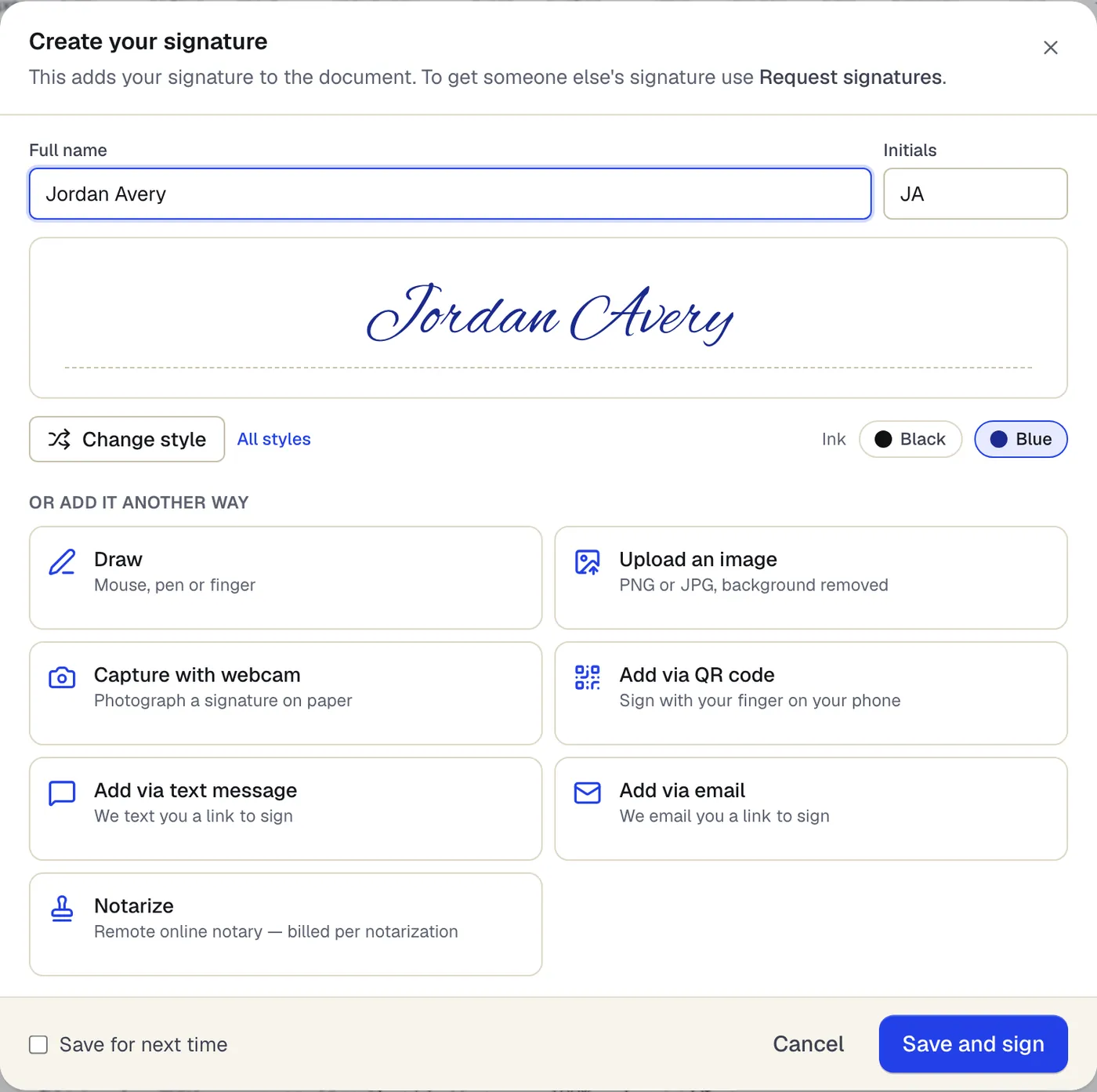
- Type your name and pick a style and ink color
- Or draw it, upload it, or finish on your phone
The signature dialog that opens from Sign. Sample content; names and companies are fictional.
Sign in Safari with PDFBetter
- 1
Open Sign PDF in Safari
Upload the PDF from Files or iCloud Drive.
- 2
Create your signature
Draw with your finger, type your name in a signature font, or upload a photo of your signature.
- 3
Add date and initials
Use the date tool for the signing date and add initials where the document asks for them.
- 4
Download or send
Download the signed PDF with a free account, or share it by email or link directly.
Tips for a clean signature on a phone
Rotate the phone to landscape before drawing; the wider area gives a more natural signature. Sign slowly and larger than you need, then shrink it to fit the line. Zoom the page before placing it so the signature sits on the line rather than over printed text.
When others need to sign too
If a document needs signatures from several people, sending one PDF around by email creates confusion over versions. A signature request in PDFBetter sends each person a link that works on any phone, collects signatures in order with each signer's own device key, and returns a sealed, time-stamped PDF with a certificate of completion and audit trail.
Is an iPhone signature legally valid?
A signature drawn on a phone is an electronic signature. In most countries electronic signatures are generally accepted for everyday agreements, with exceptions such as wills, some property documents and notarized documents. Check the requirements for your document; this is not legal advice.
Tools used in this guide
- Sign PDFCreate your signature once, click the signature line to place it, add initials or a date, and download the signed PDF.
- Request signaturesAdd the people who need to sign, place each person's fields, send, and get the completed PDF plus a certificate of completion when everyone is done.
- Add date to PDFPick a date from the calendar, choose its format, and place it on the date line of your PDF.
- Fill PDFOpen the form, move through every field with Tab, fill it in, and download a completed PDF that keeps or locks your answers.
Questions people ask
Where does iPhone save my signature?
Markup keeps signatures you create so you can reuse them; Apple's guide describes adding, labeling and deleting them from the signature options.
Can I sign a PDF attachment directly in Mail?
Mail can open attachments with Markup on many iOS versions, but saving to Files first gives you a copy you control.
Does PDFBetter need an app on iPhone?
No. It runs in Safari or any iPhone browser.
Can I add the date next to my signature?
With Markup, add a text box and type the date. In PDFBetter, the date tool inserts the date in the format you choose.
How do I send the signed PDF back?
From Files, tap Share and choose Mail or Messages. From PDFBetter, download it or send it from the editor.