
Guide · Signing
How to request an electronic signature
Reviewed

Short answer
To request an electronic signature, upload the document to an e-signature tool, add each signer's name and email, place signature, date and other fields for each person, choose the signing order and send. Each signer gets a link, agrees to sign electronically, completes their fields and finishes. When everyone has signed, all parties receive the completed PDF and a certificate of completion with the audit trail. In PDFBetter, every signer signs with their own cryptographic key, and the completed PDF is digitally sealed and independently time-stamped, with the evidence built into the file.
On this page (8)
What you need before you start
A final version of the document, since it will be locked when you send it. The full name and email address of every signer. And a decision about order: should one person sign before the next sees it (sequential), or can everyone sign at the same time (parallel)?
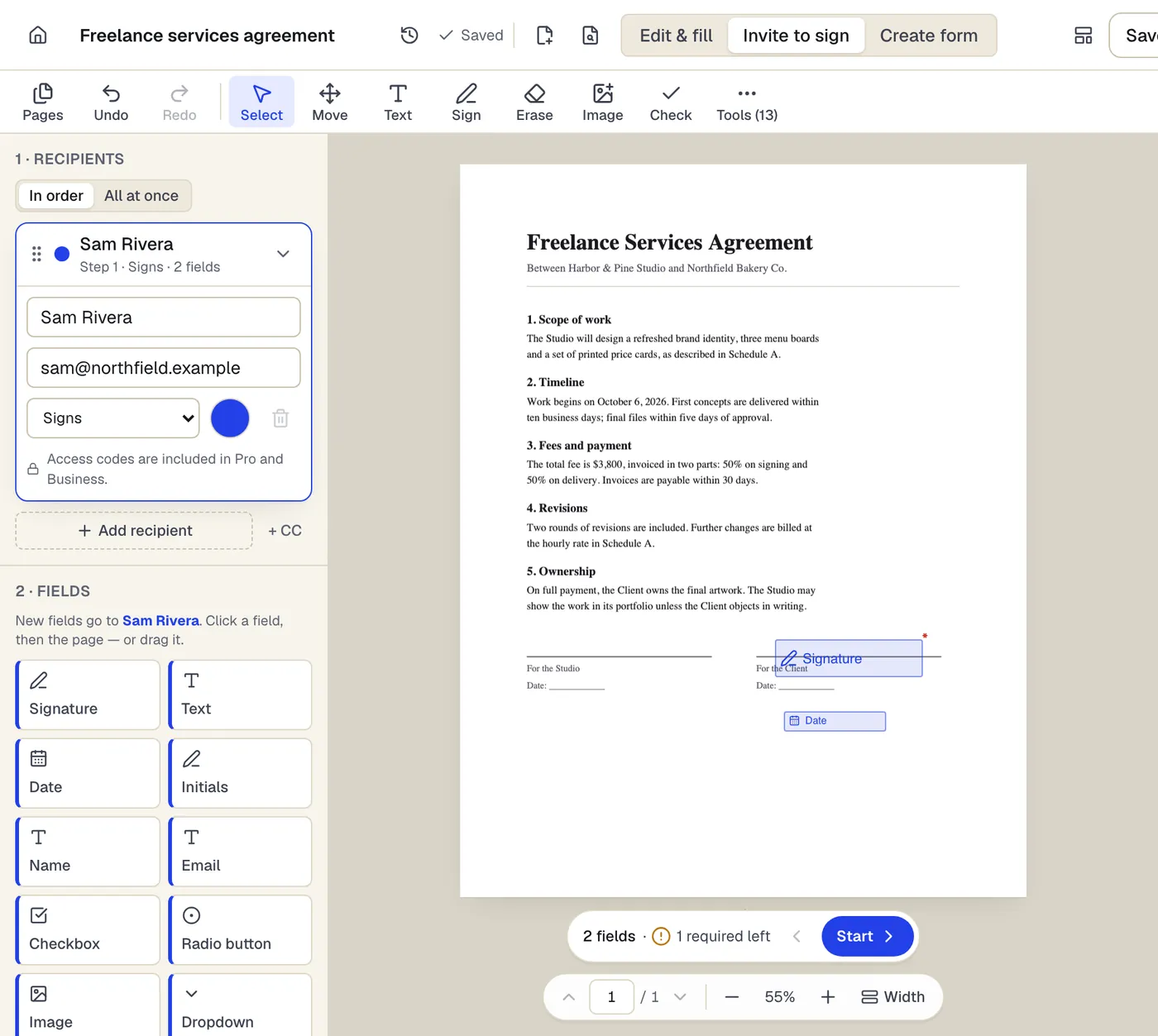
- Recipients sign in order, or all at once
- Fields take the color of the person who fills them
- Fields go to the selected recipient
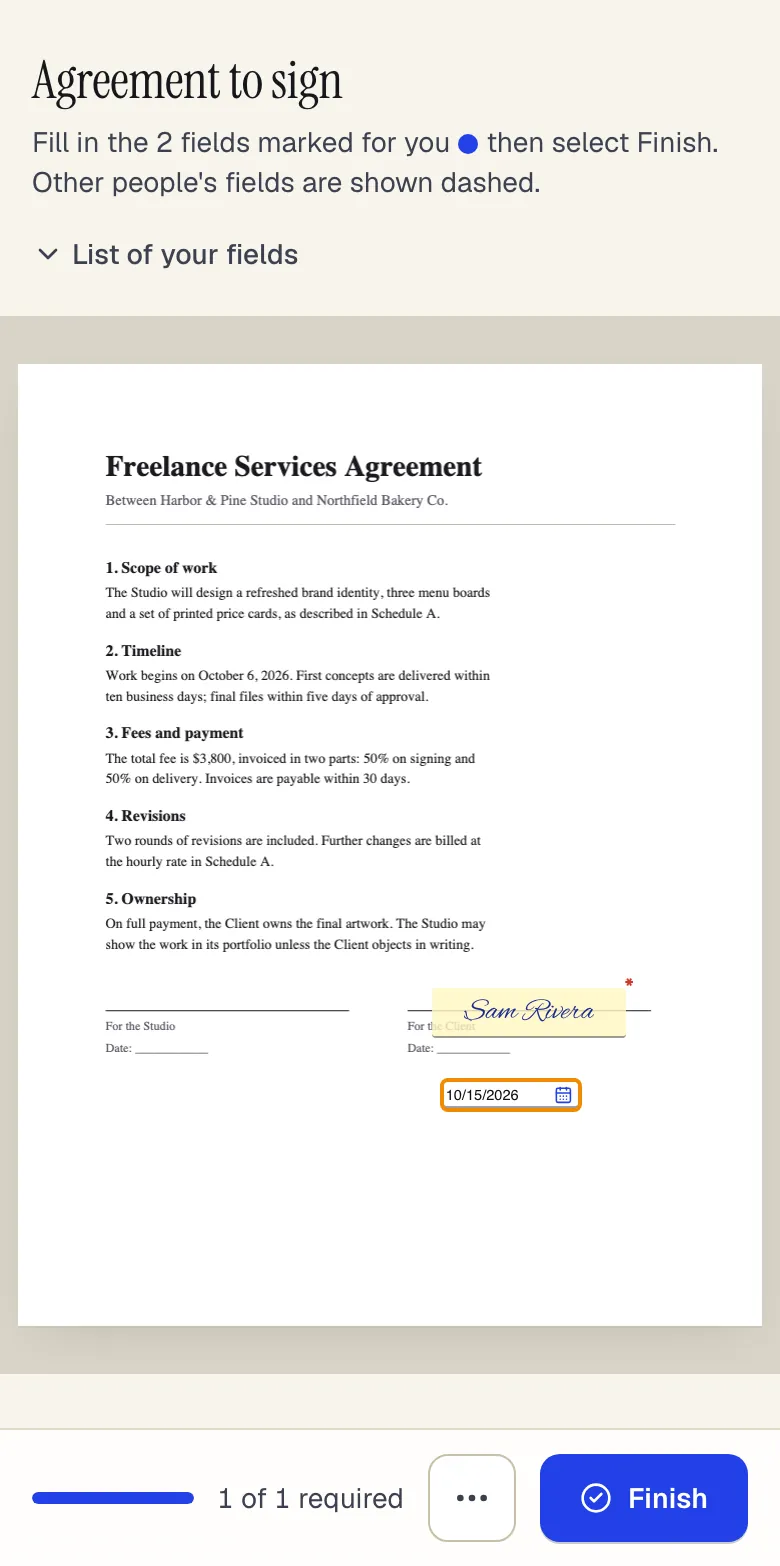
Invite to sign in the editor, and what the signer sees on a phone. Sample content; names and companies are fictional.
Send a signature request in PDFBetter
- 1
Upload the document
Open it with Request signatures. Fill in anything that is yours to fill before you send.
- 2
Add recipients
Add up to 20 people as signers, approvers (who approve without signing) or CC recipients (who get the completed copy). Each person gets a color.
- 3
Place fields for each signer
Drag signature, initials, date, name, text and checkbox fields onto the pages and assign each one to a recipient. Mark fields required where needed. AI signing preparation can propose roles and fields for you to review; it never sends anything itself.
- 4
Set order, reminders and expiry
Choose sequential or parallel signing, an automatic reminder every 1–30 days, and an expiry date. On any plan you can require a 6-digit code emailed to the signer before they can open the document; on Pro and Business you can instead require an access code you share by phone or text.
- 5
Send and track
Each recipient gets an email link. The request page shows who has viewed, signed or declined, and lets you send a reminder or cancel.
What the signer sees
The signer opens the link on any device, with no account needed. If you required an emailed code, they enter it first; it expires after 10 minutes, works once and allows 5 tries. They then read the ESIGN consumer disclosure, which explains what the consent covers, how to get paper copies, how to withdraw consent or change their email address, and the hardware and software needed, and agree to sign electronically. Next comes the document with their fields highlighted. They fill and sign, then finish. A signer can also decline and give a reason, or choose “I'd rather use paper”, which is recorded in the audit trail.
While they sign, the signer's browser creates a signing key that never leaves their device. It is an ECDSA P-256 key, unique to that signer, and it signs a statement tying the document's SHA-256 fingerprint to exactly what that person entered; PDFBetter's certificate authority certifies the key. With the seal on the finished file, this means each request is designed to the technical requirements of an advanced electronic signature (eIDAS art. 26): a unique key per signer, under their sole control, linked to the document so any change is detectable. Signers are identified by email (and an optional emailed code), not by ID documents or SMS.
What you get when it's complete
When the last person signs, everyone receives the completed PDF with the signatures and entries flattened into the pages, plus a certificate of completion. The certificate lists each recipient, their consent, view and signing times in UTC and IP addresses, the fingerprint of each signer's device-key certificate, and the SHA-256 fingerprints of the document as sent and as completed.
Both files are digitally sealed with a PAdES signature from “PDFBetter Document Seal” and independently time-stamped under RFC 3161 by DigiCert when the service is reachable. Change one byte and PDF readers show the file as modified. The seal certificate comes from PDFBetter's own certificate authority, which is not on Adobe's trust list, so Acrobat shows the seal's identity as not verified unless you trust PDFBetter's certificate; the change detection works either way.
Every step is written to an audit log in which each entry includes a hash of the previous one, so a later change to the record is detectable. The sealed PDF embeds a signing-evidence file with the signers' statements, device signatures, certificates, submitted values and this audit log. PDFBetter keeps completed evidence for 7 years, even if you delete the document or your account.
Tips that prevent re-sends
Double-check email addresses; a typo sends the link to a stranger or nowhere. Put a date field next to every signature rather than asking people to type dates. Use sequential order when a counter-signature must come last, such as a manager signing after the employee. If you send the same document often, save it as a template with roles instead of people.
When a request isn't the right tool
Some documents need more than any e-signature service provides: notarized documents, wills in most places, certain property deeds, and documents where a law requires a qualified electronic signature (QES), wet ink or witnesses. PDFBetter does not offer SMS codes, phone authentication, knowledge-based questions or government ID checks, and does not create qualified electronic signatures. Check what the document requires before you send it.
Tools used in this guide
- Request signaturesAdd the people who need to sign, place each person's fields, send, and get the completed PDF plus a certificate of completion when everyone is done.
- AI signature preparationUpload an agreement, let AI propose who signs where, adjust the fields, and send only when you're ready.
- Sign PDFCreate your signature once, click the signature line to place it, add initials or a date, and download the signed PDF.
- Create PDF templateSet up a document once with its fields and fixed content, save it as a template, and start a clean copy every time you need it.
Questions people ask
Do signers need an account?
No. Signers open an email link, consent, sign and finish without creating an account. You need a free account to send requests.
How many signature requests can I send for free?
The Free plan includes 3 signature requests a month. Pro and Business include unlimited requests.
Can I change the document after sending?
No. Sending locks the document version and records its fingerprint. Cancel the request, edit the document and send a new request.
What happens if a signer declines?
The request stops, you are notified with the reason they gave, and the decline is recorded in the audit trail. You can fix the issue and send a new request.
Can I require signers to prove who they are?
Signing links go only to the recipient's email address. On every plan you can also require a 6-digit code emailed to them, and Pro and Business can add an access code you share by phone or text. PDFBetter does not check government ID, so use another process when identity verification is legally required.
What is a certificate of completion?
A PDF summary of the signing: who took part, when they viewed, consented and signed, from which IP address, each signer's device-key certificate fingerprint, and the SHA-256 fingerprints of the sent and completed files, with the full event log. PDFBetter seals it like the signed PDF.