
Guide · Editing PDFs
How to edit a PDF on Windows
Reviewed

Short answer
On Windows, Microsoft Edge opens PDFs and lets you fill basic forms, draw, highlight and add comments, but it doesn't change existing text. Word can open a PDF and convert it into an editable document, which suits text-heavy files but can change the layout. To change existing text while keeping the layout, use a PDF editor such as PDFBetter in your browser.
On this page (7)
Option 1: Microsoft Edge for quick markup
Edge is the default PDF viewer on Windows 11 and Windows 10. Microsoft's documentation lists basic form filling, inking (drawing, which can also be used to sign), highlighting, text notes via comments and read aloud. Forms that rely on JavaScript or the older XFA format aren't supported.
Edge can't change the text already printed in the PDF. Microsoft is moving all Edge versions to a newer PDF reader, so tool names and toolbar layout may differ slightly on your PC.
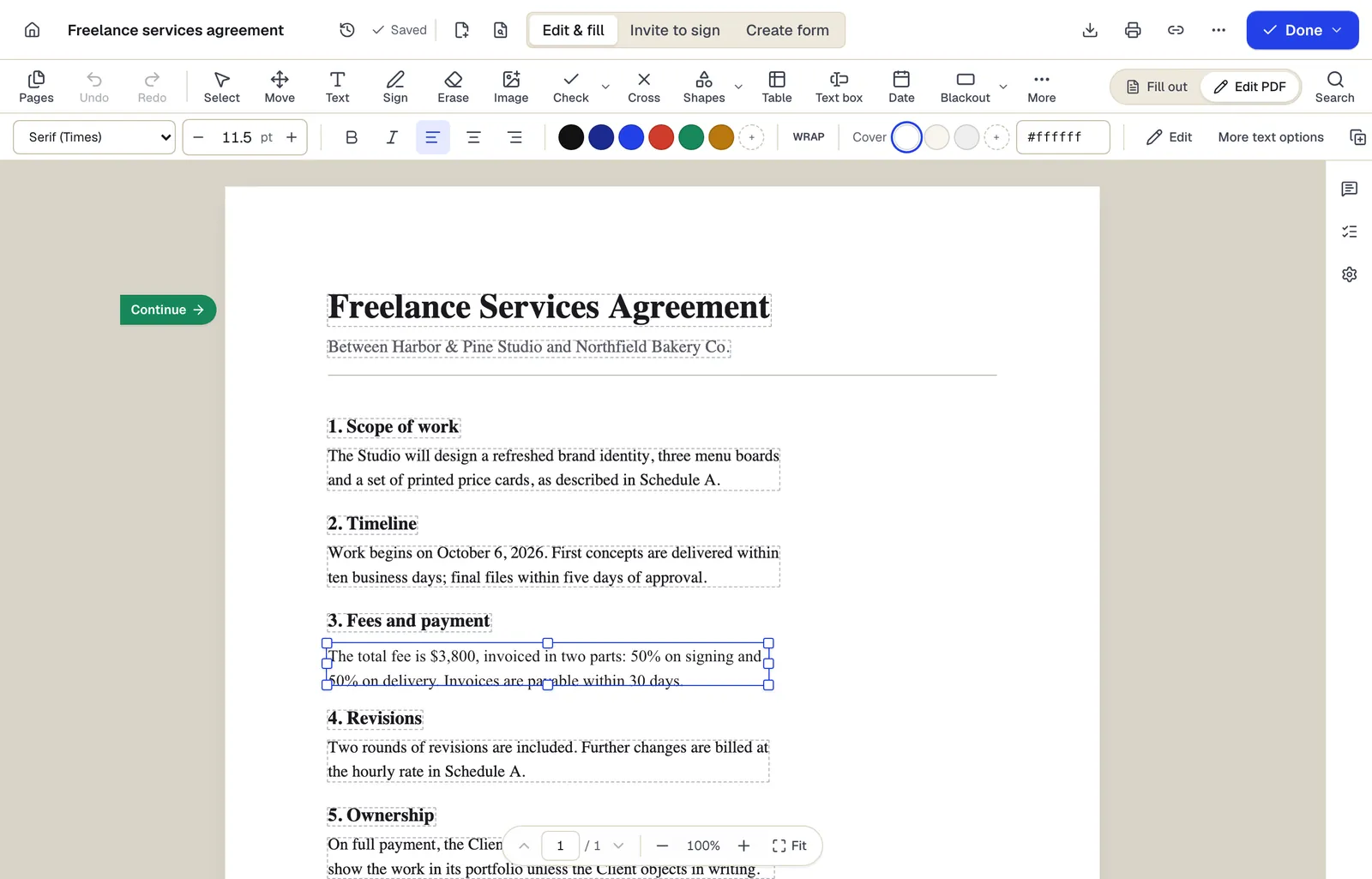
- Existing text becomes editable paragraphs, not just lines
- The detected font and size are kept — here Times at 11.5 pt
- Switch between filling fields and editing the page itself
The editor in Edit PDF mode, with a paragraph selected. Sample content; names and companies are fictional.
Option 2: Open the PDF in Word
In desktop Word, choose File > Open and select the PDF. Word makes a copy and converts its contents into an editable document; your original PDF isn't changed. After editing, save as PDF again (File > Save a Copy or Save As, then choose PDF).
Microsoft warns that the converted document may not look exactly like the PDF. Mostly-text documents work best; tables, page borders, footnotes and graphics-heavy pages often shift or come in as images.
Option 3: Edit the original text with PDFBetter
- 1
Open Edit PDF in Edge, Chrome or Firefox
No installation and no admin rights needed.
- 2
Upload the PDF
Drag it from File Explorer onto the upload area.
- 3
Click a line and retype
The editor covers the old words and sets the new ones in the closest standard font, size and color. The rest of the page doesn't move.
- 4
Download
Downloading needs a free account, which includes 3 edited-document downloads a month without a watermark.
Which method should you use?
Use Edge to sign, highlight or fill a simple form. Use Word when you need to rewrite paragraphs and can tolerate layout changes. Use a PDF editor when the document must look exactly the same apart from the words you change, such as a contract, invoice or certificate.
Creating PDFs on Windows
Any app that can print can make a PDF: choose Print and select the Microsoft Print to PDF printer. If it's missing, Microsoft documents restoring it through Windows Features. From Office apps, save directly as PDF instead to keep links and headings.
Tools used in this guide
- Edit PDFClick the words you need to change, type the correction, and download a PDF that looks like the original with your fix in place.
- PDF to WordGet an editable DOCX from a PDF, including scanned pages when OCR is on.
- Fill PDFOpen the form, move through every field with Tab, fill it in, and download a completed PDF that keeps or locks your answers.
- Annotate PDFOpen the PDF with every annotation tool at hand — highlight, comment, note, draw — and keep or strip the annotations when you download.
Questions people ask
Can Microsoft Edge edit text in a PDF?
No. Edge supports form filling, drawing, highlighting and comments, but not changing existing text.
Is there a free PDF editor for Windows?
Edge's built-in tools are free for markup. PDFBetter runs in any Windows browser; you can edit without an account and download with a free account (3 edited downloads a month).
Why does my PDF look different after opening it in Word?
Word rebuilds the PDF as a Word document. Microsoft notes that fonts, tables, page borders, footnotes and graphics may not convert exactly.
Does PDFBetter work on Windows 10?
Yes. It runs in current versions of Edge, Chrome and Firefox on Windows 10 and 11.
Can I edit a scanned PDF on Windows?
Not with Edge or Word reliably. Run OCR first, then edit recognized text in a PDF editor.