
Guide · Editing PDFs
How to edit a PDF on a Mac
Reviewed
Short answer
On a Mac, Preview can fill forms, add text boxes, sign, highlight, rearrange and delete pages, but it can't change text that is already in the PDF; Apple's own guide says you can't edit the text of a PDF in Preview. To change existing words, use a PDF editor that edits original text, such as PDFBetter in Safari or Chrome. For page work and signatures, Preview is often all you need.
On this page (7)
What Preview can and can't do
Preview, the PDF viewer built into macOS, handles adding content: typing into form fields, placing text boxes, highlighting and underlining, drawing shapes, adding notes and signing. It also handles pages: inserting, deleting, reordering, rotating and combining PDFs.
It does not edit existing text. You can cover a word with a white shape and type over it, but the original word remains in the file and can still be selected and searched.
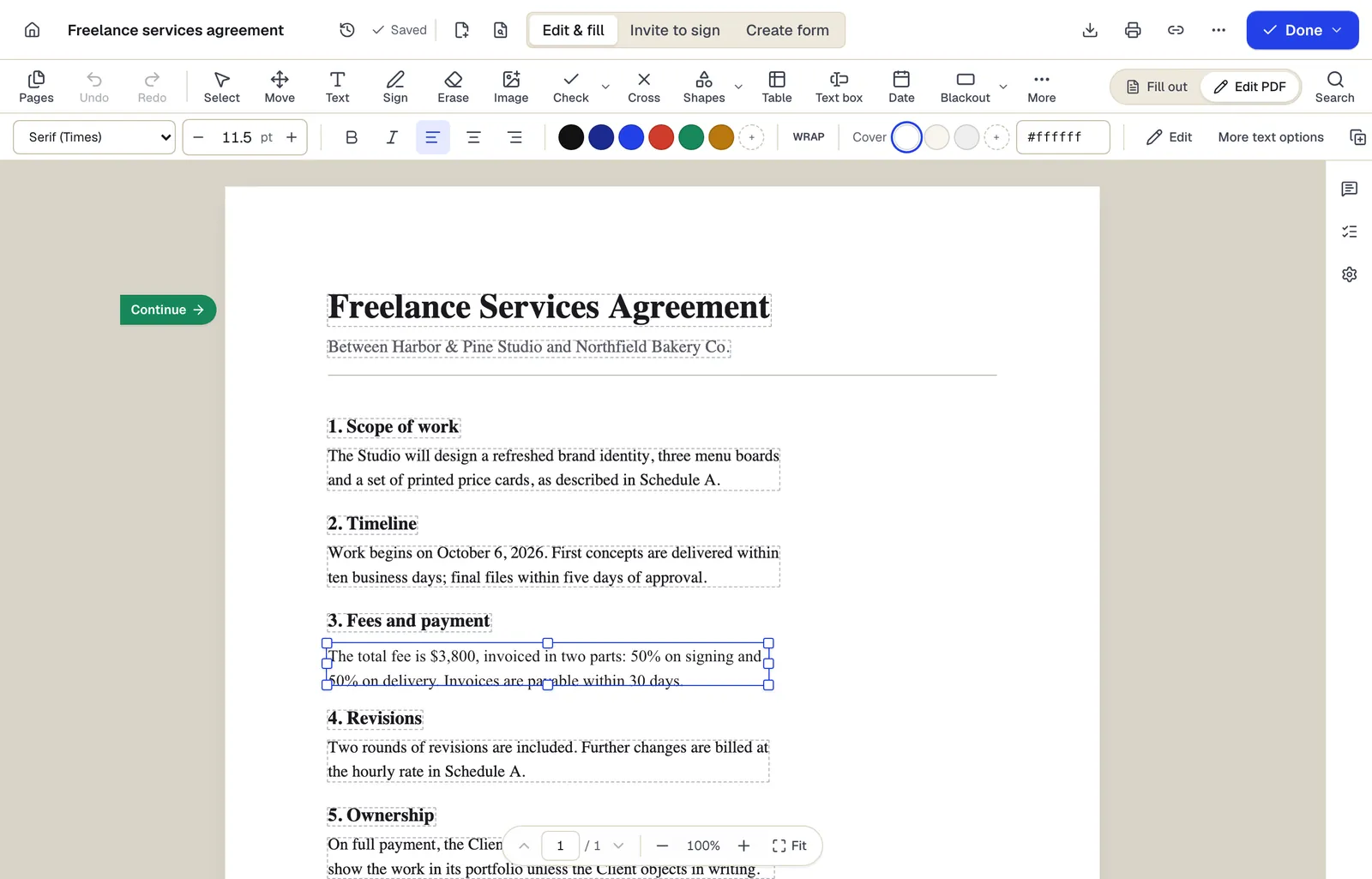
- Existing text becomes editable paragraphs, not just lines
- The detected font and size are kept — here Times at 11.5 pt
- Switch between filling fields and editing the page itself
The editor in Edit PDF mode, with a paragraph selected. Sample content; names and companies are fictional.
Add text or fill a form in Preview
- 1
Open the PDF in Preview
Double-click the file, or Control-click it and choose Open With, then Preview.
- 2
Type into fields
If the form has fields, click a field and type. If it doesn't accept typing, open the Form Filling toolbar and use the Text Box tool to place text on the line.
- 3
Add annotations
Click the Show Markup Toolbar button to get text, shape, highlight and note tools.
- 4
Save
Use File > Save or File > Export as PDF. Preview saves changes to the open file, so duplicate it first (File > Duplicate) if you need to keep the original.
Sign a PDF in Preview
In the Markup toolbar, click the Sign tool and create a signature in one of three ways described in Apple's guide: sign on the trackpad with your finger, hold a signature written on white paper up to the camera, or sign on a nearby iPhone or iPad. Click the signature to place it, then drag the handles to size it.
Change existing text with PDFBetter
- 1
Open Edit PDF in Safari or Chrome
PDFBetter runs in the browser, so there is nothing to install on your Mac.
- 2
Upload the PDF and click a line
Original text becomes editable line by line. Select the words and retype; the new text is set in the closest standard font at the same size and color.
- 3
Download
Downloading the edited file needs a free account, which includes 3 edited-document downloads a month.
Pages, size and passwords in Preview
Choose View > Thumbnails to show the page sidebar. Drag thumbnails to reorder, press Delete to remove selected pages, and choose Edit > Insert > Page from File to add pages from another PDF. The Rotate Left tool turns selected pages; hold Option to rotate right.
To shrink a file, choose File > Export and pick Reduce File Size in the Quartz Filter menu; Apple warns the result may be lower quality. To add a password, choose File > Export, click Permissions and set “Require Password To Open Document” along with an owner password.
Tools used in this guide
- Edit PDFClick the words you need to change, type the correction, and download a PDF that looks like the original with your fix in place.
- Sign PDFCreate your signature once, click the signature line to place it, add initials or a date, and download the signed PDF.
- Fill PDFOpen the form, move through every field with Tab, fill it in, and download a completed PDF that keeps or locks your answers.
- Organize PDFFix a messy PDF in one pass: move, rotate, delete, duplicate and insert pages, then save one clean file.
Questions people ask
Can Preview edit the text in a PDF?
No. Apple's Preview guide states that you can't edit the text of a PDF in Preview. You can add text boxes and annotations, or use a PDF editor that changes original text.
Does Preview save changes automatically?
Yes. Apple notes that changes to a Preview document are saved automatically, so use File > Duplicate before editing if you want to keep the original.
Do I need to install anything to use PDFBetter on a Mac?
No. It runs in Safari, Chrome, Firefox or Edge on macOS.
Why does my edit in Preview disappear in another app?
Some annotations display differently in other PDF readers. If the recipient must see exactly what you see, flatten the PDF: Apple suggests File > Print, then Save as PDF.
Can Preview edit a scanned PDF?
Preview can annotate a scan but can't change its text. Run OCR and edit in a PDF editor to correct printed words on a scan.