
Guide · Editing PDFs
How to edit a PDF
Reviewed
Short answer
To edit a PDF, open it in a PDF editor that can change the original text, click the line you want to fix and retype it, then download a new copy. Adding text, images, checkmarks or signatures works on any PDF; changing printed text needs a real text layer, so scans must go through OCR first. For a full rewrite, convert the PDF to Word, edit there and save back to PDF.
On this page (8)
First, decide what kind of edit you need
“Editing a PDF” covers four different jobs, and each has a better tool. Correcting a few words in existing text (a name, a date, a price) is text editing. Putting new content on the page (filling blanks, adding a note, a logo or a signature) is adding content. Moving, deleting, rotating or combining pages is page organization. Rewriting paragraphs so the layout reflows is a word-processing job, not a PDF job.
A PDF stores each character at a fixed position. That is why it looks identical everywhere, and also why a PDF editor can't reflow a paragraph the way Word does. Small, local corrections are what PDF editing is good at.
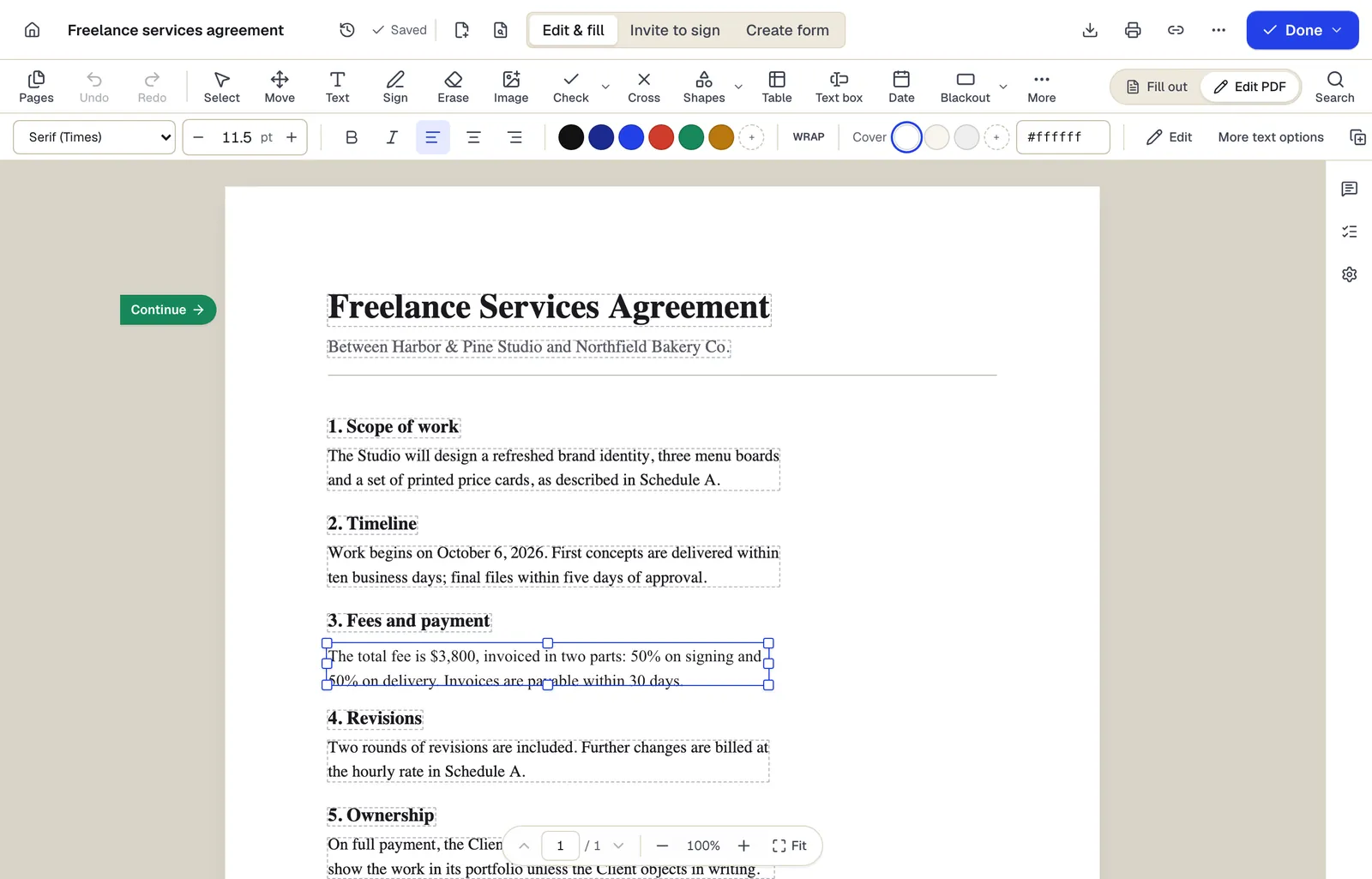
- Existing text becomes editable paragraphs, not just lines
- The detected font and size are kept — here Times at 11.5 pt
- Switch between filling fields and editing the page itself
The editor in Edit PDF mode, with a paragraph selected. Sample content; names and companies are fictional.
Change existing text
Most free viewers can only type on top of a page. To change the words already printed, you need an editor that reads the PDF's text layer and lets you replace a line.
- 1
Open the PDF in an editor
In PDFBetter, upload the file to Edit PDF. It opens with original-text editing already selected.
- 2
Click the line to change
Select the words and type the correction. The editor covers the old words and sets the new ones in the closest of three standard font families, at the same size and color.
- 3
Fix every copy
If the same mistake appears more than once, use Find and replace so you don't miss one.
- 4
Download a new copy
Your original file is not changed. Choose whether form fields stay fillable or are flattened into the page.
Add text, images, checkmarks and signatures
Adding content is easier than changing it, because nothing on the page has to move. Use a text box for missing information, the image tool for a logo or photo, checkmark and date tools for forms, and the signature tool to sign. Each item can be moved and resized until you download.
If the PDF has real form fields, you can type straight into them instead of placing text boxes. When a form looks fillable but isn't, you can add fields yourself or simply place text on the blank lines.
Rearrange, rotate or delete pages
Page changes don't need an editor at all. Merge, split, rotate, remove and reorder tools work on whole pages and, in PDFBetter, run in your browser so the file isn't uploaded. Do page work before you add page numbers, so the numbers follow the final order.
What editing can't do, and what to do instead
Fonts embedded in a PDF usually can't be reused for new characters, so a brand typeface on an edited line will be replaced by a close standard font. Long replacements don't reflow; shorten the wording or resize the box. Scanned pages are pictures with no text, so run OCR before original text becomes editable.
Covering text is not deleting it. A white box or replaced line hides the old words visually, but they usually remain in the file and can be copied or searched. To remove confidential text, use redaction, which deletes what is under the mark.
If you need to rewrite whole sections, convert the PDF to Word, edit there, and save a new PDF. Expect to tidy some formatting after the conversion.
Check the edited file before you send it
Open the downloaded copy in a different viewer than the one you edited in, zoom to 200% on every changed line, and search for the old wording to see whether it still turns up. If the document was digitally signed, any edit invalidates that signature, so edit first and sign last.
Tools used in this guide
- Edit PDFClick the words you need to change, type the correction, and download a PDF that looks like the original with your fix in place.
- Add text to PDFClick anywhere on a page, type, and position a text box that stays exactly where you put it in the downloaded PDF.
- Find and replace PDF textType what to find and what to put instead, review the list of matches, then replace the ones you choose across the whole document.
- Organize PDFFix a messy PDF in one pass: move, rotate, delete, duplicate and insert pages, then save one clean file.
- Redact PDFMark what must go, apply redaction, and download a PDF where the marked content no longer exists in the file.
Questions people ask
Can I edit a PDF for free?
Yes. In PDFBetter you can make every change without an account; downloading the edited file needs a free account, which includes 3 edited-document downloads a month without a watermark. Page tools such as merge, split and rotate run in the browser and download free without an account.
Why does my edited text look slightly different from the rest?
The fonts embedded in most PDFs only contain the characters already used, so new text is set in the closest standard family. Adjust size and color in the style bar; the typeface itself may not match exactly.
Can I edit a PDF that is password protected?
Only if you know the password. Unlock the file with its password first, edit it, and protect it again if needed.
Does editing a PDF change the original file?
No. You download an edited copy; the file on your computer stays as it was.
Can I edit a signed PDF?
You can, but any certificate-based digital signature in the file becomes invalid once the content changes, and a signed agreement should not be altered without the other parties' consent. Ask for a new signature on the corrected version instead.