
Guide · Editing PDFs
How to edit a PDF on an iPhone
Reviewed
Short answer
On an iPhone, open the PDF in the Files app and tap the Markup button to add text, signatures, shapes and highlights, or tap fields to fill a form. These built-in tools add content but can't change text that's already in the PDF. To change existing words, open the PDF in a browser-based editor such as PDFBetter in Safari, tap the line and retype it.
On this page (6)
Built-in tools: Files, Markup and Preview
The Files app opens PDFs and includes Markup: drawing tools plus an Add button with options to add text, a signature, a shape or a sticker. Apple's iPhone guide also describes form filling, including an AutoFill button that suggests information for blank fields. From iOS 26, the iPhone also has a Preview app with form-filling and signing tools, and the ability to scan documents to PDF.
None of these change the original text of a PDF. They place new content on top of the page.
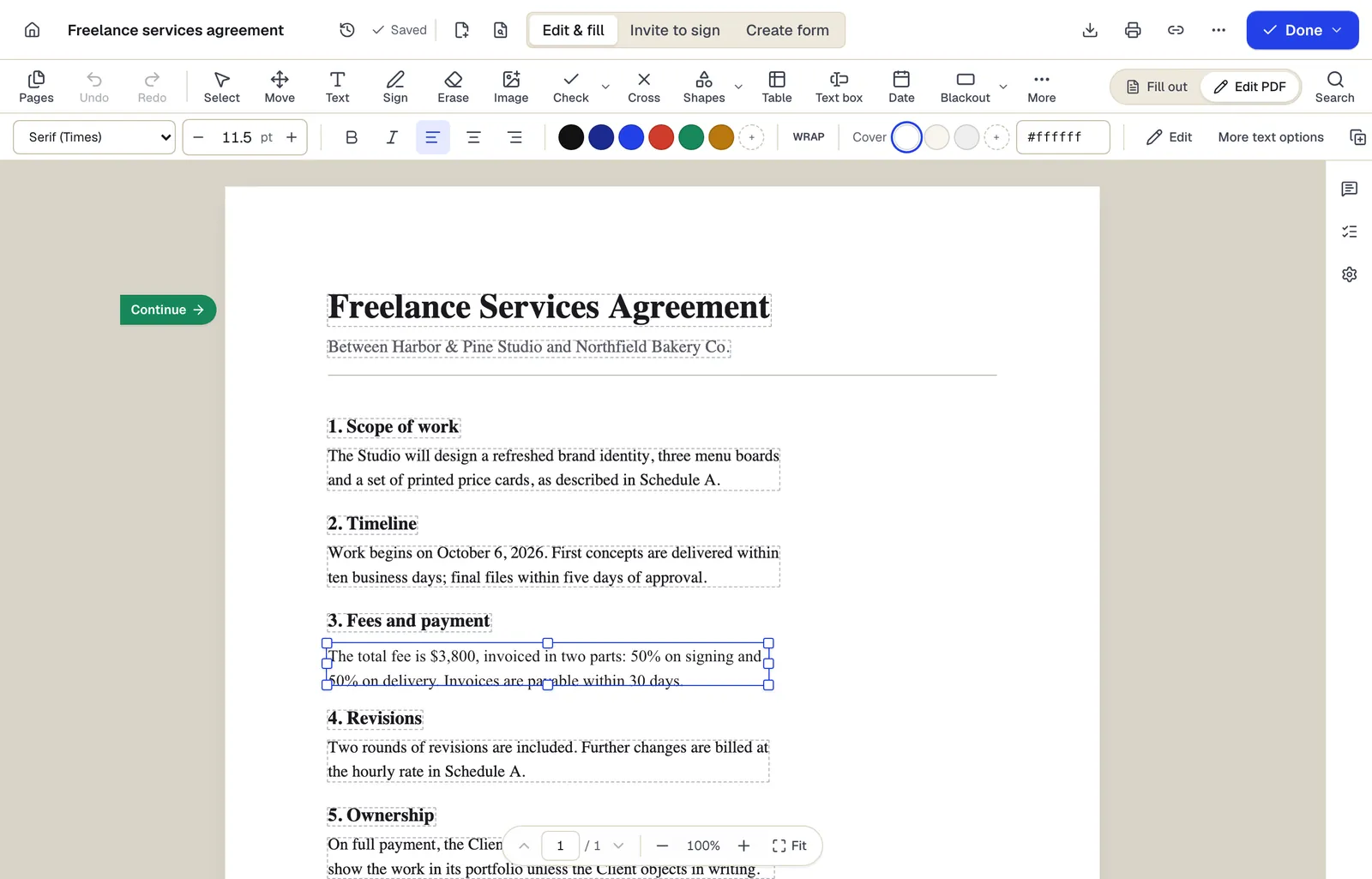
- Existing text becomes editable paragraphs, not just lines
- The detected font and size are kept — here Times at 11.5 pt
- Switch between filling fields and editing the page itself
The editor in Edit PDF mode, with a paragraph selected. Sample content; names and companies are fictional.
Add text or fill a form in the Files app
- 1
Open the PDF in Files
If the PDF came by email or message, save it to Files first, then open it.
- 2
Fill fields
Tap the form-filling or AutoFill option and tap a blank field to type. Review any suggested information before accepting it.
- 3
Add text where there are no fields
Tap Markup, then the Add button, then Add Text. Drag the text box onto the line and type.
- 4
Finish
Tap Done. Share, print or export the edited file from the menu.
Change existing text on iPhone with PDFBetter
- 1
Open PDFBetter in Safari
Go to Edit PDF. Nothing to install.
- 2
Upload from Files
Tap the upload area and choose the PDF from Files, iCloud Drive or another location.
- 3
Tap the text and retype
Original text becomes editable line by line. Zoom in for precise selection.
- 4
Download back to Files
Downloading the edited copy needs a free account. Safari saves it to the Downloads folder in Files by default.
Tips for editing on a small screen
Turn the phone to landscape for wider pages. Pinch to zoom before selecting text so you grab the right line. For long or complex edits, start on the phone and finish on a computer; with an account, the same document opens on both.
Tools used in this guide
- Edit PDFClick the words you need to change, type the correction, and download a PDF that looks like the original with your fix in place.
- Fill PDFOpen the form, move through every field with Tab, fill it in, and download a completed PDF that keeps or locks your answers.
- Add text to PDFClick anywhere on a page, type, and position a text box that stays exactly where you put it in the downloaded PDF.
- Sign PDFCreate your signature once, click the signature line to place it, add initials or a date, and download the signed PDF.
Questions people ask
Can I edit PDF text on iPhone without an app?
Yes. Browser-based editors like PDFBetter run in Safari, so you can change existing text without installing anything. The built-in Files Markup tools add content but don't change original text.
Where are my Markup changes saved?
Markup in the Files app saves changes to the PDF you opened. Duplicate the file first if you need to keep an unmarked copy.
Can I edit a scanned PDF on iPhone?
Markup can draw and add text over a scan. To change the scanned words themselves, run OCR and then edit, which you can do in PDFBetter in Safari.
Is there a size limit on iPhone?
The same limits apply as on a computer: 25 MB per file without an account and 50 MB on the Free plan. Very large files can be slow on older phones.
Can I sign a PDF on iPhone?
Yes, with Markup's Add Signature option or in PDFBetter. See the iPhone signing guide for both methods.