
Guide · Editing PDFs
How to edit a PDF in Google Docs without losing formatting
Reviewed
Short answer
You can't open a PDF in Google Docs without losing some formatting, because Docs converts it with OCR and keeps mainly the text, while tables, columns, lists and footnotes are often lost. To keep more of the layout, convert the PDF to Word (DOCX) first and open the DOCX in Google Docs. To keep the layout exactly, skip Docs and edit the PDF directly in a PDF editor.
On this page (6)
What happens when Google Docs opens a PDF
In Google Drive, right-click a PDF and choose Open with > Google Docs. Drive runs OCR on the file and creates a new Doc with the recognized text. Google's help page says bold, italics, font size, font type and line breaks are likely to be kept, while lists, tables, columns, footnotes and endnotes are unlikely to be detected.
Google also lists limits: the file should be 2 MB or smaller, text should be at least 10 pixels high, and pages must be right side up. Larger or complex PDFs often come out partially converted.
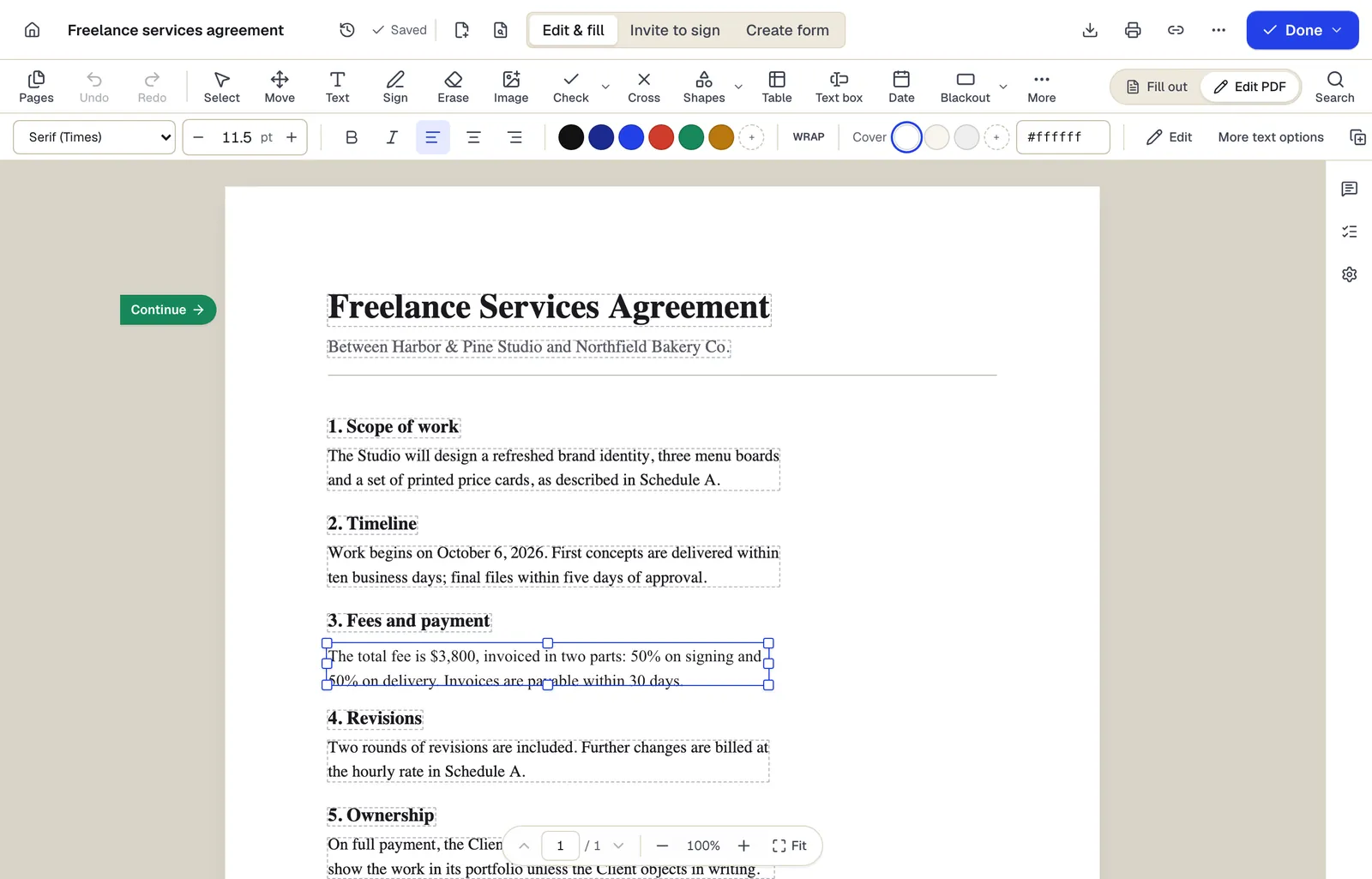
- Existing text becomes editable paragraphs, not just lines
- The detected font and size are kept — here Times at 11.5 pt
- Switch between filling fields and editing the page itself
The editor in Edit PDF mode, with a paragraph selected. Sample content; names and companies are fictional.
Better route 1: convert to DOCX, then open in Docs
A dedicated PDF-to-Word converter rebuilds paragraphs, tables and images into a DOCX file. Google Docs imports DOCX files much more faithfully than it OCRs PDFs.
- 1
Convert the PDF to Word
Use PDF to Word in PDFBetter. Turn on OCR if the PDF is a scan.
- 2
Upload the DOCX to Google Drive
Drag the DOCX into Drive.
- 3
Open with Google Docs
Right-click the file and choose Open with > Google Docs. Edit as usual.
- 4
Download as PDF
Choose File > Download and pick PDF as the file type.
Better route 2: don't use Docs at all
If you only need to change some words, a date or a number, edit the PDF itself. A PDF editor changes the text in place and leaves everything else exactly where it was, so there is nothing to reformat. In PDFBetter, open Edit PDF, click the line and retype.
Fixing formatting after conversion
Expect to rebuild tables that came through as tab-separated text, reapply heading styles so the document outline works, and reinsert images that were dropped. Replace fonts Docs doesn't have with close Google Fonts equivalents before you export, so line breaks don't shift again.
Tools used in this guide
- PDF to WordGet an editable DOCX from a PDF, including scanned pages when OCR is on.
- Edit PDFClick the words you need to change, type the correction, and download a PDF that looks like the original with your fix in place.
- Word to PDFTurn a Word document into a PDF that looks the same on every device.
- OCR PDFUpload a scan, pick its language, and download a PDF that looks the same but lets you search, select and copy the text.
Questions people ask
Why does my PDF lose its formatting in Google Docs?
Docs reads the PDF with OCR and builds a new document from the text. Google says lists, tables, columns, footnotes and endnotes are unlikely to be detected.
Is there a file size limit for opening PDFs in Google Docs?
Google's help says the file should be 2 MB or smaller for conversion.
Can Google Docs edit a scanned PDF?
It runs OCR on it, so recognized text becomes editable, but the page image layout is lost. Quality depends on the scan.
Can I sign a PDF from Google Drive?
Some Google Workspace plans include eSignature for PDFs in Drive if the administrator enables it. PDFBetter's signing works from any account and browser.
What's the fastest way to fix a typo in a PDF?
Edit the PDF directly. Converting to Docs and back takes longer and changes the layout.