
Guide · Converting
How to convert a Word document to PDF
Reviewed

Short answer
The most faithful way to convert Word to PDF is from Word itself: choose File, then Save a Copy or Save As, and pick PDF as the file type. Without Word, upload the DOCX to an online Word-to-PDF converter or open it in Google Docs and download it as a PDF. Accept tracked changes and update the table of contents before converting, because the PDF shows the document exactly as saved.
On this page (7)
Before you convert
Accept or reject tracked changes and delete comments you don't want to share; otherwise they can appear in the PDF as markup. Update fields such as the table of contents and cross-references. Check that headings use Word's heading styles, which become bookmarks and help screen readers when the export tags the PDF.
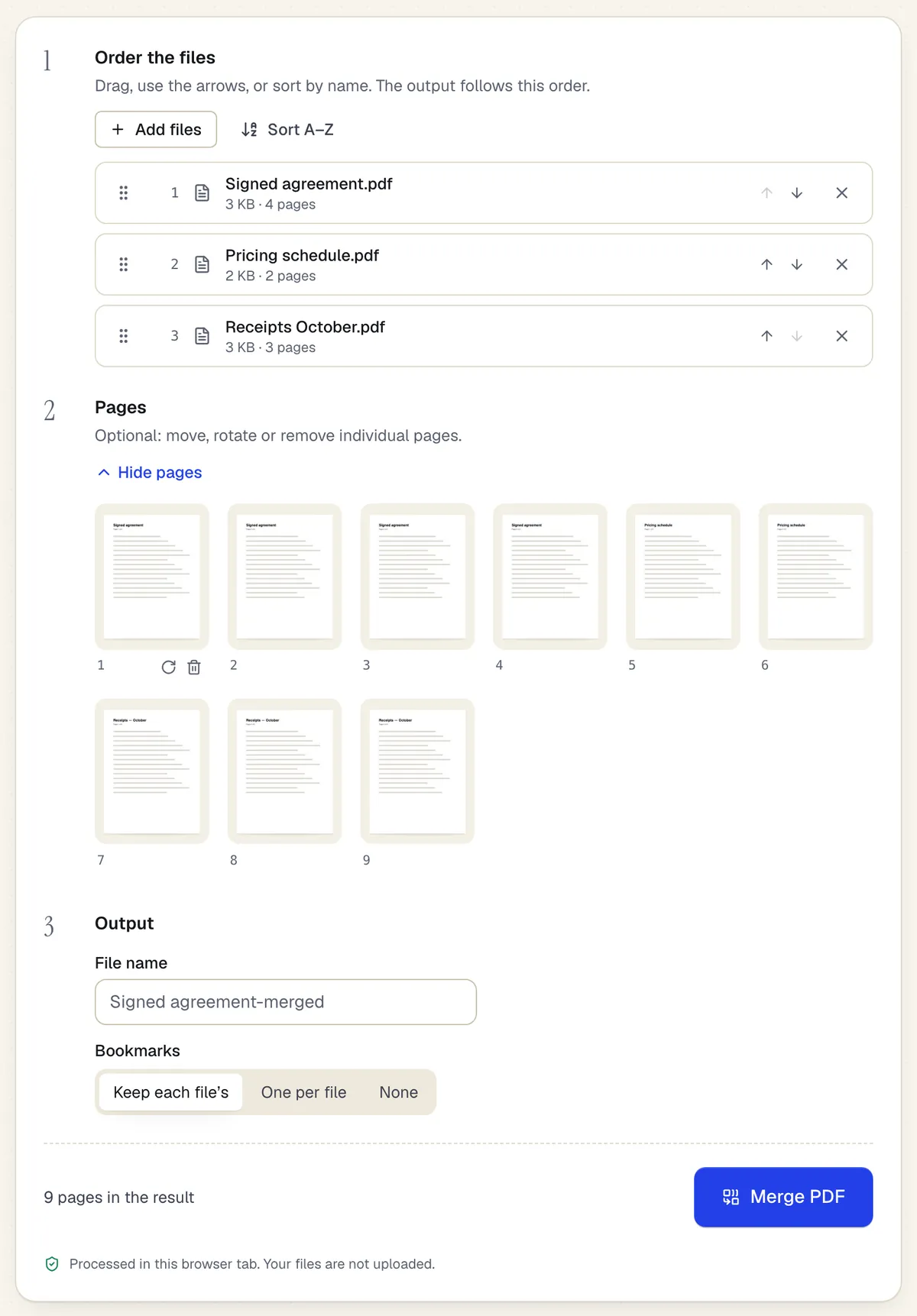
- Reorder whole files with drag or arrows
- Or move, rotate and remove single pages
- Processed in the browser tab — the files aren't uploaded
The Merge PDF workspace on this page, with three files added. Sample content; names and companies are fictional.
Convert in Microsoft Word
In Word for Windows, choose File, then Save a Copy (or Save As if the document has never been saved), choose a location, select PDF in the file type list and save. In Word for Mac, choose File, then Save As, and pick PDF under File Format. Word uses the fonts installed on your computer, so this is usually the most faithful conversion.
Convert in Google Docs
Upload the DOCX to Google Drive, open it with Google Docs, then choose File, then Download, and pick PDF as the file type. Docs re-renders the document itself, so fonts it doesn't have are substituted and complex layouts can shift.
Convert in PDFBetter
- 1
Upload the document
Open Word to PDF and add a DOCX, DOC, ODT or RTF file.
- 2
Convert
The document is converted on PDFBetter's processing servers with LibreOffice.
- 3
Check page breaks
Preview every page, especially breaks and tables, then download the PDF.
Keep fonts and line breaks from shifting
Most layout changes come from fonts the converter doesn't have. Use common fonts, or turn on Word's option to embed fonts in the file so a converter can use them where their license allows. After converting, compare the page count with the original; a different count is the quickest sign that breaks moved.
Tools used in this guide
- Word to PDFTurn a Word document into a PDF that looks the same on every device.
- Edit Word documentUpload a .docx, get a faithful PDF of it in the editor, make your changes, and download a PDF (or convert back to Word).
- PDF to WordGet an editable DOCX from a PDF, including scanned pages when OCR is on.
- Merge PDFDrop in two or more PDFs, set the file and page order, and download one combined PDF.
Questions people ask
Will hyperlinks still work in the PDF?
Yes. Word's own export and PDFBetter's converter both keep hyperlinks clickable.
Why do my tracked changes show in the PDF?
The document was saved with markup visible. Accept or reject the changes, or switch the view to show no markup, save, and convert again.
Can I convert Word to PDF on my phone?
Yes. Upload the file to PDFBetter in your mobile browser, or use the Word or Google Docs mobile apps, which can share or save a document as PDF.
Do macros run during conversion?
No. PDFBetter never runs macros, and macro-enabled documents are not converted. Save a copy without macros first.
How many conversions can I do for free?
Without an account you can run 2 Office conversions; the Free plan includes 10 a month and Pro 500.