
Guide · Converting
How to convert JPG or photos to PDF on an iPhone
Reviewed
Short answer
To turn photos into a PDF on an iPhone, upload them to a JPG-to-PDF tool in Safari, put them in order and download one PDF. If you're photographing paper documents, use Scan Documents in the Notes, Files or Preview app instead; it crops and straightens pages and saves a PDF directly. Recent versions of the Files app can also create a PDF from selected images.
On this page (7)
Photographing paper? Scan instead
Apple documents a Scan Documents option in Notes (via the attachment button) and in the Files app (via the More button), and the Preview app on iOS 26 and later can scan documents to PDF too. Scanning detects page edges, corrects perspective and saves a PDF, which looks far cleaner than a regular photo of a page.
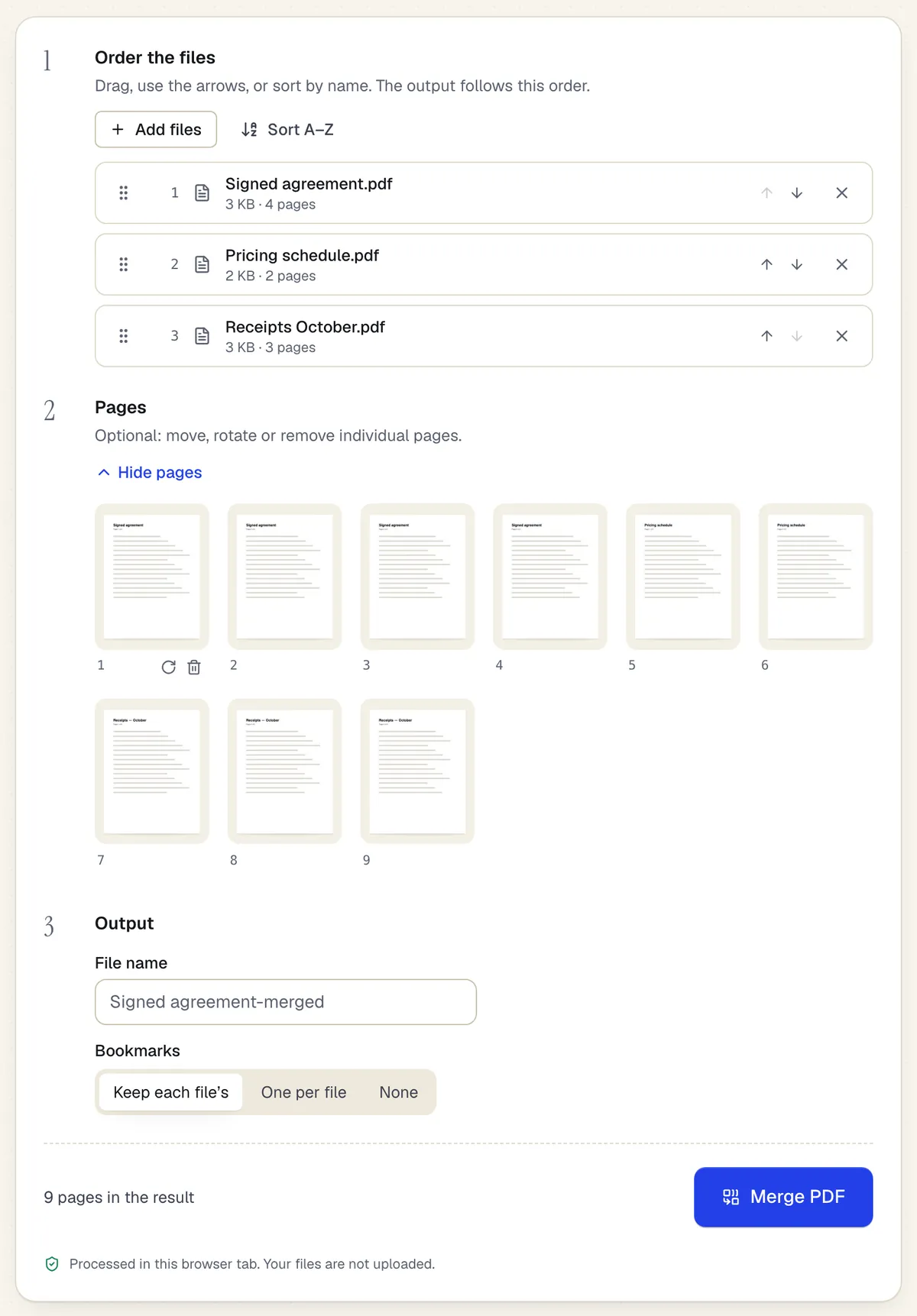
- Reorder whole files with drag or arrows
- Or move, rotate and remove single pages
- Processed in the browser tab — the files aren't uploaded
Assemble uses the same workspace as Merge PDF. Sample content; names and companies are fictional.
Convert existing photos with PDFBetter
- 1
Open JPG to PDF in Safari
Tap the upload area and choose Photo Library or Browse to pick images from Files.
- 2
Select your photos
Pick up to 20 at a time without an account. JPG, HEIC (the iPhone camera's default format) and WebP are accepted.
- 3
Set order and layout
Drag thumbnails into order and rotate sideways photos. Choose a page size, such as Letter or A4, or fit each page to its photo.
- 4
Create the PDF
The PDF is built on your phone and the photos aren't uploaded. Download it free, without an account.
Using the Files app
In recent iOS versions, the Files app offers a Create PDF action for images: save the photos to a folder in Files, select them, and look for Create PDF in the action menu or under Quick Actions when you touch and hold a file. Where the option appears has changed between iOS versions, and you can't set page size or margins.
HEIC photos
iPhone cameras save photos as HEIC by default. PDFBetter converts HEIC in the browser before placing it on the page, which re-encodes the image. Some HEIC variants, such as photos with depth or HDR data, may not decode in every browser; if one fails, export it as JPG from Photos first.
Keep the PDF small enough to send
Full-resolution phone photos are several megabytes each, so a 20-photo PDF can be too large to email. Compress the PDF afterwards, or choose a smaller page size and send the result as a share link.
Tools used in this guide
- JPG to PDFPut one or many photos into a single PDF with the page size, orientation and margins you choose.
- Assemble PDFCombine PDFs and photos into one packet with a bookmark per item, in the order you set.
- Compress PDFUpload a PDF, choose how hard to compress its images, and download a smaller file with the text and form fields untouched.
- OCR PDFUpload a scan, pick its language, and download a PDF that looks the same but lets you search, select and copy the text.
Questions people ask
Is converting photos to PDF on iPhone free?
Yes. PDFBetter's JPG to PDF runs in Safari on your phone and downloads free without an account; Apple's scan features are free too.
Are my photos uploaded?
No. With PDFBetter's JPG to PDF, the PDF is created in your browser and the photos never leave your phone.
Can I combine photos and existing PDFs?
Yes. Assemble PDF accepts both images and PDFs in one file.
Why is my PDF so large?
Phone photos are high resolution. Compress the PDF, or scan documents instead of photographing them.
Can I make the text in a photo searchable?
Run OCR on the PDF to add a searchable text layer.