
Form builder
Build a scheduling request form
A scheduling form gathers when people can or want to do something: staff availability for next month's rota, volunteer shift preferences, time-off requests, or preferred meeting slots from a group. You then build the schedule from the answers.
Reviewed
- Name and email (name and email fields, required)
- Request type (dropdown: availability, time off, shift swap, meeting)
- Available days and shifts (checkboxes, one per day and shift)
- Start and end dates (date fields, shown for time-off requests)
- Preferred slots, ranked (dropdowns: first, second, third choice)
- Notes for the scheduler (multi-line text)
- Manager approval (signature field for the printed copy, optional)
Why it works
Scheduling form, explained
Be clear about what this is. PDFBetter forms collect requests; they don't connect to a calendar, check what's already booked or prevent two people from choosing the same slot. For self-service booking with live availability, use a scheduling app and keep this form for requests that a person reviews.
Where this works well is structured availability. Checkboxes for each day and shift export as columns, so you can sort the export and see who covers Saturday mornings in seconds instead of reading thirty emails.
Recommended fields
Fields to include
- 1Name and email (name and email fields, required)
- 2Request type (dropdown: availability, time off, shift swap, meeting)
- 3Available days and shifts (checkboxes, one per day and shift)
- 4Start and end dates (date fields, shown for time-off requests)
- 5Preferred slots, ranked (dropdowns: first, second, third choice)
- 6Notes for the scheduler (multi-line text)
- 7Manager approval (signature field for the printed copy, optional)
How to do it
Build a scheduling request form in 4 steps
1A flat PDF
2Place fields
3A fillable PDF
- 1
Build the form
Lay out days and shifts as a grid of checkboxes with clear export names such as sat_am, and add date fields shown only for time-off requests.
- 2
Publish it
Publish and share the link in your team chat, or pin the QR code in the break room.
- 3
Collect requests
People submit from a phone without an account. Set a deadline in the form's description so requests arrive before you build the schedule.
- 4
Export and schedule
Export to CSV or XLSX and filter each shift column to see who is available, then publish the schedule your usual way.
In the app
What building it looks like
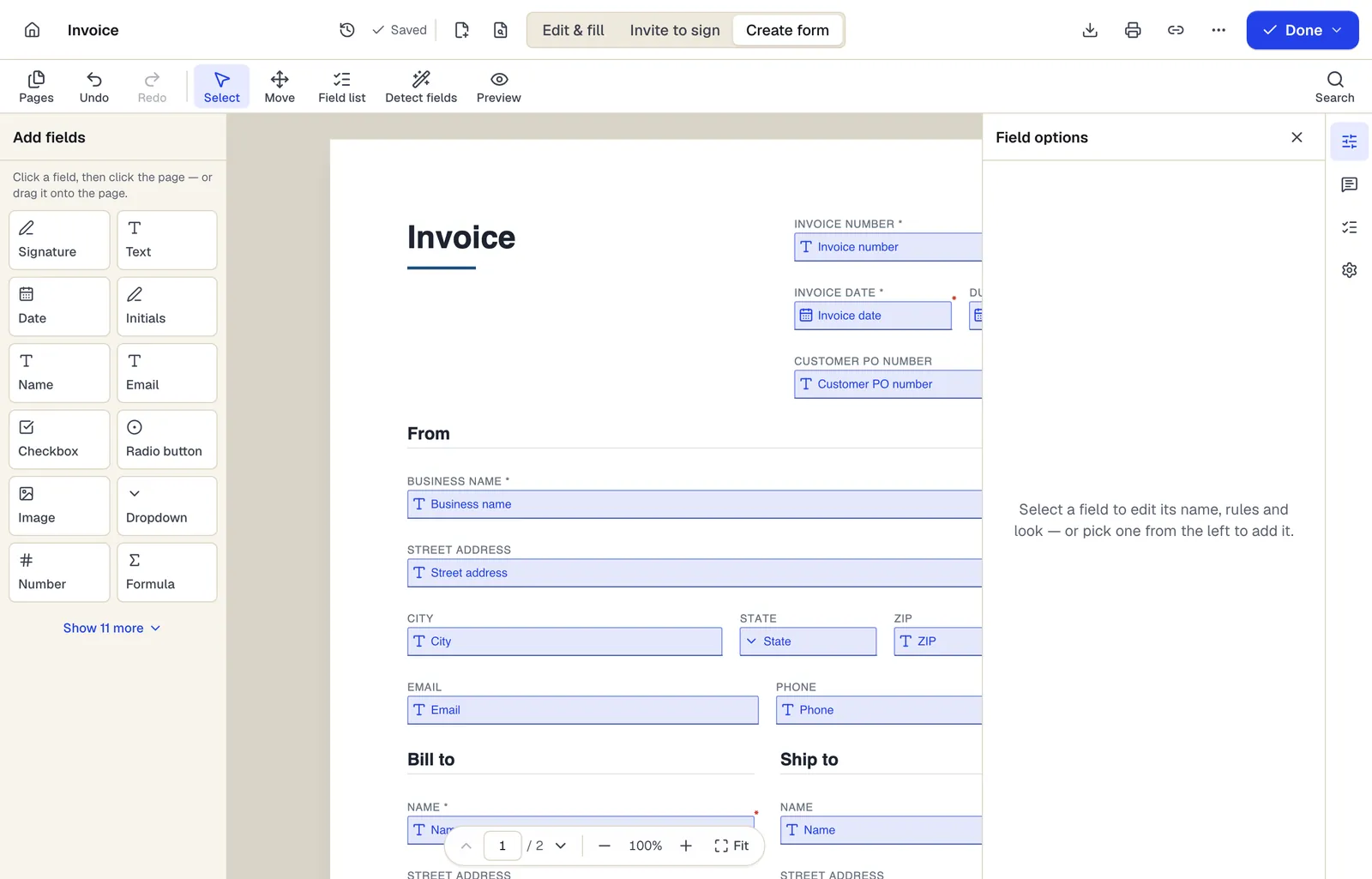
- Pick a field type, then click the page — or drag it
- Detect fields finds the boxes and lines on a flat PDF
- Every field keeps a label, a name and its own rules
The editor in Create form mode. Sample content; names and companies are fictional.
Start from a template
Templates that fit
PTO Request Form
22 fields · 2 pages
Paid time off request form with leave type, dates, hours requested, coverage plan and manager approval. Calculates total hours from days and hours per day.
Weekly timesheet
67 fields · 1 page
Fillable weekly timesheet with time in, lunch out, lunch in and time out for each day. Hours over 40 move to overtime automatically and gross pay calculates.
Timesheet
99 fields · 2 pages
Fillable timesheet for any pay period: date, work done, regular and overtime hours per line, with totals and gross pay calculated. Employee and supervisor sign.
Event Sign-In Sheet
114 fields · 1 page
Event and meeting sign-in sheet with name, organization, email, phone and opt-in for updates. Print for the door or fill on a tablet, then export to Excel.
Scheduling form: questions people ask
Does the form block slots that are already taken?
No. Forms don't track availability or capacity. Use a booking app for first-come slots and this form for requests you review.
Can I use it for PTO requests with approval?
Yes. Collect requests with the form, then send the approved request to the manager for signature with Request signatures if you need a signed record.
Can I reuse the form each month?
Keep it published and add a 'schedule period' dropdown, or duplicate it per period if you want separate exports.
How many requests can I receive?
The Free plan includes 1 live form and 50 responses a month, Pro 10 live forms and 1,000 responses, and Business unlimited live forms and 10,000 responses.