
Turn a PDF into a link
Publish a frozen copy of your PDF at a link anyone you send it to can open in the browser.
Drop a PDF hereLet go to start
or paste with Ctrl/⌘+V
Start without an account. Create a free account to download or share. See plans
What it does
PDF to URL, explained
PDF to URL hosts a copy of your PDF at a link. Despite the name, it is not a file format conversion: the PDF stays a PDF, and the link is where people open it.
Read more
The hosted copy is frozen at the moment you create the link. Later edits in your account don't change what the link shows, which is what you want for a menu, a price list, a published policy or a document referenced in an email or printed QR code. Need a new version live? Create a new link and revoke the old one.
Every link can have an expiry date and a password, and you can switch downloading off so visitors view the file in the browser. Revoking stops the link immediately. If people should comment on, fill or edit the current document instead, use Share PDF, which links to the live document.
In the app
What it looks like
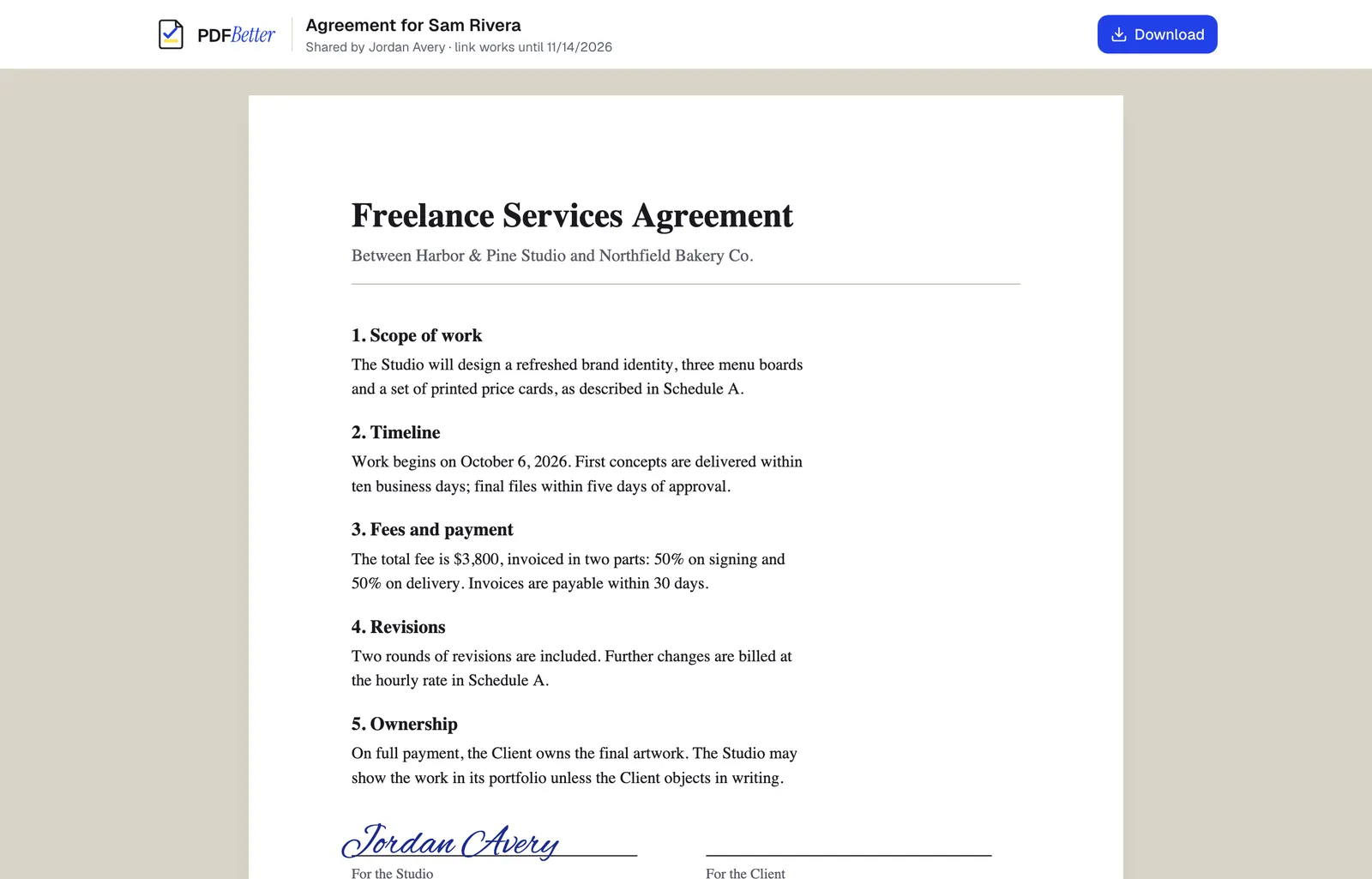
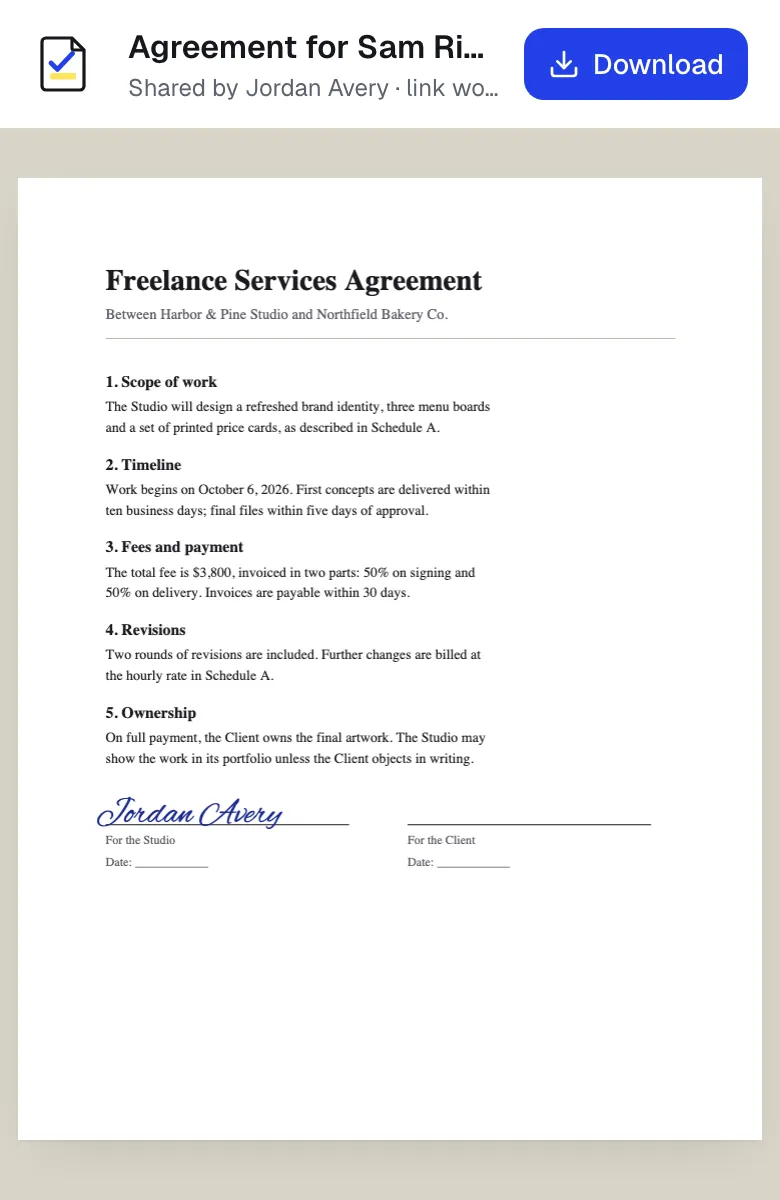
A hosted PDF link opened on a laptop and on a phone. Sample content; names and companies are fictional.
How to do it
Turn a PDF into a link in 4 steps
1A finished PDF
2Link, email, print or fax
3Delivered
- 1
Open the PDF
Upload it, or open it from your account and finish any edits.
- 2
Create a hosted link
Choose the frozen copy option in the share panel.
- 3
Set access
Add an expiry date or password if needed, and decide whether visitors can download.
- 4
Copy and send
Paste the link in an email, message or web page. Revoke it from the share panel at any time.
Example
Before and after
A one-page event schedule that must be linked from a newsletter going out today.
A hosted link that opens the schedule in any browser. When the times change next week, a new link replaces it and the old one is revoked.
Settings & formats
What you can control
- Expiry
- The link stops working after the date you choose.
- Password
- Visitors enter it before the PDF opens.
- Allow download
- Let visitors save the PDF, or keep it view-only in the browser.
Input
Output
Good to know before you start
- The link shows a fixed copy; edits after you create it are not reflected.
- Hosted links count as share links: the Free plan allows 3 active links, Pro and Business are unlimited.
- Blocking downloads can't stop screenshots or photos of the screen.
If something goes wrong
If something goes wrong
- The link still shows the old version
- That is by design: the link is a frozen copy. Create a new link from the updated document and revoke the old one.
- Visitors get an expired or not-found message
- The link passed its expiry date or was revoked. Create a new link.
PDF to URL: questions people ask
Is PDF to URL a file conversion?
No. Your PDF is hosted as a PDF at a private link. Nothing is converted to HTML or another format.
How is this different from Share PDF?
PDF to URL hosts a frozen, view-only copy. Share PDF links to the live document, so recipients see later changes and can comment, fill or edit if you allow it.
Can I make a QR code for the link?
Yes, use any QR generator with the copied link. Avoid an expiry date if the QR code will be printed.
Can I see how often the link was opened?
Yes. The share panel shows the view count and when it was last opened.
Will the PDF appear in Google?
No. Hosted document pages are marked noindex, and links use long random tokens.