
Guide · Security & privacy
How to password protect a PDF
Reviewed

Short answer
To password protect a PDF, open it in a PDF protection tool, set an open password, optionally restrict printing, editing and copying with a separate permissions password, and download the encrypted copy. Send the password through a different channel than the file, for example by text message when the PDF goes by email. A lost open password generally can't be recovered.
On this page (7)
Two kinds of password
The open password (also called the user password) encrypts the content. Without it, the file can't be read at all. This is the protection that matters for tax returns, payslips and medical records.
The permissions password (owner password) limits what people who can open the file may do: print, change, copy text, comment or fill forms. These restrictions depend on the reader software honoring them. Mainstream readers do, but some tools ignore them, so permissions discourage changes rather than prevent them.
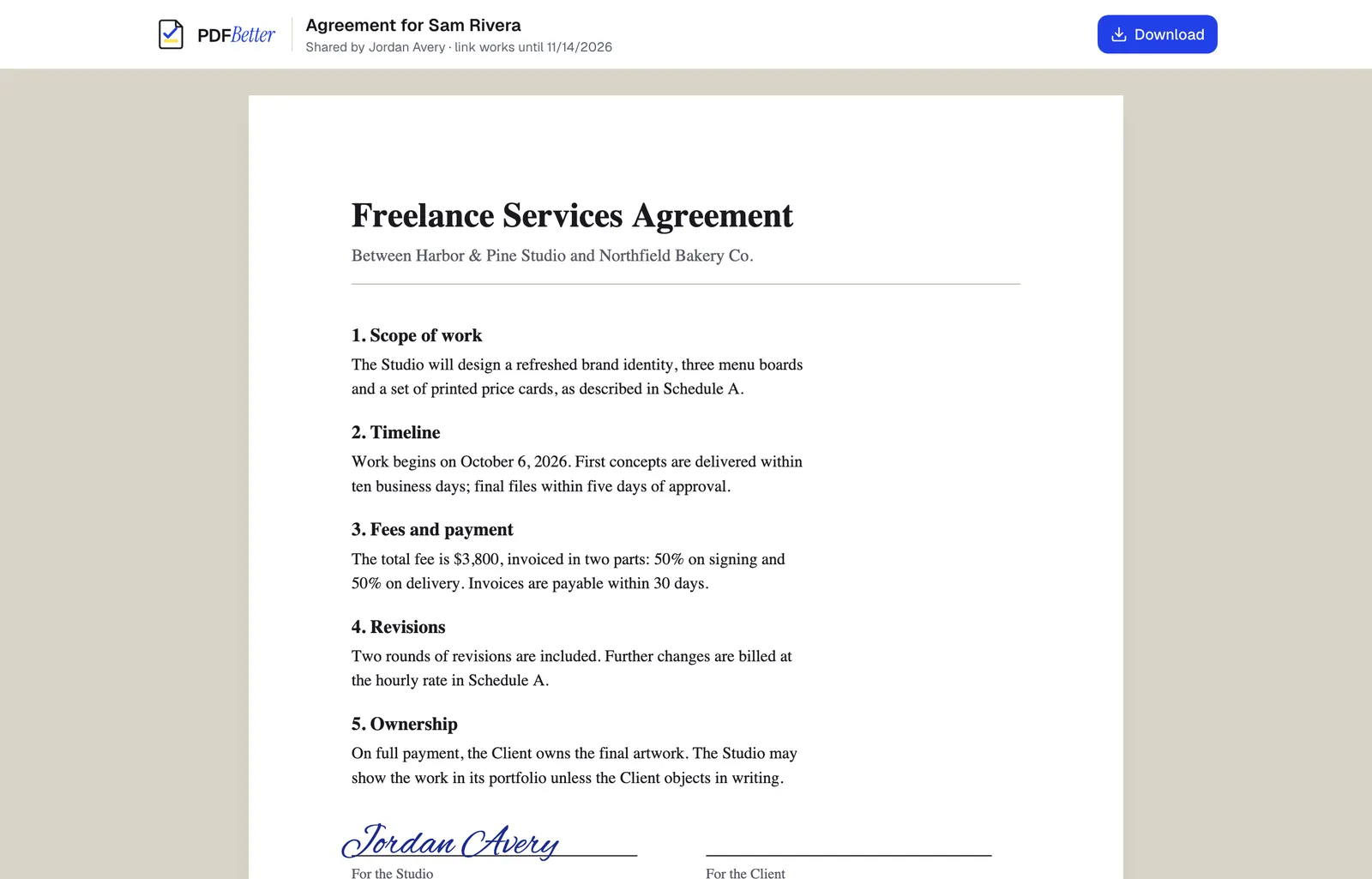
A shared link opened on a laptop and on a phone. Sample content; names and companies are fictional.
Protect a PDF in PDFBetter
- 1
Add the PDF
Open Protect PDF and add the file. Encryption runs in your browser; neither the file nor the password is sent to PDFBetter.
- 2
Set an open password
Use a long password, ideally a passphrase of several unrelated words, and store it in a password manager.
- 3
Choose permissions (optional)
Untick printing, modifying, copying, annotating or form filling, and set an owner password different from the open password.
- 4
Download and test
Download the encrypted PDF, then open it once to confirm the password works before sending it.
Share the password safely
Don't put the password in the same email as the attachment; anyone who gets the email gets both. Send it by text message, phone call or a separate messaging app, or agree a password in advance with people you send files to regularly.
What encryption does and doesn't protect
PDFBetter encrypts with AES-256, which mainstream readers support. A strong open password protects the file in transit and at rest, such as in an inbox or on a lost laptop. It doesn't protect against someone who has the password forwarding the decrypted content, and a short or common password can be guessed with cracking tools.
If information shouldn't be in the file at all, password protection is the wrong tool. Redact it so it's removed from the document before sharing.
Alternatives to emailing a protected file
A share link with its own password, an expiry date and download turned off lets you control access after sending and revoke it later, which a file attachment can't do.
Tools used in this guide
- Protect PDFSet a password to open the file, optionally restrict printing, editing and copying, and download an encrypted PDF.
- Unlock PDFEnter the password you already have and download an unencrypted copy of the PDF.
- Redact PDFMark what must go, apply redaction, and download a PDF where the marked content no longer exists in the file.
- Share PDFCreate a link to your document, choose what people can do with it, and turn it off whenever you want.
Questions people ask
Can PDFBetter recover a forgotten password?
No. Encryption happens in your browser and the password never reaches PDFBetter, so there is nothing to recover. Keep the unprotected original or store the password safely.
Is password protecting a PDF free?
Yes. It runs in your browser and the protected file downloads free without an account.
Can I protect a PDF that already has a password?
Unlock it with its current password first, then set the new passwords.
Will the PDF open on phones?
Yes. Current iOS and Android PDF viewers open AES-256 encrypted PDFs and ask for the password. Very old readers may not.
Does a permissions password stop people copying text?
Only in readers that honor the restriction. Treat permissions as a deterrent, not as security.