
Form builder
Build an event registration form
An event registration form collects everything you need before people arrive: who is coming, which sessions or tickets they chose, dietary and accessibility needs, and, for activities, a signed waiver and photo consent. One complete form beats a registration plus three follow-up emails.
Reviewed
- Attendee name, email and organization (required)
- Ticket or session choices (checkboxes or dropdown)
- Bringing a guest (radio buttons) and guest name (shown when yes)
- Dietary needs and accessibility requests (dropdown and multi-line text)
- Emergency contact (for multi-day or activity events)
- Waiver text with required signature (shown for activity sessions)
- Photo consent (radio buttons: yes or no)
Why it works
Event registration form, explained
Conditional fields keep it short. Ask about a guest's meal only if someone says they're bringing a guest; show the waiver only for the activity sessions that need one. The export then gives catering, check-in and session hosts the columns they each need.
Registrations aren't capped automatically. Watch the response count and turn the form off when you reach capacity. Paid events need your payment processor for tickets; use the form for the attendee details processors don't collect.
Recommended fields
Fields to include
- 1Attendee name, email and organization (required)
- 2Ticket or session choices (checkboxes or dropdown)
- 3Bringing a guest (radio buttons) and guest name (shown when yes)
- 4Dietary needs and accessibility requests (dropdown and multi-line text)
- 5Emergency contact (for multi-day or activity events)
- 6Waiver text with required signature (shown for activity sessions)
- 7Photo consent (radio buttons: yes or no)
How to do it
Build an event registration form in 4 steps
1A flat PDF
2Place fields
3A fillable PDF
- 1
Build the form
Start from the event registration template, add session choices, and attach a waiver section with a condition on the activity sessions.
- 2
Publish it
Publish and share the link in invitations, embed it on the event page, and print the QR code on posters.
- 3
Collect registrations
Attendees register on any device without an account. Turn the form off when you reach capacity.
- 4
Export lists for the day
Export to CSV or XLSX for check-in lists, catering counts and session rosters, or fill name badges from the same spreadsheet.
In the app
What building it looks like
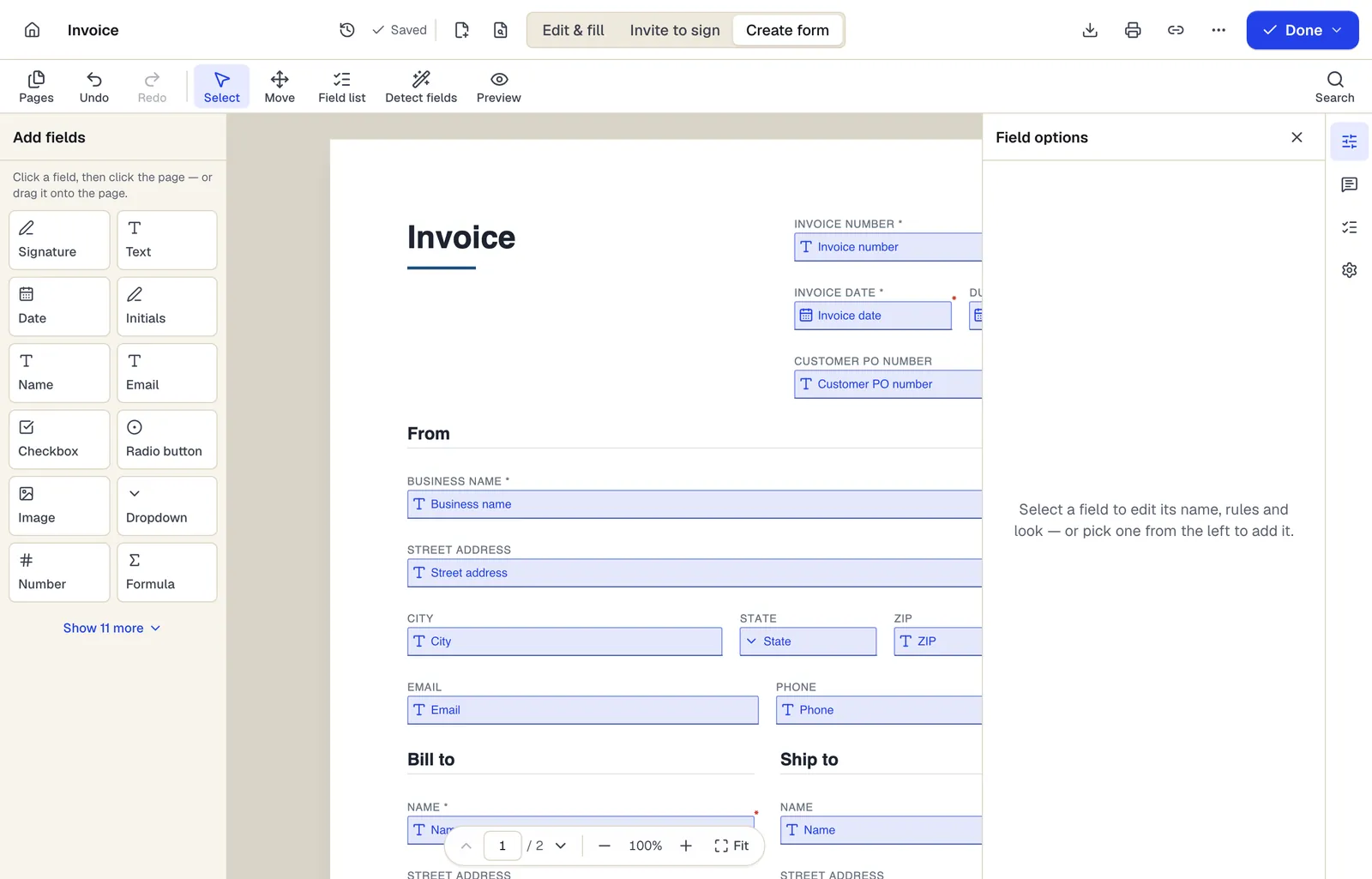
- Pick a field type, then click the page — or drag it
- Detect fields finds the boxes and lines on a flat PDF
- Every field keeps a label, a name and its own rules
The editor in Create form mode. Sample content; names and companies are fictional.
Start from a template
Templates that fit
Event Registration Form
30 fields · 2 pages
Event registration form with attendee details, ticket type and quantity, auto-calculated total, dietary and accessibility needs and communication consent.
Release of Liability (Activity Waiver)
21 fields · 3 pages
Activity waiver with assumption of risk, release, medical authorization and parent signature for minors. For gyms, classes, rentals and events.
Photo and Video Release Form
23 fields · 2 pages
Photo and video release letting a photographer or organization use a person's image, with permitted uses, compensation, time limits and guardian consent.
Event Sign-In Sheet
114 fields · 1 page
Event and meeting sign-in sheet with name, organization, email, phone and opt-in for updates. Print for the door or fill on a tablet, then export to Excel.
Event registration form: questions people ask
Can I sell tickets through the form?
No. PDFBetter forms don't process payments. Sell tickets through your payment processor and collect attendee details here.
Can I make name badges from the registrations?
Yes. Export the responses and use Fill PDF from Excel with a badge or certificate layout, one per attendee.
Does the form close itself when the event is full?
No. Forms don't count seats. Watch the responses and turn the form off at capacity.
How many registrations can I take?
The Free plan includes 1 live form and 50 responses a month, Pro 10 live forms and 1,000 responses, and Business unlimited live forms and 10,000 responses.