
Guide · Organizing pages
How to merge PDFs on a Mac
Reviewed
Short answer
On a Mac, select the PDFs in Finder in the order you want, Control-click and choose Quick Actions > Create PDF to combine them into one file. For page-level control, open one PDF in Preview, choose View > Thumbnails and drag other PDFs or pages into the sidebar. Preview saves changes to the open file, so duplicate it first if you need to keep the original.
On this page (6)
Method 1: Finder Quick Actions
- 1
Select the files in order
In a Finder window, select the PDFs (and images if you like). Apple notes the files appear in the PDF in the order you select them.
- 2
Create the PDF
Control-click the selection and choose Quick Actions > Create PDF. The new file is named after the first file you selected.
- 3
Check the result
Open the combined PDF and confirm the page order.
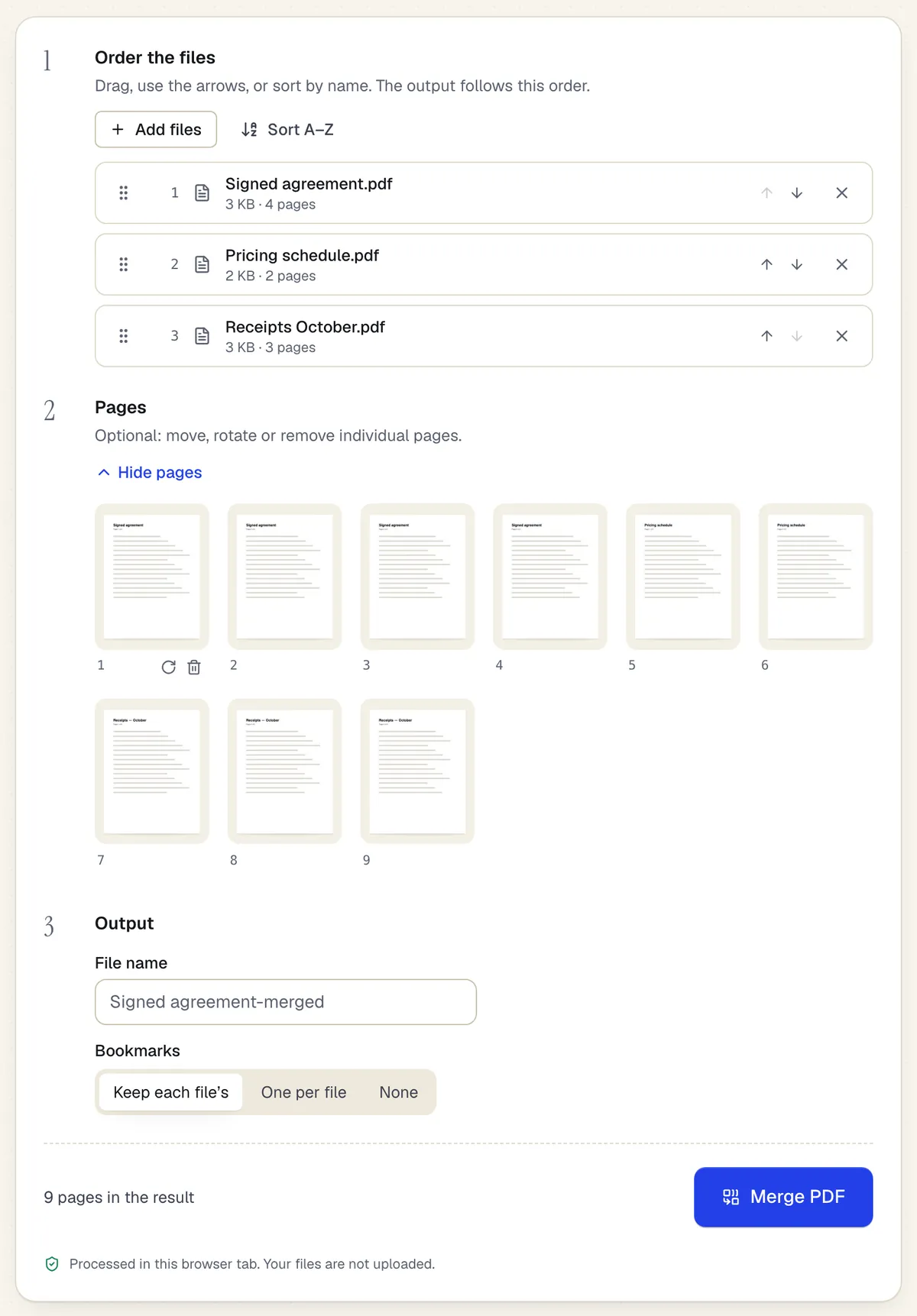
- Reorder whole files with drag or arrows
- Or move, rotate and remove single pages
- Processed in the browser tab — the files aren't uploaded
The Merge PDF workspace on this page, with three files added. Sample content; names and companies are fictional.
Method 2: Preview's sidebar
- 1
Duplicate the first PDF
Open it in Preview and choose File > Duplicate, because Preview saves changes automatically.
- 2
Show thumbnails
Choose View > Thumbnails to open the page sidebar.
- 3
Add the other PDFs
Drag another PDF's icon from Finder into the sidebar, or choose Edit > Insert > Page from File. Drag thumbnails to change the order.
- 4
Save
Save the duplicate as a new PDF.
Method 3: Merge in the browser with PDFBetter
Open Merge PDF in Safari or Chrome, drop in the files, drag them into order and click Merge. You can open the page view to move, rotate or remove single pages first. Merging runs on your Mac in the browser, so files aren't uploaded, and the merged PDF downloads free without an account.
Common problems
If a PDF won't merge, it is probably password protected; unlock it with its password first. Form fields with the same name in different files can interfere with each other; PDFBetter renames duplicates so each stays fillable. Digital signatures in the source files become invalid after merging, so merge before signing.
Tools used in this guide
- Merge PDFDrop in two or more PDFs, set the file and page order, and download one combined PDF.
- Assemble PDFCombine PDFs and photos into one packet with a bookmark per item, in the order you set.
- Organize PDFFix a messy PDF in one pass: move, rotate, delete, duplicate and insert pages, then save one clean file.
- Unlock PDFEnter the password you already have and download an unencrypted copy of the PDF.
Questions people ask
Does merging in Preview change my original file?
Yes, Preview saves changes to the open document automatically. Use File > Duplicate first to keep the original.
How do I control the order with Finder's Create PDF?
Select the files one by one in the order you want; Apple says they appear in the selection order.
Can I merge PDFs and images together on a Mac?
Yes. Finder's Create PDF accepts images, and PDFBetter's Assemble PDF combines PDFs and images with a bookmark per item.
Is there a limit on how many PDFs I can merge?
In PDFBetter, up to 20 files per job without an account and 30 on the Free plan. Very large jobs depend on your Mac's memory.
Are bookmarks kept when merging?
PDFBetter's Merge doesn't carry over source bookmarks. Assemble PDF creates one bookmark per source file.