
Form builder
Build an enrollment form
Enrollment forms sign someone up for something that continues: a school year, a class series, a camp session, a membership. They collect the participant's details, guardian contacts, emergency information, program choices and the consents the program requires.
Reviewed
- Participant name and date of birth (name and date fields, required)
- Program, grade or session (dropdown)
- Guardian name, email and phone (required for minors, shown by an age condition)
- Emergency contacts (name, relationship, phone)
- Allergies or medical needs staff should know (multi-line text, optional)
- Photo consent (radio buttons: yes or no)
- Guardian signature and date (required)
Why it works
Enrollment form, explained
The work is in what comes after. A roster has to be built, emergency contacts printed for staff, and missing information chased. Required fields and format checks on phone numbers and ZIP codes cut down the chasing, and an export gives you the roster directly.
For children, the guardian completes and signs the form. Ask only for medical details staff actually need to keep the participant safe, and keep the export somewhere access is limited.
Recommended fields
Fields to include
- 1Participant name and date of birth (name and date fields, required)
- 2Program, grade or session (dropdown)
- 3Guardian name, email and phone (required for minors, shown by an age condition)
- 4Emergency contacts (name, relationship, phone)
- 5Allergies or medical needs staff should know (multi-line text, optional)
- 6Photo consent (radio buttons: yes or no)
- 7Guardian signature and date (required)
How to do it
Build an enrollment form in 4 steps
1A flat PDF
2Place fields
3A fillable PDF
- 1
Build the form
Start from the school enrollment template or your current form. Use a date of birth or age field to show the guardian section only for minors.
- 2
Publish it
Publish and share the link in your newsletter or registration page, and print the QR code for open houses.
- 3
Collect enrollments
Families fill and sign on a phone or computer without an account.
- 4
Export your roster
Export to CSV or XLSX to build class lists and emergency contact sheets, or to import into your student information system.
In the app
What building it looks like
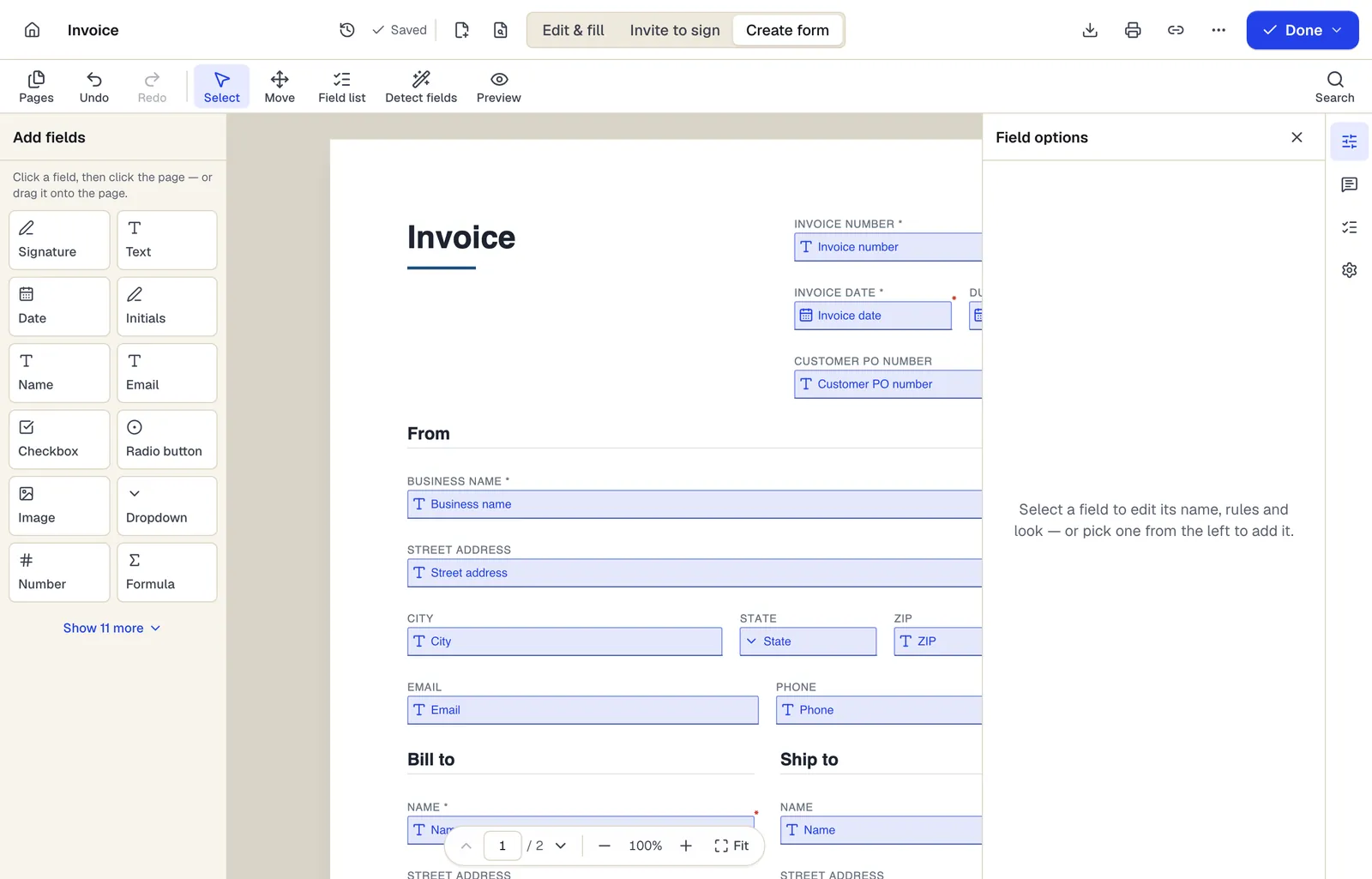
- Pick a field type, then click the page — or drag it
- Detect fields finds the boxes and lines on a flat PDF
- Every field keeps a label, a name and its own rules
The editor in Create form mode. Sample content; names and companies are fictional.
Start from a template
Templates that fit
School Enrollment Form
47 fields · 2 pages
Student enrollment form for private schools, charters and programs: student info, guardians, previous school, health, special services and pickup permissions.
Permission Slip
17 fields · 1 page
Short permission slip for on-site school, club or after-school activities: activity details, cost, yes/no permission and parent signature with tear-off.
Event Registration Form
30 fields · 2 pages
Event registration form with attendee details, ticket type and quantity, auto-calculated total, dietary and accessibility needs and communication consent.
Medical History Form
86 fields · 2 pages
Detailed personal and family medical history form: conditions, surgeries, hospitalizations, medications, immunizations, lifestyle and family history.
Enrollment form: questions people ask
Can one guardian enroll several children?
Have them submit once per child. A single form with repeating child sections is harder to export into a clean roster.
Can we close enrollment when a program is full?
Unpublish the form when you reach capacity. Forms don't count seats automatically.
Do schools have special privacy rules?
Yes. FERPA and state student-privacy laws may apply, and many districts require a data privacy agreement before staff use a new online tool. Check with your district first.
How many families can enroll?
The Free plan includes 1 live form and 50 responses a month, Pro 10 live forms and 1,000 responses, and Business unlimited live forms and 10,000 responses.