
Form builder
Build a survey
A survey asks many people the same questions so you can count the answers: an employee pulse check, a member survey, a community needs assessment or a post-course evaluation. Unlike a feedback form tied to one experience, a survey is usually sent to a whole group at once and analyzed in aggregate.
Reviewed
- Rating questions on a 1–5 scale (radio buttons, one group per question)
- Multiple-choice questions (checkboxes where several answers are allowed)
- Single-choice questions (dropdown or radio buttons)
- Branching follow-ups (fields shown by condition on an earlier answer)
- Demographic questions (optional dropdowns, with a 'prefer not to say' option)
- One open comment question (multi-line text with a character limit)
Why it works
Survey, explained
Write questions you can analyze. Fixed choices and rating scales export as values you can count and average; open text is valuable but slow to read at scale, so limit it to one or two questions. Branching keeps the survey short for each person by skipping sections that don't apply.
Because the form is laid out on a page, the same survey can be printed for people who prefer paper and typed in later, which helps when you survey groups who don't all fill forms on phones.
Recommended fields
Fields to include
- 1Rating questions on a 1–5 scale (radio buttons, one group per question)
- 2Multiple-choice questions (checkboxes where several answers are allowed)
- 3Single-choice questions (dropdown or radio buttons)
- 4Branching follow-ups (fields shown by condition on an earlier answer)
- 5Demographic questions (optional dropdowns, with a 'prefer not to say' option)
- 6One open comment question (multi-line text with a character limit)
How to do it
Build a survey in 4 steps
1A flat PDF
2Place fields
3A fillable PDF
- 1
Build the survey
Group related questions on the same page, give every field a clear export name, and add conditions so follow-ups only appear when relevant.
- 2
Publish it
Publish and send the link by email or chat, embed it on an intranet page, or print the QR code on posters.
- 3
Collect answers
Respondents answer in a browser without an account. Watch the response count and send a reminder before you close.
- 4
Export and analyze
Export to CSV or XLSX. Each field becomes a column named after its export name, ready for pivot tables or charts.
In the app
What building it looks like
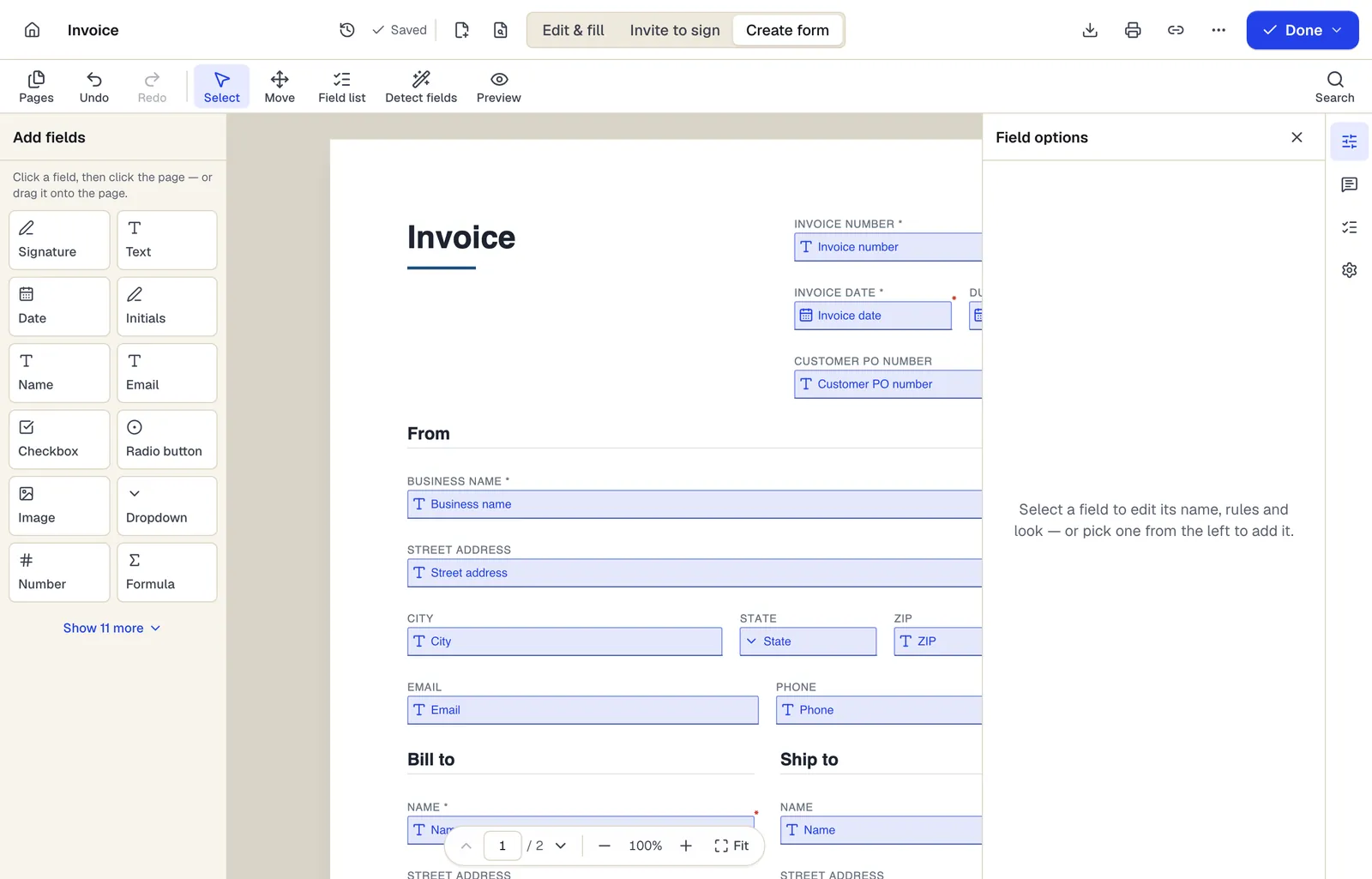
- Pick a field type, then click the page — or drag it
- Detect fields finds the boxes and lines on a flat PDF
- Every field keeps a label, a name and its own rules
The editor in Create form mode. Sample content; names and companies are fictional.
Start from a template
Templates that fit
Employee Performance Review
31 fields · 3 pages
Employee performance review with self-assessment, ratings on six competencies, goal results, development plan, overall rating and both signatures.
Event Registration Form
30 fields · 2 pages
Event registration form with attendee details, ticket type and quantity, auto-calculated total, dietary and accessibility needs and communication consent.
Survey: questions people ask
Can respondents stay anonymous?
Leave out name, email and identifying demographic fields, and responses won't be tied to names in your export. If you promise anonymity, check the privacy page for what is logged on submission.
Can I stop people from answering twice?
Forms don't limit one response per person. If duplicates matter, ask for an email address and remove duplicates in the export.
Does PDFBetter make charts of the results?
No. Export the answers and chart them in a spreadsheet.
How many responses can I collect?
The Free plan includes 1 live form and 50 responses a month, Pro 10 live forms and 1,000 responses, and Business unlimited live forms and 10,000 responses.