
Form builder
Build a contact form
A contact form replaces an email address on your website or flyer with a short, structured request: who is writing, how to reach them, and what they need. Structured answers are easier to sort and reply to than free-form emails, and the bot check on submission keeps most spam out.
Reviewed
- Full name (name field, required)
- Email (email field with format check, required)
- Phone (US phone field, optional)
- Topic (dropdown: sales, support, billing, other)
- Order or account number (text, shown only when the topic is support or billing)
- Message (multi-line text with a character limit)
- Preferred contact method (radio buttons: email or phone)
Why it works
Contact form, explained
In PDFBetter you design the form on a page, so the same design works as a printable PDF for a front desk and as an online form people fill on a phone. Publishing gives you a link, a QR code and embed code for your site.
Keep it short. Every extra required field lowers the number of people who finish. Name, one way to reply, a topic and a message cover most contact needs; use conditional fields for anything that only applies to some topics.
Recommended fields
Fields to include
- 1Full name (name field, required)
- 2Email (email field with format check, required)
- 3Phone (US phone field, optional)
- 4Topic (dropdown: sales, support, billing, other)
- 5Order or account number (text, shown only when the topic is support or billing)
- 6Message (multi-line text with a character limit)
- 7Preferred contact method (radio buttons: email or phone)
How to do it
Build a contact form in 4 steps
1A flat PDF
2Place fields
3A fillable PDF
- 1
Build the form
Start from a blank page or an existing PDF, add the fields, mark the required ones, and set a condition so the order number only appears for support and billing.
- 2
Publish it
Publish to get a link, a QR code and embed code. Put the link in your email signature and the embed code on your contact page.
- 3
Collect messages
Each submission is stored with its values in your account. Visitors don't need an account, and every submission passes a bot check.
- 4
Export and reply
Export responses to CSV or XLSX to sort by topic or hand to whoever answers them.
In the app
What building it looks like
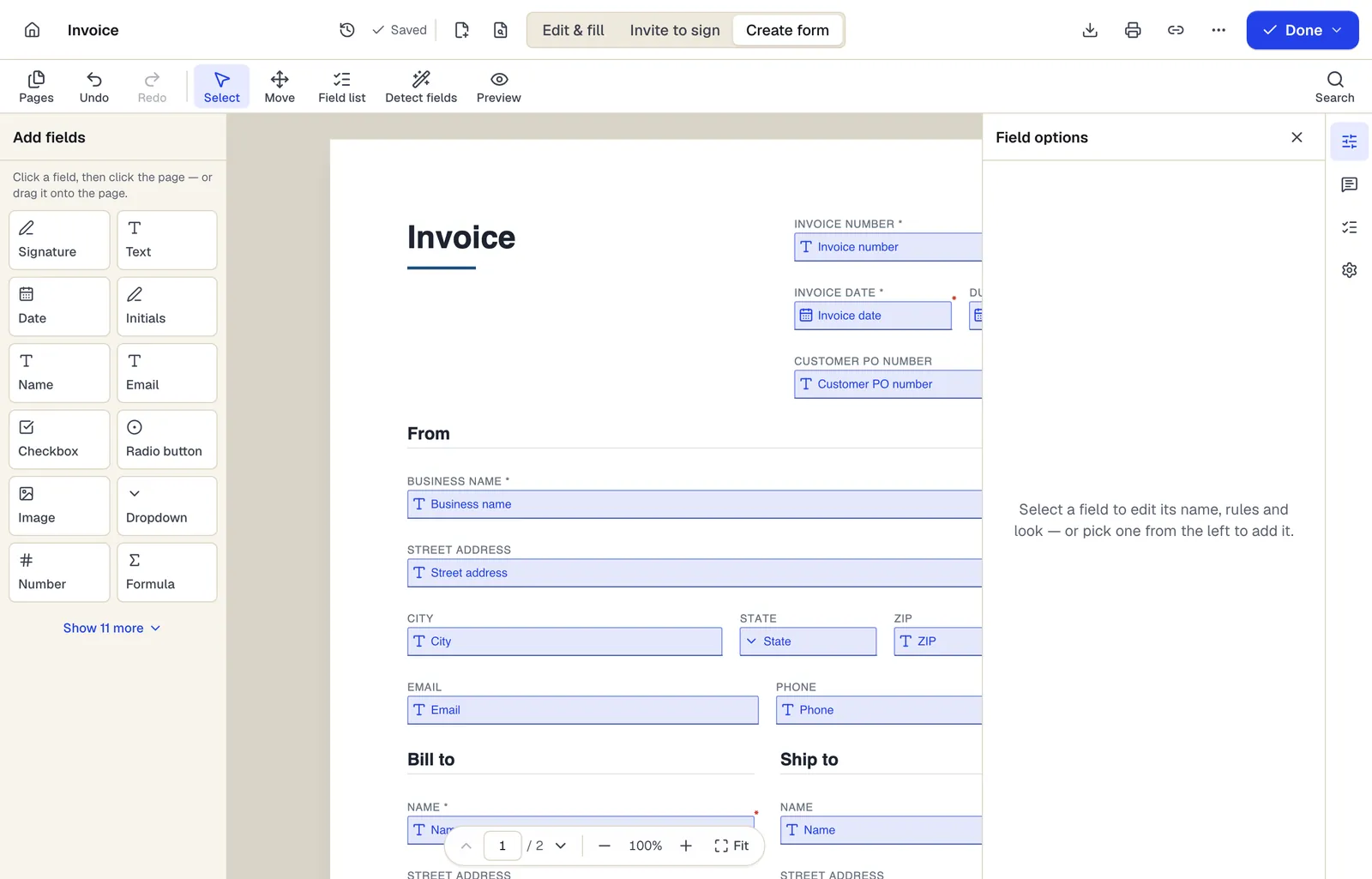
- Pick a field type, then click the page — or drag it
- Detect fields finds the boxes and lines on a flat PDF
- Every field keeps a label, a name and its own rules
The editor in Create form mode. Sample content; names and companies are fictional.
Start from a template
Templates that fit
Customer intake form
24 fields · 1 page
Fillable new-client intake form for service businesses: contact details, services wanted, project goals, budget, timeline, referral source and contact consent.
Event Sign-In Sheet
114 fields · 1 page
Event and meeting sign-in sheet with name, organization, email, phone and opt-in for updates. Print for the door or fill on a tablet, then export to Excel.
Contact form: questions people ask
Can I put the form on my website?
Yes. Publishing gives you embed code to paste into your site, as well as a direct link and QR code.
How do you stop spam submissions?
Every submission passes a bot check before it is accepted. Keeping a required topic field also makes junk easier to filter in the export.
How many messages can I receive?
The Free plan includes 1 live form and 50 responses a month, Pro 10 live forms and 1,000 responses, and Business unlimited live forms and 10,000 responses.
Can people attach files?
Forms support an image field for a photo or screenshot. Other attachment types aren't supported, so ask for documents by email after the first reply.