
Form builder
Build a feedback form
A feedback form asks people who just used your service, attended your event or finished a project what worked and what didn't. The most useful ones mix a few fixed-choice ratings, which you can count, with one or two open questions, which explain the numbers.
Reviewed
- Overall rating (radio buttons 1–5, required)
- What went well (multi-line text, optional)
- What should we fix (multi-line text, shown when the rating is 2 or lower)
- Would you recommend us (radio buttons: yes, no, not sure)
- Which service or event (dropdown)
- Visit date (date field)
- May we contact you about this feedback (checkbox) and email (email field, shown when checked)
Why it works
Feedback form, explained
Put the QR code where the experience ends: on the receipt, the last slide, the table tent or the invoice. Feedback collected the same day is more specific than feedback requested a week later.
Use conditional questions to follow up on low scores. If someone rates their visit 1 or 2, show a text box asking what went wrong; people who rate 5 don't have to scroll past it.
Recommended fields
Fields to include
- 1Overall rating (radio buttons 1–5, required)
- 2What went well (multi-line text, optional)
- 3What should we fix (multi-line text, shown when the rating is 2 or lower)
- 4Would you recommend us (radio buttons: yes, no, not sure)
- 5Which service or event (dropdown)
- 6Visit date (date field)
- 7May we contact you about this feedback (checkbox) and email (email field, shown when checked)
How to do it
Build a feedback form in 4 steps
1A flat PDF
2Place fields
3A fillable PDF
- 1
Build the form
Add rating questions as radio groups so each answer exports as a value you can average. Add the follow-up text box with a condition on the rating.
- 2
Publish it
Publish to get a link and a QR code. Print the QR code on receipts or slides, or send the link in a follow-up email.
- 3
Collect responses
Respondents fill the form in a browser without an account. Contact details are only collected when someone ticks the consent box.
- 4
Export and analyze
Export to CSV or XLSX and chart ratings by service or month in your spreadsheet.
In the app
What building it looks like
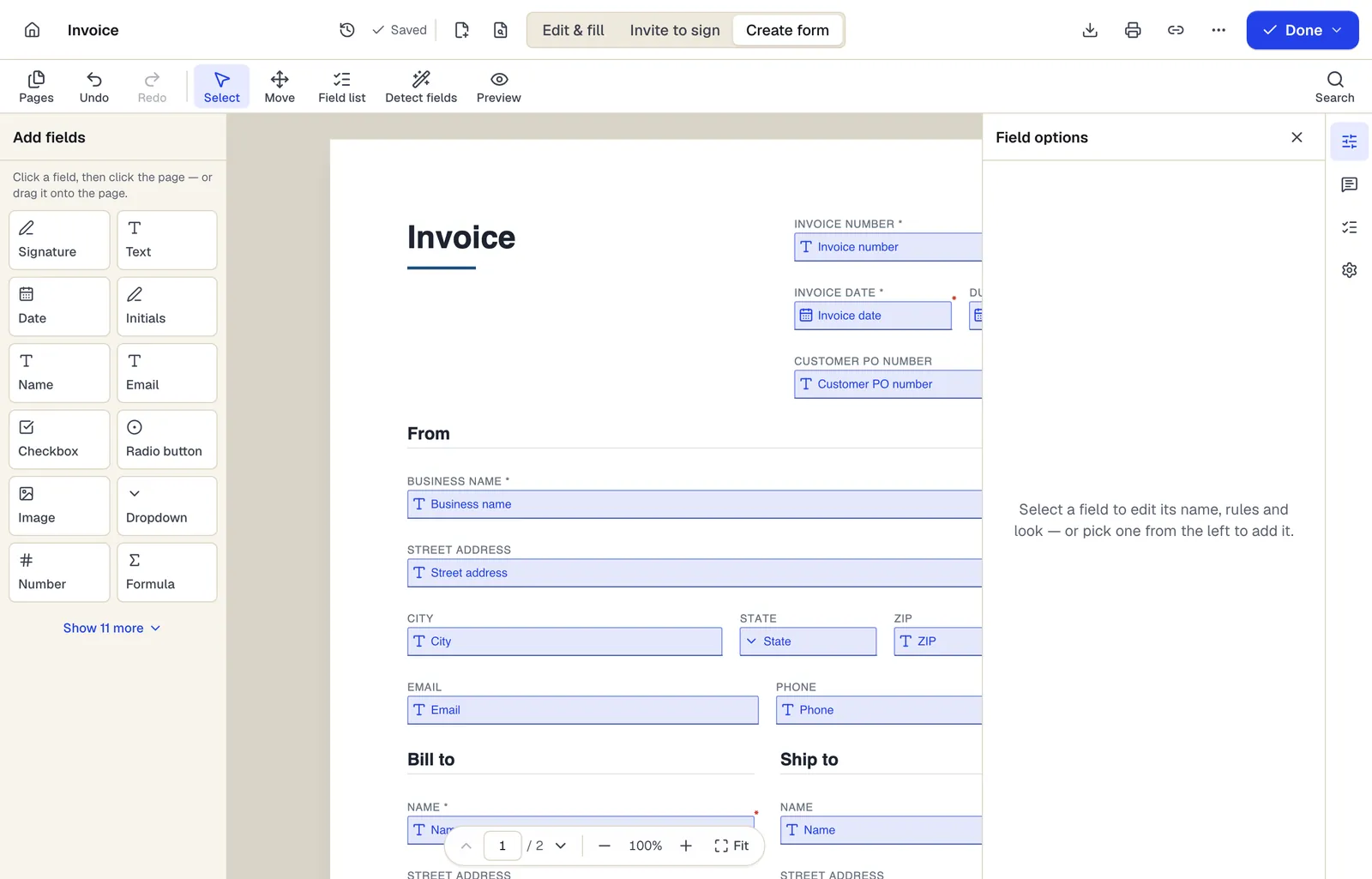
- Pick a field type, then click the page — or drag it
- Detect fields finds the boxes and lines on a flat PDF
- Every field keeps a label, a name and its own rules
The editor in Create form mode. Sample content; names and companies are fictional.
Start from a template
Templates that fit
Employee Performance Review
31 fields · 3 pages
Employee performance review with self-assessment, ratings on six competencies, goal results, development plan, overall rating and both signatures.
Event Registration Form
30 fields · 2 pages
Event registration form with attendee details, ticket type and quantity, auto-calculated total, dietary and accessibility needs and communication consent.
Feedback form: questions people ask
Can feedback be anonymous?
Leave out name and email fields and responses won't be tied to a name in your export. If you promise anonymity, check the privacy page for what is logged when a form is submitted.
Can I show results as charts?
PDFBetter exports raw responses. Make charts in Excel, Google Sheets or Numbers from the CSV or XLSX file.
Can I use the same form for several events?
Yes. Add an event dropdown and filter the export, or publish a separate copy per event if you need separate links.
What happens when I reach my response limit?
New submissions can't be accepted until the next month or an upgrade. The Free plan includes 50 responses a month.