Best of 2026
The best PDF compressors in 2026
By the PDFBetter teamPublished 9 min read
Our pick
PDFBetter is the best PDF compressor for most files in 2026: it offers three compression levels, never hands back a file larger than the one you uploaded, and leaves text, links, bookmarks and form fields untouched. PDF24 suits free unlimited use, and Apple Preview suits a quick shrink on a Mac.
On this page (10)
At a glance
| # | Tool | Best for | Free option | Paid from | Platforms |
|---|---|---|---|---|---|
| 1 | PDFBetterTop pick | Shrinking a file without breaking it | Free plan, no card (10 compressions a month) | $3.25/month billed yearly (Starter), or $5 month to month | Web (any browser), Mac, Windows |
| 2 | PDF24 Tools | Free compression with fine controls | Free, no registration | Free (ad-supported) | Web; Windows (PDF24 Creator) |
| 3 | Apple Preview | A quick shrink on a Mac | Included with macOS | Included with macOS | Mac |
| 4 | iLovePDF | Picking a level by name | Free tier with per-task limits | $4/month billed annually (Premium) | Web; Mac and Windows desktop app (paid) |
| 5 | Sejda | Tuning image quality by hand | 3 free tasks per hour | $5 week pass, or $7.50/month | Web, Windows, Mac, Linux |
| 6 | Smallpdf | Light compression in a few clicks | Free tier with daily limits | $9/month billed annually (Pro) | Web, Windows |
The list
1.PDFBetter
PDFBetter compresses the images inside a PDF at one of three levels and shows the old and new size side by side before you download. Text, fonts, links, bookmarks and fillable fields stay exactly as they were, and if no level makes the file smaller you get your original back. You can try it without an account, and the Free plan covers 10 compressions a month.
Why it's first
Three levels, matched to the file
The lightest level re-encodes images at their current resolution, which keeps small print crisp. The middle and strongest levels also lower image resolution, which is where photo-heavy files lose the most weight.
Compress PDFNever a bigger file
Recompressing an already efficient image can make it larger. PDFBetter compares the result with your upload and keeps whichever is smaller, so a try costs nothing.
Compress PDFForms and links keep working
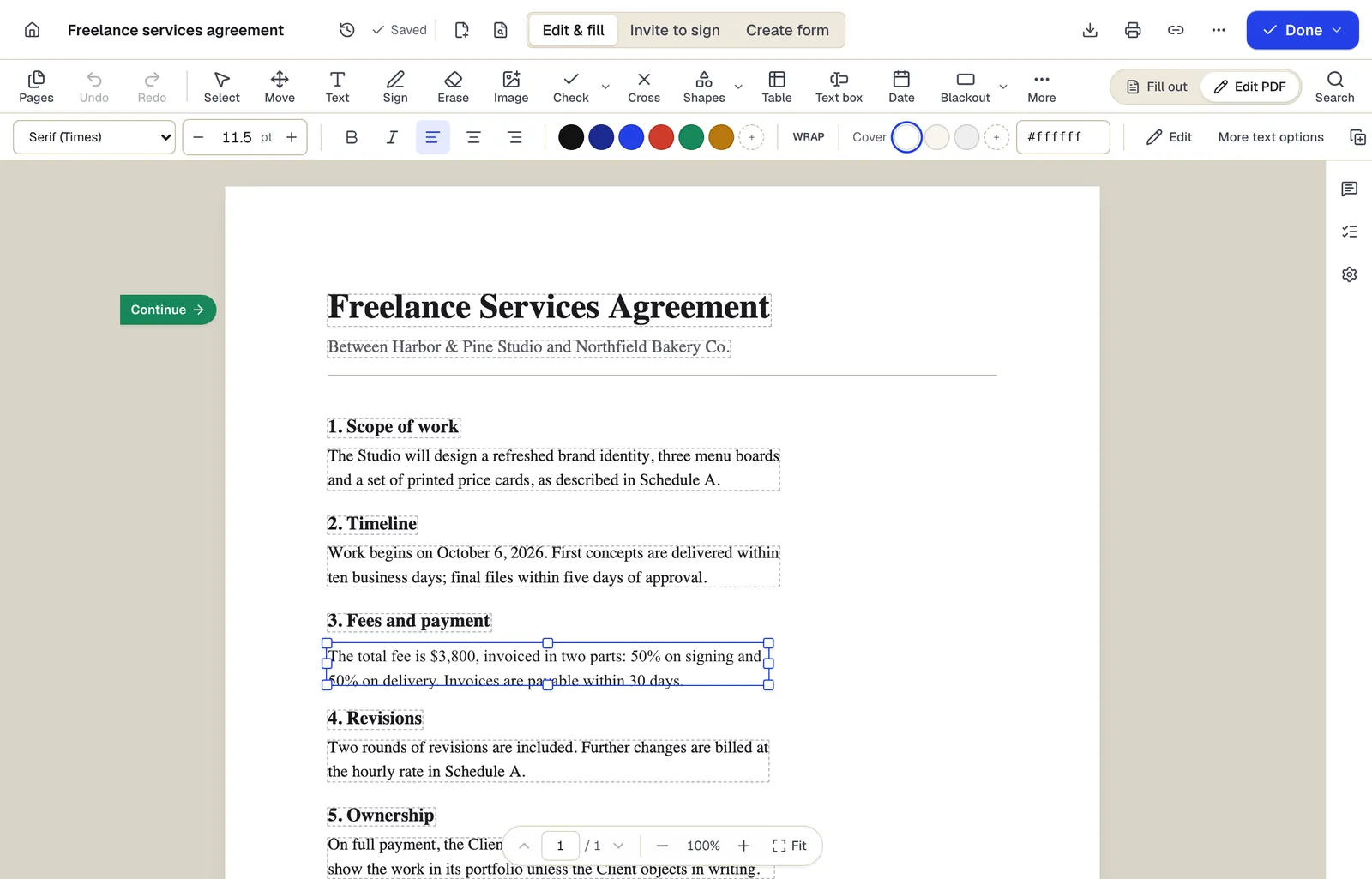
Only embedded images are touched. A filled-in application keeps its field values, a report keeps its bookmarks and every link still opens.
Compress PDFA browser-only light mode
If a file can't be uploaded, the light mode restructures the PDF on your own device, cleaning out unused objects without recompressing images. The savings are smaller, and nothing leaves your computer.
Compress PDFCut pages when compression isn't enough
A text-only report barely shrinks because it has few images. Remove pages you don't need, or split the file into parts for a portal with a per-file limit, in the browser without uploading.
Split PDFMake the scan searchable while you're at it
Compression keeps a file exactly as searchable as before. Run OCR on a scanned bundle and the smaller file can also be searched and copied.
OCR PDFBrowser, Mac and Windows
PDFBetter has free desktop apps for Mac and Windows that use the same account and documents as the web; its iPhone and iPad app is coming soon to the App Store, and its Android app is on Google Play.
- Free option
- Free plan, no card (10 compressions a month)
- Paid from
- $3.25/month billed yearly (Starter), or $5 month to month
- Platforms
- Web (any browser), Mac, Windows
2.PDF24 Tools
Best for free compression with fine controls
A free, ad-supported set of PDF tools with no registration. Its compressor lets you set DPI and image quality, convert images to grayscale and strip metadata. Files are processed on servers in Germany and deleted after an hour.
Paid from: Free (ad-supported)Free option: Free, no registrationPlatforms: Web; Windows (PDF24 Creator)
tools.pdf24.org3.Apple Preview
Best for a quick shrink on a mac
The PDF viewer built into macOS can export a PDF with the Reduce File Size filter, or with options to optimize images for screen and save them as JPEG. Apple notes the result may be of lower quality than the original.
Paid from: Included with macOSFree option: Included with macOSPlatforms: Mac
support.apple.com4.iLovePDF
Best for picking a level by name
An online tool set whose compressor offers three levels: extreme, recommended and less compression. The free plan allows 2 files per compression task.
Paid from: $4/month billed annually (Premium)Free option: Free tier with per-task limitsPlatforms: Web; Mac and Windows desktop app (paid)
ilovepdf.com5.Sejda
Best for tuning image quality by hand
Sejda's compressor sets JPEG quality and image resolution, can convert images to grayscale and can discard multimedia. The free web tier allows 3 tasks an hour, and Sejda Desktop compresses offline on a paid plan.
Paid from: $5 week pass, or $7.50/monthFree option: 3 free tasks per hourPlatforms: Web, Windows, Mac, Linux
sejda.com6.Smallpdf
Best for light compression in a few clicks
Smallpdf's compressor has a Basic level on the free tier, with Moderate and Strong levels on Pro. Uploaded files are deleted after one hour.
Paid from: $9/month billed annually (Pro)Free option: Free tier with daily limitsPlatforms: Web, Windows
smallpdf.com
What separates a good PDF compressor from a bad one?
Every compressor makes files smaller. The differences show up in what you get back. A good one shrinks the images and leaves the rest of the document alone, gives you a choice of how hard to squeeze, and tells you plainly what happened to your file. Use these checks before you trust a compressor with a document that matters.
- It works on images, not text. Real text is drawn from fonts and should stay sharp at any setting. If a compressor turns text into pictures, search and copy stop working.
- It offers levels. A scanned lease you will print needs a gentle setting; a stack of phone photos can take a heavy one. One fixed setting is always wrong for one of them.
- It never makes the file bigger. Already-compressed images can grow when re-encoded. A careful tool checks the result and keeps the smaller version.
- It keeps forms, links and bookmarks. A compressed job application should still be fillable, and a report should still have its outline.
- It says where the file goes. Most compressors upload your file. Look for a stated deletion window, or an on-device option for documents that can't leave your computer.
PDFBetter passes all five. Its three levels only recompress images, it keeps whichever version is smaller, form fields and links are not touched, and uploaded files are deleted after 24 hours. For files that must stay on your device, the light mode runs in the browser.
Why is a PDF so big in the first place?
Before you pick a compressor, it helps to know where the megabytes come from. Almost always it is pictures. Text and vector drawings take very little space, while every image is stored pixel by pixel. Once you know which kind of image is inside, you know how much a compressor can save and which level to try.
- Phone photos saved as PDF. A modern phone camera captures far more detail than a screen shows. A rental application with three photographed pay stubs can be bigger than a 100-page text report.
- Scans at high resolution. An office copier set for archival quality writes every page as a large image, including blank margins.
- Print-ready brochures and decks. Images exported for a print shop carry resolution no email reader needs.
- Merged files. Combining several PDFs adds their sizes together, and shared fonts and logos are not stored once, so a merged packet can be larger than you expect.
- Text-only exports. A report saved from Word is usually small already. If it is large, check for one or two huge embedded images, such as a full-resolution cover photo.
This is also why the same compressor can halve one file and barely touch another. A text-only PDF has nothing to give, and no setting changes that. For those files, cutting pages with Remove pages or splitting with Split PDF is the faster route.
Which compressor setting fits which file?
How much a PDF shrinks depends on what is inside it far more than on which tool you use. Here is where to start in PDFBetter for the files people most often need to send.
| The file | Where to start | Why |
|---|---|---|
| Rental or job application with photographed pay stubs and ID | Compress PDF, middle level | Phone photos are much larger than a screen needs |
| Signed contract scanned at the office copier | Compress PDF, lightest level | Keeps signatures and fine print crisp |
| Court or agency filing with a per-file cap | Split PDF after compressing | Parts that each fit the limit |
| Report exported from Word, mostly text | Remove pages | Few images to recompress, so fewer pages saves more |
| Scanned bundle you'll need to search later | OCR PDF, then compress | Searchable and smaller |
| Single page you only need as a picture | PDF to JPG | An image file is often the smallest option |
Zoom in before you send
After compressing, open the preview and zoom into the smallest text on a scanned page: a footnote, a signature, the numbers on a pay stub. If it looks soft, go one level lighter.
Is a free PDF compressor good enough?
For an occasional file, usually yes. The catch is in how each free tier is limited. Some cap the number of files per task, some limit tasks per hour, and some keep the stronger levels for paying customers. Check which limit you will actually hit: a monthly allowance suits steady use, while an hourly cap suits a single burst of work.
PDFBetter lets you compress without an account to try it. The Free plan includes 10 compressions and Office conversions a month from the same allowance, with files up to 10 MB, no card and no end date. Pro costs $15 a month, or $10 a month billed yearly, and raises the allowance to 500 a month. Starter, at $5 a month, sits in between with 100 a month and files up to 50 MB.
The tools with no cost at all trade something else. A built-in tool like Preview is free with a Mac and offers one Reduce File Size filter plus a few export options, and an ad-supported web tool is free to use and uploads your file to its servers. Pick the trade-off that fits the document.
What if the compressed PDF is still too big?
Sometimes a file is still over the limit after the strongest sensible level. That is a sign the size is not in the images, or that the limit is tighter than any compressor can reach for that many pages. Work through these in order.
| What you see | Likely reason | What to do |
|---|---|---|
| The file came back the same size | Images were already compressed, or the file is mostly text | Remove pages you don't need, or split the file |
| Small print on scans looks soft | The level lowered image resolution too far | Go back one level lighter |
| Still over a per-file upload limit | Too many pages for the cap | Split into parts with Split PDF and upload each |
| Still over an email attachment limit | Attachments have a hard ceiling | Share a link instead of attaching the file |
| A merged packet is unexpectedly large | Fonts and logos repeat across the source files | Compress the merged file once at the end |
One more check before you send: open the compressed file and confirm it still does what it needs to. Fill one field on a form, click a link in a report, and read the smallest number on a scanned statement. If all three work, the file is ready.
Which of these compressors should you choose?
Choose PDFBetter when the file matters: an application, a contract, a filing where fields, links and fine print have to survive and you want to see both sizes before you download. Its three levels cover photo-heavy and text-heavy files, and the never-bigger rule means a try costs nothing.
The others fit narrower jobs. PDF24 suits someone who wants to set DPI and image quality by hand at no cost. Preview suits a Mac user who needs one quick shrink without opening a browser. iLovePDF's named levels are easy to choose between, Sejda suits people who like to tune JPEG quality and resolution themselves, and Smallpdf's free Basic level handles a light pass in a few clicks.
How do you compress a PDF with PDFBetter?
- 1
Unlock it if needed
A password-protected PDF has to be opened first. Run it through Unlock PDF with the password.
- 2
Upload to Compress PDF
Files up to 10 MB work without an account or on the Free plan, and up to 50 MB on Starter.
- 3
Pick a level
Start with the middle level. Choose the lightest for fine print and the strongest for photo-heavy files.
- 4
Compare and download
Check the two sizes and the preview, then download, or try another level.
- 5
Protect it last
If the file needs a password, add it after compressing with Protect PDF so the final file stays encrypted.
Sending the file by email? Our guide on compressing a PDF for email covers attachment limits and what to do when the file is still too big. Moving from another tool? See PDFBetter vs Smallpdf, PDFBetter vs iLovePDF and PDFBetter vs Sejda.
See why PDFBetter is first.
No account needed to start, and tools that run in your browser never upload your file. Keep going on the free plan, or pick a plan when you need more.
Questions people ask
What is the best free PDF compressor?
PDFBetter's Free plan includes 10 compressions a month at all three levels, with no card. For unlimited free use, PDF24 is ad-supported and needs no registration.
Why did my PDF barely shrink?
It probably has few images. Compressors shrink embedded pictures, so a text-only PDF has little to give. Removing pages, or splitting the file, usually helps more.
Will compressing a PDF make the text blurry?
Not real text, which is drawn from fonts. Text that is part of a scanned image can soften at the strongest level, so use the lightest level for scans with small print.
Can I compress a PDF without uploading it?
Yes. PDFBetter's light mode restructures the file in your browser without uploading it, and Apple Preview compresses on a Mac. Both save less than full image recompression.
Does compression affect a digital signature?
Yes. Any change to a certificate-signed PDF invalidates the signature, so compress before the document is digitally signed, or send the signed original.
What if the upload portal still rejects the file?
Check whether its limit is per file or per submission. For a per-file limit, split the PDF into parts with Split PDF and upload them one by one.
Should I compress or password-protect first?
Compress first, then protect. Compression needs an unlocked file, and protecting last keeps the final file encrypted.
Does compressing remove the text from a scan?
No. A compressed file is exactly as searchable as the original. A scan that had no text layer before needs OCR PDF to add one.
Sources
- PDFBetter plans and limits — pdfbetter.com, checked
- PDF24 Compress PDF — tools.pdf24.org, checked
- Apple Preview: reduce the file size of a PDF — support.apple.com, checked
- iLovePDF pricing and limits — ilovepdf.com, checked
- iLovePDF Compress PDF — ilovepdf.com, checked
- Sejda upgrade options — sejda.com, checked
- Sejda Compress PDF — sejda.com, checked
- Smallpdf pricing — smallpdf.com, checked
- Smallpdf Compress PDF — smallpdf.com, checked