
To use PDFBetter in Make, open Settings → Integrations in PDFBetter, click Set up in Make, add a PDFBetter module to a scenario and create a connection, then click Allow and connect. Scenarios can then start instantly when a document is fully signed, a recipient signs, a form is submitted or a workflow run finishes, and modules can upload, merge, split, compress, convert and OCR PDFs, fill form fields, send for signature, download the signed copy, summarize, answer questions and extract data. Modules accept a document in PDFBetter, a file from an earlier module or a link, and return file data you can map to Google Drive, Gmail or Dropbox.
Connect in one click
Make signs in to your PDFBetter account through PDFBetter's consent screen. The connection is saved in Make and shared by every PDFBetter module in your scenarios.
Open Integrations
In PDFBetter, go to Settings → Integrations and click Set up in Make.
Add a PDFBetter module
In a scenario, add a PDFBetter module such as Watch completed signature requests or Fill PDF form, and add a new connection.
Allow and connect
Sign in to PDFBetter if asked, read what Make will be able to do, and click Allow and connect.
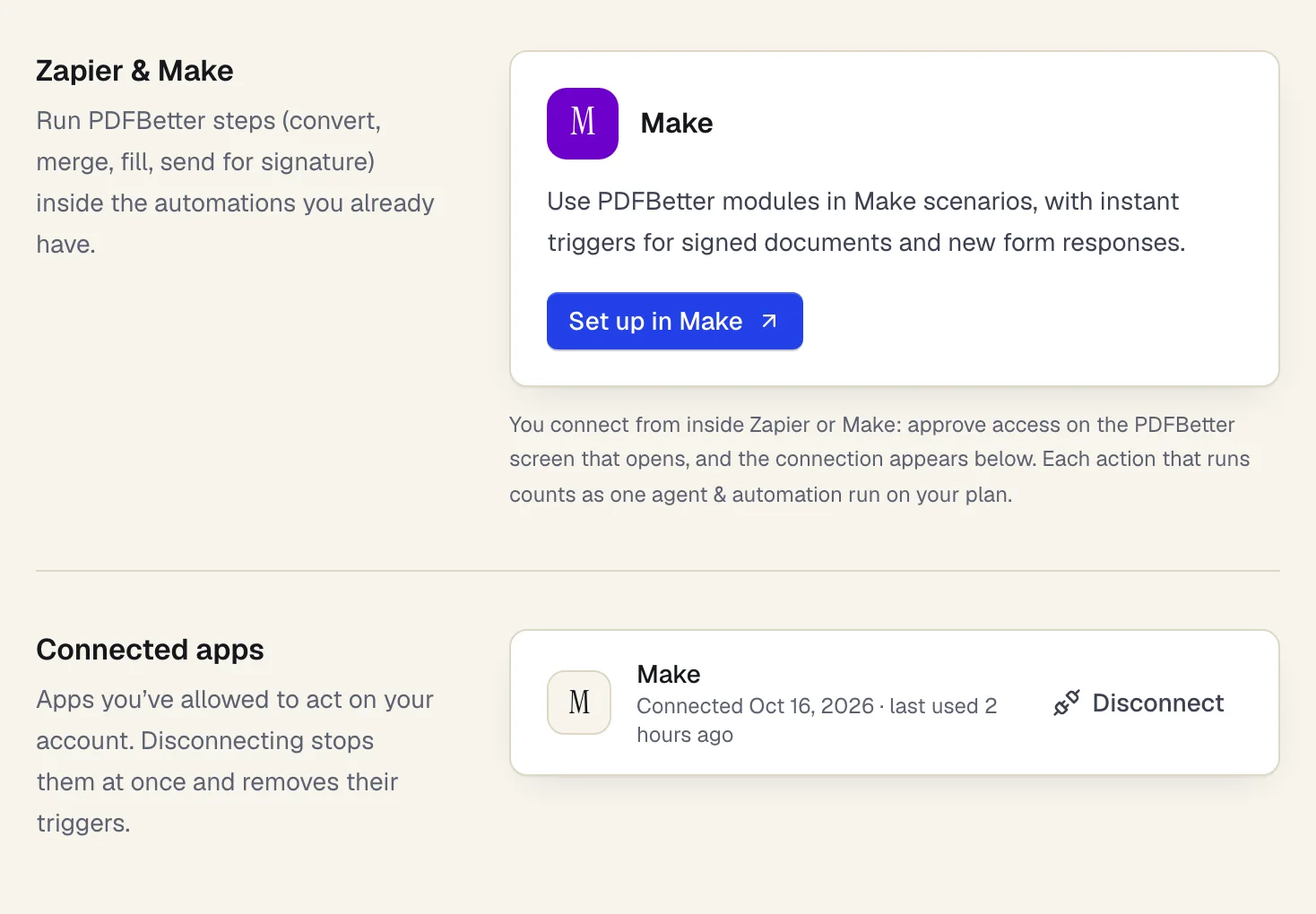
- One button opens PDFBetter in Make
- You approve access once, on a PDFBetter screen
- Disconnect stops every scenario at once
Settings → Integrations after connecting Make. Sample content; names are fictional.
Instant triggers
Instant triggers
Watch completed signature requests, Watch recipient signatures, Watch new form responses and Watch finished workflow runs.
PDFBetter notifies Make the moment the event happens, so scenarios start right away instead of on a polling schedule. Each event carries an ID Make uses to skip duplicates.
Modules
Modules
Documents: Upload PDF (a file from an earlier module or a link), Fill PDF form, Download PDF, Search documents and List form fields.
Pages and files: Merge PDFs, Split PDF, Compress PDF, Convert PDF and Make PDF searchable (OCR).
Signatures: Send PDF for signature, Get a signature request and Download signed PDF (the signed copy, the audit certificate or the original).
AI: Summarize PDF, Ask a question about a PDF and Extract data from PDF, using a saved schema or fields you list in the module.
Make an API call reaches the rest of PDFBetter's automation API with the same connection.
Scenarios to start with
Scenarios to start with
Watch completed signature requests → Download signed PDF → Google Drive Upload a file → Slack Create a message.
Watch new form responses → Fill PDF form → Send PDF for signature to the person who answered.
Gmail Watch emails → Extract data from PDF on the attachment → Google Sheets Add a row.
Watch finished workflow runs → Download PDF → email the result to a client.
Files and long jobs
Files and long jobs
A Document source field on each module picks a document already in PDFBetter, a file from a previous module, or a public link. Merge PDFs takes up to 20 files at once.
File results come back as file name and data, so they map straight into Google Drive, Gmail or Dropbox modules. Turn off Download result file to get only the link.
Conversion, compression and OCR are awaited inside the module for about four minutes. A job still running after that returns the status Still running instead of failing the scenario.
Pricing
Pricing
Make works on every PDFBetter account plan, including Free. Each PDFBetter module that runs counts as one agent & automation run; triggers, status checks and failed runs don't count.
Agent & automation runs per month: 200 on Free, 5,000 on Pro, unlimited (fair use) on Business.
The work a module does uses the same allowances as the app: downloads, conversions, OCR pages, AI credits and signature requests. Make's own operations are counted by your Make plan.
Plans
What each plan includes
| Free | Pro | Business | |
|---|---|---|---|
| Connect AI agents (MCP) | Included | Included | Included |
| Agent & automation runs per month | 200 | 5,000 | Unlimited |
| Signature requests per month | 3 | Unlimited | Unlimited |
| Edited-document downloads per month | 3 | Unlimited | Unlimited |
| Office & advanced conversions per month | 10 | 500 | 2,000 |
| OCR pages per month | 20 | 1,000 | 5,000 |
| AI credits per month | 20 | 500 | 2,000 |
AI actions cost a set number of credits each; the full list is on the pricing page. Compare all plans
What it doesn't do
- Until PDFBetter appears in Make's public app list, start from Settings → Integrations, which links to the app.
- Download links in a module's output expire after about 10 minutes. Download or pass the file on in the same scenario run.
- Modules fill fields, rearrange pages, convert and run AI. Editing page text or images and applying redaction are done in the editor.
- AI modules read the document's text layer. Scanned pages need Make PDF searchable (OCR) first.
PDFBetter for Make: questions people ask
Do I need a paid PDFBetter plan to use Make?
No. Any PDFBetter account can connect Make, and each plan includes a monthly number of agent & automation runs. Guests need to create a free account first.
Do the Watch modules need PDFBetter's Business webhooks?
No. The instant triggers work on every plan with an account. Only the webhooks you add yourself in API keys settings need Business.
Can a module use a file from another module?
Yes. Choose File from a previous module as the Document source and map the file name and data, for example from Gmail, Google Drive or an HTTP module.
What happens when a conversion takes longer than the module waits?
The module returns with the status Still running and the details of the status check, and the job keeps going in PDFBetter. Status checks don't count as runs.
How do I disconnect Make?
In Settings → Integrations, under Connected apps, click Disconnect next to Make, or delete the connection in Make. Access stops right away and its triggers are removed.