
Integration
AvailableOpen Drive files in PDFBetter and file finished PDFs back automatically
To use Google Drive with PDFBetter, go to Settings → Integrations, click Connect Google Drive and choose a folder. You can then import up to 20 files at once from Drive (PDFs as they are, Google Docs, Sheets and Slides as PDFs, Word, Excel and PowerPoint converted), save any PDF to your Drive folder from the editor or your documents list, and have PDFBetter file each signed PDF and its certificate of completion automatically when the last person signs. PDFBetter only sees the files you pick and the files it saves.
Connect and choose a folder
The connection uses Google's own sign-in. PDFBetter asks only for access to files you pick and files it creates, not your whole Drive.
Connect
In Settings → Integrations, click Connect Google Drive, choose your Google account and keep the Google Drive permission ticked.
Pick a folder
Click Choose folder and pick where PDFs should go, or leave it on My Drive.
Turn on automatic saving
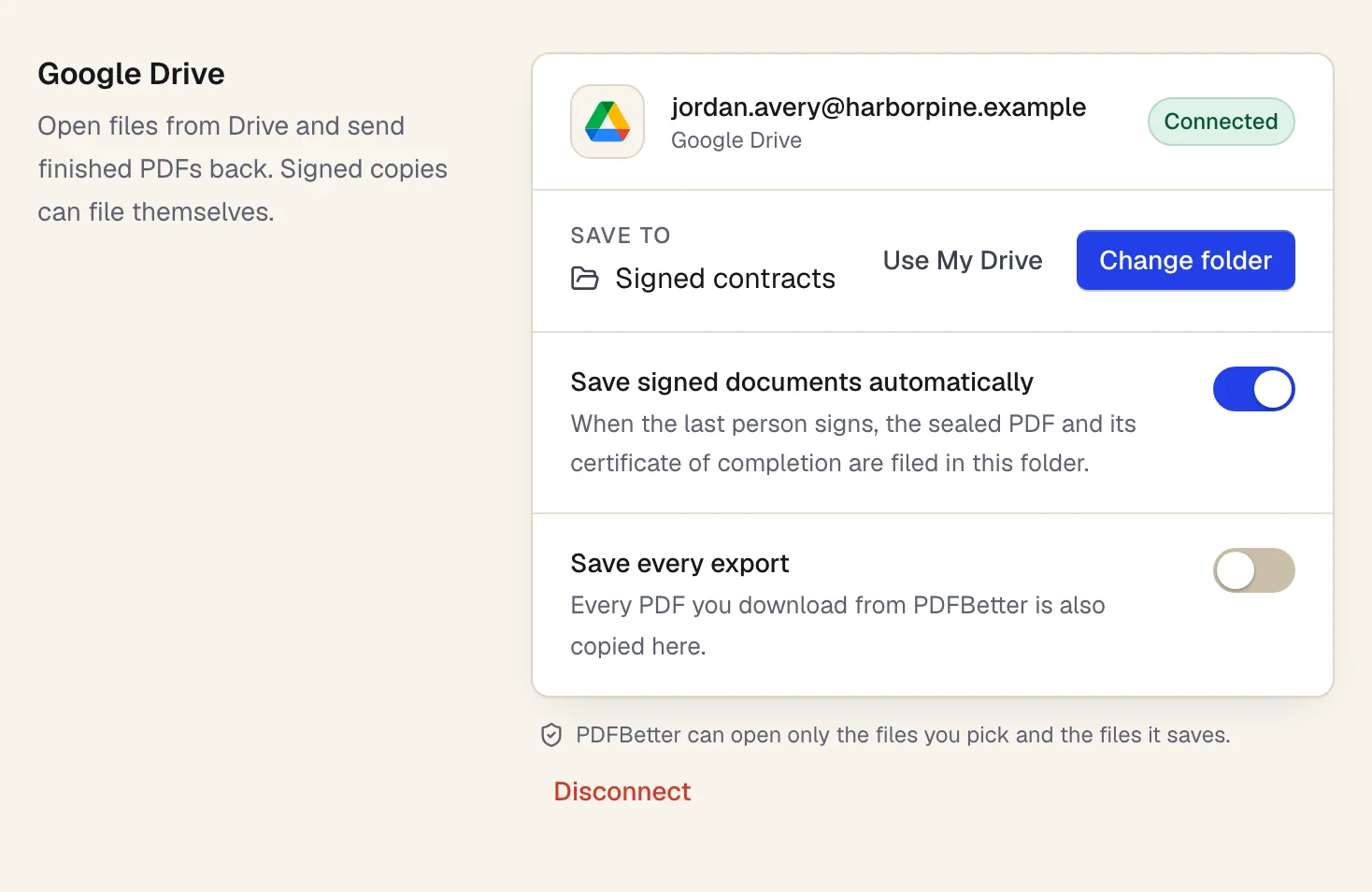
Save signed documents automatically files every completed signature request. Save every export copies each PDF you download into the folder too.
- Pick the folder once
- Signed copies file themselves, with their certificate
- PDFBetter only opens files you pick or it saves
Settings → Integrations with Google Drive connected. Sample content; names are fictional.
Import from Drive
Import from Drive
On the dashboard, click New → Import from Google Drive and pick up to 20 files. Each one becomes a document you can edit, fill, sign or send for signature.
PDFs come in unchanged. Google Docs, Sheets and Slides arrive as PDFs. Word, Excel and PowerPoint files are converted like an upload.
Save to Drive
Save to Drive
In the editor, Done → Save to Google Drive saves the same PDF a download would give you. The download dialog's Save to Drive keeps the options you chose, such as flattened or fillable and with or without comments.
From your documents list, Save to Google Drive saves the signed copy when there is one. When the save finishes, Open in Drive takes you to the file.
Signed documents filed for you
Signed documents filed for you
With automatic saving on, the sealed PDF and its certificate of completion land in your folder as soon as the last signer finishes, with no download step.
If Google stops accepting the connection, the folder is moved or Drive is full, Settings → Integrations says what happened and how to fix it, and the next save tries again.
Pricing
Pricing
Google Drive works on every PDFBetter account plan. Imports count like uploads and follow your plan's file size limit. A save to Drive is a PDF export, so it counts toward your monthly downloads exactly like a download.
Plans
What each plan includes
| Free | Pro | Business | |
|---|---|---|---|
| Edited-document downloads per month | 3 | Unlimited | Unlimited |
What it doesn't do
- There is no two-way sync. Importing makes a copy in PDFBetter and each save adds a PDF to Drive; later edits in one place don't update the other.
- PDFBetter can't browse your Drive. It only sees the files you pick in Google's file picker and the files it saves.
- Files over your plan's file size limit are skipped on import, with the reason shown.
- Saving to Drive uses your monthly downloads, like any PDF export.
PDFBetter for Google Drive: questions people ask
Can PDFBetter see everything in my Google Drive?
No. It uses Google's narrowest Drive permission: only files you pick in the file picker and files PDFBetter saves. The rest of your Drive stays private.
Can I edit a Google Doc in PDFBetter?
Yes, as a PDF. Importing a Google Doc, Sheet or Slides file brings it in as a PDF you can edit, fill, sign or send for signature, then save back to Drive as a PDF.
Where do signed documents go?
To the folder you chose in Settings → Integrations, or My Drive if you didn't choose one, once Save signed documents automatically is on.
How do I disconnect Google Drive?
In Settings → Integrations, click Disconnect under Google Drive. PDFBetter loses access and stops saving there; files already in Drive stay where they are.